When you type a search into Safari’s address bar on an iPhone, Safari sends it to your chosen default search engine. Google is the default in many regions, but it may have been changed to Bing, Yahoo, DuckDuckGo, or Ecosia by a setting, a profile, or during setup. This guide shows how to make Google your default search engine in Safari on any iPhone, from the iPhone 7 to the latest models, and how to handle Private Browsing, iPad, and Mac too.
Quick Answer
Open Settings > Apps > Safari > Search Engine and tap Google. On iOS 17 and earlier, go to Settings > Safari > Search Engine. The change applies right away. Searches from the Safari address bar now go to Google.
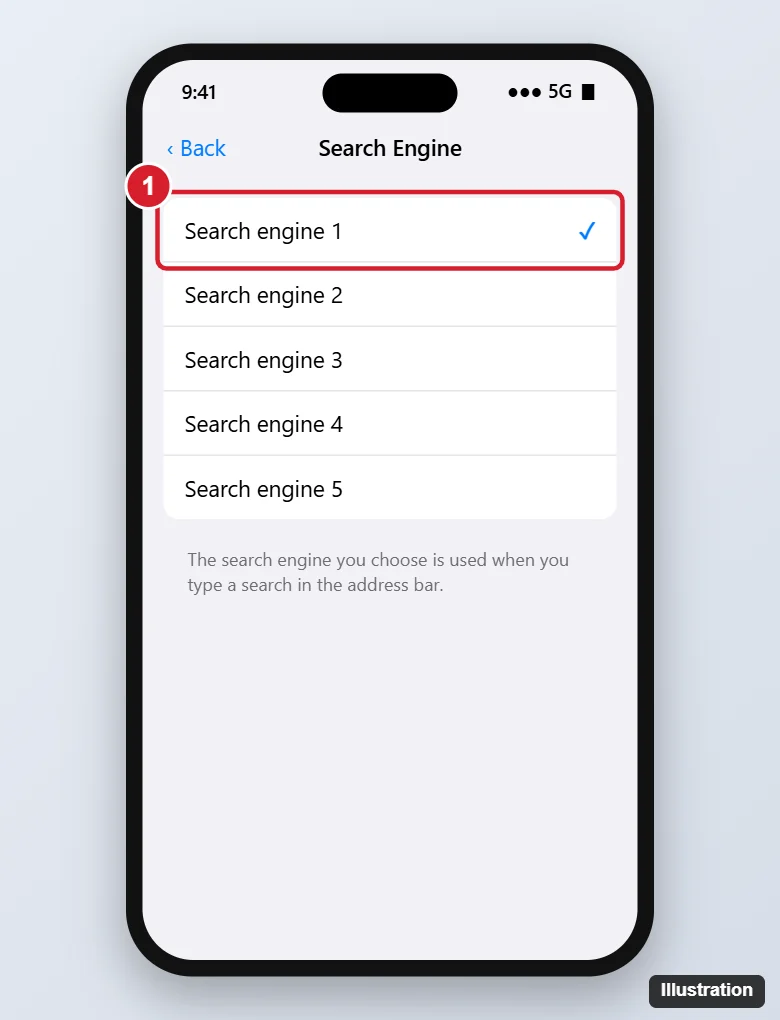
How to Make Google the Default in Safari
- Open the Settings app.
- Scroll down and tap Apps, then Safari. On older iOS versions, tap Safari directly.
- Under Search, tap Search Engine.
- Tap Google. A check mark appears.
- Go back. Open Safari, type a search in the address bar, and it goes to Google.
Set Google for Private Browsing Too
Since iOS 17, Safari can use a different search engine in Private Browsing. In Settings > Apps > Safari, tap Private Search Engine and choose Google, or Use Default Search Engine.
Other Search Settings Worth Checking
| Setting (in Safari settings) | What it does |
|---|---|
| Search Engine Suggestions | Shows Google’s suggestions as you type |
| Safari Suggestions | Shows suggested news, articles, and websites |
| Quick Website Search | Lets you search within a site by typing its name first |
| Preload Top Hit | Starts loading the top result for faster browsing |
iPad and Mac
- iPad: the same steps: Settings > Apps > Safari > Search Engine > Google.
- Mac: open Safari and choose Safari > Settings (or Preferences) > Search, then set Search engine to Google.
Prefer Google’s Own Apps?
You can also install the Google app or Chrome from the App Store. To make Chrome your default browser, so links open in Chrome instead of Safari, go to Settings > Apps > Chrome > Default Browser App and choose Chrome.
Using Chrome instead? See changing the search engine in the Chrome iPhone app.
Troubleshooting
The search engine keeps changing back
Check for configuration profiles in Settings > General > VPN & Device Management. Unfamiliar profiles can force settings, so remove any you don’t recognize. Also check Safari extensions (Settings > Apps > Safari > Extensions) for ones that redirect searches.
Google isn’t in the list
The list depends on your region. Google is available in nearly every region. If it’s missing, update iOS in Settings > General > Software Update.
The setting is greyed out
Screen Time or a management profile may be restricting changes. Check Settings > Screen Time > Content & Privacy Restrictions, or ask your organization if it’s a work phone.
Frequently Asked Questions
Does changing the search engine delete my history or bookmarks?
No. Only where your searches are sent changes.
Can I use a search engine that isn’t listed?
Not as Safari’s built-in default. You can bookmark another engine’s website or use its app.
Is Google the default on new iPhones?
In many regions, yes. Some regions show a choice screen during setup, so check the setting if searches go elsewhere.
Summary
- Go to Settings > Apps > Safari > Search Engine.
- Tap Google.
- Set Private Search Engine too if you use Private Browsing.
- Remove unknown profiles or extensions if it keeps changing.

Kermit Matthews is a freelance writer based in Philadelphia, Pennsylvania with more than a decade of experience writing technology guides. He has a Bachelor’s and Master’s degree in Computer Science and has spent much of his professional career in IT management.
He specializes in writing content about iPhones, Android devices, Microsoft Office, and many other popular applications and devices.