Want to know if Safari is already watching for fake websites? Open Settings, tap Apps, tap Safari, and look at the Fraudulent Website Warning switch. If it is green, the protection is on. On iOS 17 and earlier, Safari sits directly in the Settings list instead of under Apps.
With the switch on, Safari checks the sites you open against safe browsing data from Google and Apple and shows a full-page warning when a site is suspected of phishing.
Turn on Fraudulent Website Warning in current iOS
These steps apply to iOS 18 and later, where Apple moved app settings into a single Apps list. Nothing extra needs to be installed.
- Open the Settings app from the Home Screen or App Library.

- Scroll to the bottom of the main Settings screen and tap Apps. You get an alphabetical list of your apps.
- Tap Safari.

- Scroll down the Safari settings to the group of privacy switches, which also holds Prevent Cross-Site Tracking and Hide IP address.
- Tap the Fraudulent Website Warning switch so that it slides to the right and turns green.
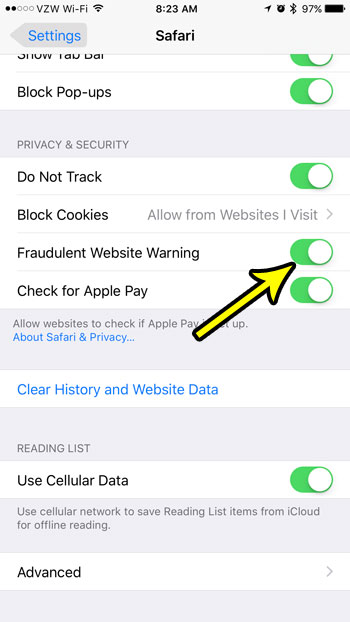
The change takes effect as soon as you flip the switch. To turn the warning off later, go back to the same switch and tap it again so it turns gray.
If you can’t find the switch at all, the cause may be your region: Apple’s iPhone User Guide notes that the option is not available in all countries or regions.
Older iPhones and a Mac
iOS 17 and earlier
Before iOS 18, every app had its own row in the main Settings list. Open Settings, scroll down and tap Safari, then turn on Fraudulent Website Warning. Very old versions of iOS showed it under a “Privacy & Security” heading on that screen; the switch itself works the same way.
Safari on a Mac
If you also browse in Safari on a Mac, it has its own setting, separate from the iPhone switch. Open Safari, choose Safari > Settings (called Preferences on older macOS versions), click the Security tab, and turn on the setting to warn when visiting a fraudulent website. The steps for both devices are on Apple’s page about blocking pop-ups and fraudulent website warnings in Safari.
What to do when the red warning page appears
When Safari suspects a page, Safari shows a page titled Deceptive Website Warning. Apple describes these sites as ones that may try to get you to install software or share personal or financial information, and some imitate well-known companies, Apple included.
Here is the safe way to respond:
- Tap Go Back. This is the choice Apple recommends to avoid the site.
- Think about how you got there. If the link came from a text, email, social post or a pop-up, don’t tap it again. Open the company’s app or type its real address yourself instead.
- If you had already typed a password on a page that looked wrong, change that password from the real site or app, and turn on two-factor authentication for that account if it offers it.
- If a card number or bank login was entered, contact the bank or card issuer through the number on your card or statement.
Apple says that if you understand the risks, you can choose to visit the unsafe website anyway. That is meant for rare cases, such as a site you know well that was flagged by mistake. Apple doesn’t document a per-site exception list for this warning.
If you are confident a site was flagged in error (for example, your own small business site), Apple lets you report a mistaken warning at websitereview.apple.com. If a page or message pretends to be Apple, Apple asks that you forward it to [email protected]. Apple also states it will never ask for your Apple Account password, verification codes or device passcode, which is a quick test for many Apple-themed scams. More detail is on Apple’s Deceptive Website Warning support page.
How the check works and what Apple can see
Turning on the warning means Safari compares the sites you visit with lists of known fraudulent sites. According to Apple’s Safari privacy overview, those checks use Google Safe Browsing and Apple. If your iPhone’s region is set to China mainland or Hong Kong (Settings > General > Language & Region), Safari may also use Tencent Safe Browsing.
For privacy, Apple says Safari sends information calculated from the website address rather than the address itself, and that the actual website address is never shared with the safe browsing provider. Apple also notes that Google, and Tencent where it is used, may log your IP address as part of the check. Apple’s full wording is in the Safari and privacy statement.
The trade-off is small for most people: a privacy-friendly lookup in exchange for a warning before a known phishing page loads. Someone who prefers that no safe browsing provider be contacted at all can leave the switch off, but they lose the warning page described above.
Gaps the warning can’t cover
The warning is one layer, not a guarantee. A site only triggers it once it is on a safe browsing list, so a brand-new scam page can load without any alert. It also cannot judge content inside messages, calls or apps. Keep these limits in mind:
- Other browsers. This switch belongs to Safari. Chrome, Firefox, Edge and other iPhone browsers have their own security settings, so check each browser you use.
- Links in apps. Some apps open links in their own built-in viewer, and Apple doesn’t say whether this switch applies there. If a link seems off, don’t open it at all.
- Scam texts and calls. A message asking you to “verify” an account or pay a fee is a risk even if you never tap a link. Contact the company through a number or app you already trust.
- Outdated software. Apple recommends keeping your software up to date. Safari updates arrive with iOS, as explained in how Safari gets updated on iPhone and iPad.
If the switch is green but you never seem to see a warning, that is normal: most sites people visit are not flagged. Some VPN apps, content blockers or custom DNS settings may filter sites in their own way, so if you use one, check its own documentation as well.
Other Safari protections on the same screen
While you are in Settings > Apps > Safari, a few nearby switches are worth a look:
| Setting | What it does | Suggested setting |
|---|---|---|
| Block Pop-ups | Stops most sites from opening new windows on their own | On, with exceptions handled as needed |
| Prevent Cross-Site Tracking | Limits third-party cookies and data that follow you between sites | On (Apple’s default) |
| Hide IP address | Limits which trackers or websites can see your IP address | Your choice; options vary by iOS version |
| Fraudulent Website Warning | Shows the Deceptive Website Warning page for suspected phishing sites | On |
Pop-up blocking sometimes breaks a login or payment window you actually need. If that happens, see how to allow pop-ups on iPhone in Safari and other browsers, or the shorter walkthrough on allowing popups in Safari. Turn blocking back on when you are done. Safari’s JavaScript setting is another switch in Safari’s settings, and clearing site data is covered in deleting cookies on iPhone.
For a child’s iPhone, the warning is a useful start, but Screen Time can go further by blocking specific sites outright. That is covered in how to block a website on an iPhone.
Safari safety warning: what people ask
Is Fraudulent Website Warning on by default?
Apple’s documentation doesn’t state the default, so the only reliable answer is to check the switch. It takes a few seconds and tells you exactly where you stand, including on a phone that was set up by someone else or restored from an old backup.
Does a warning prove the site is a scam?
No. It means the site appears on a safe browsing list. Lists can contain mistakes, which is why Apple runs a review form for site owners. Still, treat any flagged site as unsafe unless you have a strong reason to believe otherwise.
Will turning it off speed up Safari?
Apple doesn’t describe any speed impact; Safari sends information calculated from the address rather than the address itself. There is no documented performance reason to switch it off.
Does the setting carry over to my iPad?
Each device has its own switch. On an iPad, use the same Settings > Apps > Safari path (or Settings > Safari on older iPadOS versions) and turn it on there too.
Once the switch is green, the next useful step is keeping iOS current so Safari gets its latest security fixes. And if your phone is too full to install an update, these ways to free up iPhone storage can make room.

Kermit Matthews runs Live2Tech from just outside Philadelphia. He is an IT specialist with over 20 years of experience, from a university help desk to small-business IT, IT management and his own consulting practice, and has written tech guides full time since 2020. Steps are checked against the current software on a real device or the maker’s official documentation. More about Kermit.