This guide started with iOS 9, but the emoji keyboard works the same way on every iPhone since then: once the Emoji keyboard is added, you tap the smiley or globe key in Messages to switch to it. Newer iOS versions also add emoji search and suggestions as you type.
Quick Answer
In Messages, tap the smiley face or globe key at the bottom-left of the keyboard, pick an emoji, and tap Send. If you do not see the key, add the Emoji keyboard in Settings, General, Keyboard, Keyboards.
How to Use Emojis in Text Messages on iPhone
- Open Messages and start or open a conversation.
- Tap the smiley face key below the letters. On older iOS versions, tap the globe key until the emoji keyboard appears.
- Swipe through the categories or use the search box to find an emoji, then tap it to insert it.
- Tap the ABC key to return to letters, and tap Send.
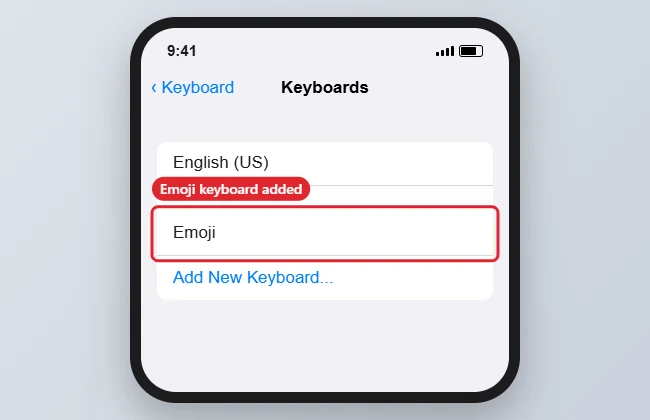
- If the key is missing, open Settings, General, Keyboard, Keyboards, tap Add New Keyboard, and choose Emoji.
Emoji Tips
| Feature | How to use it |
|---|---|
| Emoji search | Type in the search box at the top of the emoji keyboard |
| Predictive emoji | Tap a suggested emoji above the keyboard as you type |
| Skin tones | Press and hold an emoji that supports tones |
| Frequently used | The first category shows your recent emojis |
Troubleshooting
- Emojis appear as boxes for the recipient: their phone may be on an older system without that emoji.
- No emoji suggestions: turn on Predictive in Settings, General, Keyboard.
- To add another language as well, see how to add a Spanish keyboard on iPhone.
- Prefer talking to typing? Read how to enable dictation on an iPhone.
Frequently Asked Questions
Can I use emojis on iOS 9 today?
The steps are the same, but an iPhone stuck on iOS 9 cannot show newer emojis and misses many security updates.
How do I remove the emoji key?
Delete the Emoji keyboard in Settings, General, Keyboard, Keyboards by swiping left on it.
Can I send big emojis?
Yes. Sending one to three emojis on their own shows them larger in Messages.
Summary
- Open Messages.
- Tap the smiley or globe key.
- Choose an emoji and tap Send.
- Add the Emoji keyboard in Settings if needed.

Kermit Matthews is a freelance writer based in Philadelphia, Pennsylvania with more than a decade of experience writing technology guides. He has a Bachelor’s and Master’s degree in Computer Science and has spent much of his professional career in IT management.
He specializes in writing content about iPhones, Android devices, Microsoft Office, and many other popular applications and devices.