Adding a Spanish keyboard to your iPhone 7 gives you Spanish autocorrect, predictive text, and easy access to characters like ñ, á, ¿, and ¡. It takes about 30 seconds, and you can switch between English and Spanish with one tap. The steps below are for the iPhone 7 (which runs up to iOS 15), and they’re nearly identical on newer iPhones.
Quick Answer
Go to Settings > General > Keyboard > Keyboards > Add New Keyboard and choose Spanish (Mexico), Spanish (Latin America), or Spanish (Spain). Then tap the globe key on the keyboard to switch to it.
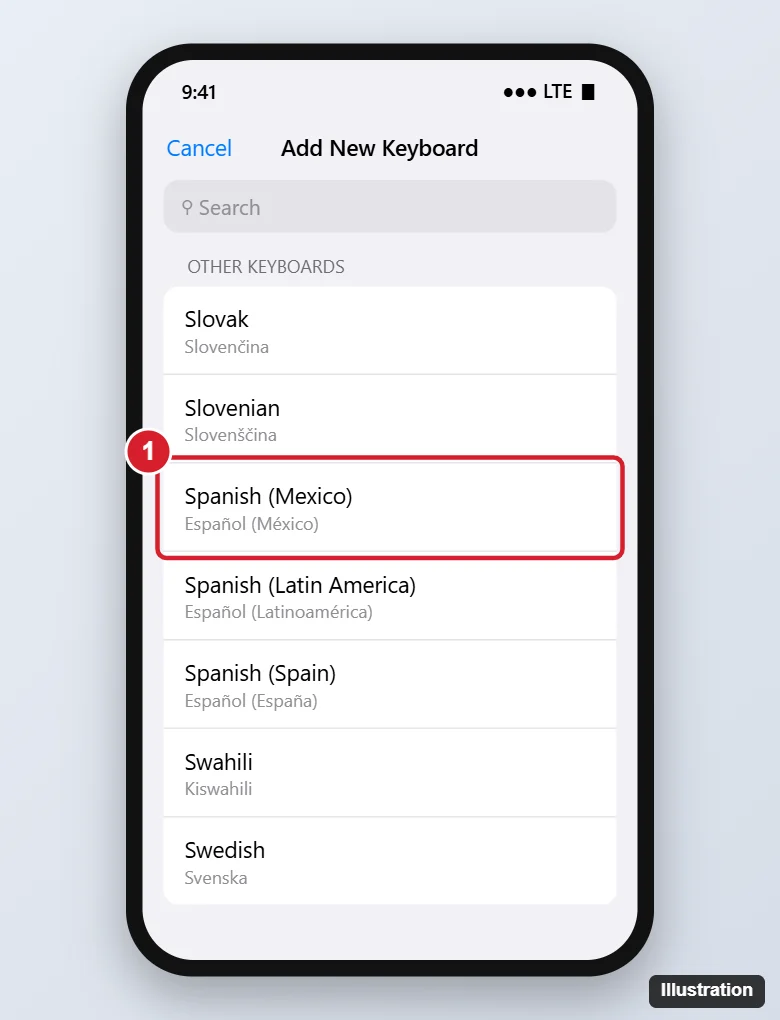
How to Add the Spanish Keyboard
- Open Settings.
- Tap General, then Keyboard.
- Tap Keyboards at the top.
- Tap Add New Keyboard.
- Scroll to Other Keyboards (or search “Spanish”) and tap the version you want. Choose the layout if asked (QWERTY is standard).
The Spanish keyboard now appears in your list of keyboards.
Which Spanish should you choose?
| Option | Best for |
|---|---|
| Spanish (Mexico) | Mexican Spanish spelling and word suggestions |
| Spanish (Latin America) | General Latin American Spanish |
| Spanish (Spain) | Spanish used in Spain (for example, “vosotros” forms and Spain-specific words) |
All three include the ñ key and accent options. The differences are in autocorrect and predictions. You can add more than one.
How to Switch to the Spanish Keyboard
- Open any app where you can type, such as Messages or Notes.
- Tap the globe key (bottom-left, next to the space bar) to cycle through keyboards. The space bar briefly shows the keyboard’s name, such as “español.”
- Or touch and hold the globe key to pick a keyboard from a list.
If you only have one extra keyboard besides emoji, the globe key may look like a smiley face; touch and hold it to choose.
Typing Spanish Characters
- ñ: tap the ñ key on the Spanish keyboard, or touch and hold n on any keyboard.
- Accents (á, é, í, ó, ú, ü): touch and hold the vowel, then slide to the accented letter. Autocorrect also adds many accents automatically on the Spanish keyboard.
- ¿ and ¡: tap 123, then touch and hold ? or !.
Holding a letter works even on the English keyboard, so you don’t need the Spanish keyboard just for an occasional accent.
Change the Order or Remove a Keyboard
- Go to Settings > General > Keyboard > Keyboards.
- Tap Edit.
- Drag the handle to reorder, or tap the red minus to remove a keyboard. Tap Done.
Newer iPhones: Type Both Languages on One Keyboard
On newer iPhones running recent iOS versions, multilingual typing can suggest words in more than one language on the same keyboard, so you may not need to switch between English and Spanish as often. Add both keyboards and it works automatically where supported. The iPhone 7 can’t update past iOS 15, so it uses the globe key method.
You can add the Emoji keyboard the same way; see how to use emojis in text messages.
Frequently Asked Questions
Will adding a Spanish keyboard change my iPhone’s language?
No. Menus stay in your current language. To change the whole iPhone, go to Settings > General > Language & Region.
Why does autocorrect keep changing my English words?
You’re probably still on the Spanish keyboard. Tap the globe key to switch back to English.
Does dictation work in Spanish?
Yes. Switch to the Spanish keyboard and tap the microphone key; dictation uses the current keyboard’s language.
Summary
- Open Settings > General > Keyboard > Keyboards > Add New Keyboard.
- Choose a Spanish keyboard.
- Tap the globe key to switch while typing.
- Hold letters to type accents and ñ.

Kermit Matthews is a freelance writer based in Philadelphia, Pennsylvania with more than a decade of experience writing technology guides. He has a Bachelor’s and Master’s degree in Computer Science and has spent much of his professional career in IT management.
He specializes in writing content about iPhones, Android devices, Microsoft Office, and many other popular applications and devices.