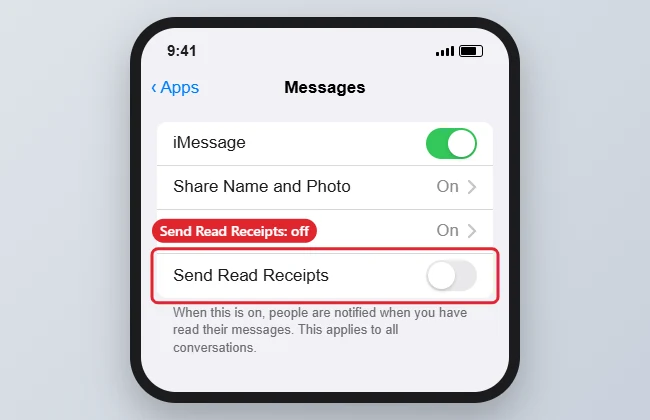
To stop people from seeing when you’ve read their messages on an iPhone, turn off read receipts: open Settings > Apps > Messages (Settings > Messages on older iOS) and turn off Send Read Receipts. You can also turn them on or off for one person: open the conversation, tap the person’s name at the top, and toggle Send Read Receipts. Read receipts only apply to iMessage and RCS chats; regular SMS texts never show them.
Quick Answer
Settings > Apps > Messages > turn off Send Read Receipts.
Turn Off Read Receipts for Everyone
- Open Settings.
- Tap Apps > Messages.
- Turn off Send Read Receipts.
Change It for One Conversation
- Open the conversation in Messages.
- Tap the person’s name or photo at the top.
- Toggle Send Read Receipts. This overrides the main setting for that person.
What People Still See
| Indicator | With read receipts off |
|---|---|
| “Read” with a time | Hidden |
| “Delivered” | Still shown for iMessage |
| Typing indicator | Still shown while you type |
| Group chats | Read status isn’t shown in groups either way |
Troubleshooting
- Someone still sees “Read”: Check the per-conversation toggle for that person.
- Setting missing: iMessage may be off; read receipts need iMessage or RCS.
- Blue vs. green bubbles? See why messages are blue or green.
- Messages showing on your iPad too? See unlinking iPhone and iPad messages.
Frequently Asked Questions
Can I see others’ read receipts if mine are off?
Yes. Their setting controls what you see.
Does this work for green-bubble texts?
Regular SMS texts never send read receipts. RCS chats can, and follow the same setting.
Summary
- Settings > Apps > Messages.
- Turn off Send Read Receipts.
- Override for individual people in each chat.
- Typing indicators still show.

Kermit Matthews is a freelance writer based in Philadelphia, Pennsylvania with more than a decade of experience writing technology guides. He has a Bachelor’s and Master’s degree in Computer Science and has spent much of his professional career in IT management.
He specializes in writing content about iPhones, Android devices, Microsoft Office, and many other popular applications and devices.