Your Apple Watch sends read receipts in Messages based on your iPhone’s settings unless you tell it otherwise. That means if people see “Read” under their messages after you glance at your wrist, you can turn it off in the Watch app, in iPhone settings, or for specific conversations. This guide covers each option and how read receipts differ for iMessage, RCS and SMS.
Quick Answer
On your iPhone, open the Watch app, tap Messages, choose Custom, and turn off Send Read Receipts. Or turn off Send Read Receipts in the iPhone’s Messages settings, which the watch mirrors by default.
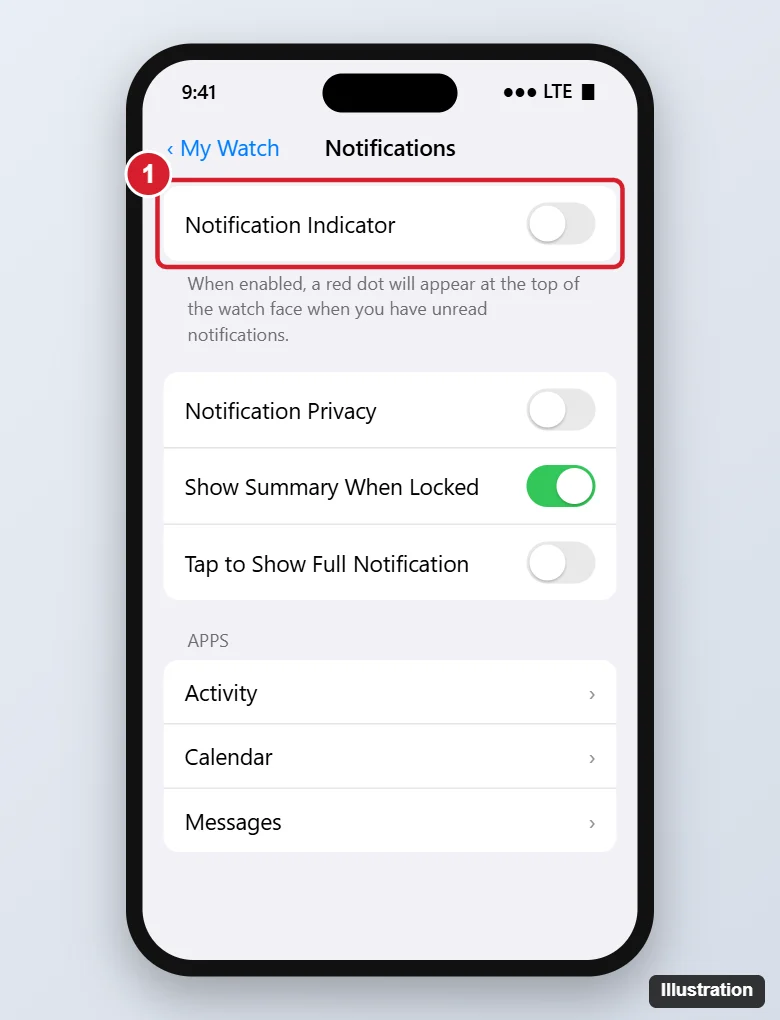
Method 1: Turn Off Read Receipts for the Watch Only
- Open the Watch app on your iPhone and tap the My Watch tab.
- Tap Messages.
- Choose Custom instead of Mirror my iPhone.
- Turn off Send Read Receipts.
Now your iPhone can keep sending read receipts while the watch doesn’t. Note that when you read a message on either device, it’s marked read on both.
Method 2: Turn Off Read Receipts Everywhere
- On your iPhone, open Settings > Apps > Messages (or Settings > Messages on older iOS).
- Turn off Send Read Receipts.
With the watch set to Mirror my iPhone, this covers both devices.
Method 3: Per Conversation
- On your iPhone, open the conversation in Messages.
- Tap the person’s name or photo at the top.
- Turn Send Read Receipts on or off for just that person.
This overrides the global setting for that conversation and applies when you read their messages on your watch too.
Which Messages Show Read Receipts?
| Message type | Read receipts? |
|---|---|
| iMessage (blue bubbles) | Yes, controlled by these settings |
| RCS (with Android users, iOS 18 and later) | Supported where carriers enable it; follows the Send Read Receipts setting |
| SMS/MMS (green bubbles) | No |
| Third-party apps (WhatsApp and others) | Set inside each app |
Other Watch Messages Settings
- Notifications: in the Watch app > Notifications > Messages, choose Mirror my iPhone or custom alerts, or turn off notification previews.
- Wrist Detection: keep it on so notifications go to the watch only when you’re wearing it.
- Repeat alerts: see how to repeat text message alerts on Apple Watch.
Settings can differ by release; here’s how to check the watchOS version on Apple Watch.
Related: see if someone read your text on an iPhone.
Frequently Asked Questions
Can I turn this off on the watch itself?
Settings for Messages are managed through the Watch app on your iPhone. Some watchOS versions show limited options on the watch under Settings > Apps > Messages.
Does raising my wrist mark a message as read?
Viewing the full message on the watch marks it as read. A brief notification glance may not, depending on whether you open it.
Will the sender know I turned read receipts off?
No. They’ll simply see “Delivered” instead of “Read.”
Summary
- Watch app > Messages > Custom > turn off Send Read Receipts for the watch only.
- Or turn it off in iPhone Settings > Messages for both.
- Use per-conversation settings for exceptions.
- SMS never shows read receipts.

Kermit Matthews is a freelance writer based in Philadelphia, Pennsylvania with more than a decade of experience writing technology guides. He has a Bachelor’s and Master’s degree in Computer Science and has spent much of his professional career in IT management.
He specializes in writing content about iPhones, Android devices, Microsoft Office, and many other popular applications and devices.