Getting the notification settings correct on your iPhone is something that can take a lot of time and tweaking to get right. You may have previously elected to shut off all of your text message notifications, but this can create an issue where you are constantly checking the app for new ones.
If you have decided that you would like to receive most of your text message notifications, but mute them from specific conversations, then you might be wondering if that’s possible. The steps below show where to apply a setting that will hide all of the alerts for a text message conversation, which is what causes the crescent moon to appear to the left of a conversation in the Messages app.
How to Add or Remove the Crescent Moon Next to a Text Message Conversation in iOS 11
These steps were performed on an iPhone 7 Plus, in iOS 11.4. They are going to show you how to hide alerts for a specific text message conversation. You can also use these same steps to start showing alerts for a text message conversation where they are currently hidden. When you have hidden the alerts for a text message conversation you won’t hear any sounds or see any alerts or banners to let you know that there is a new message in the conversation.
The steps are really similar in iOS 12, but they are slightly different. Click here to go to the section further down the page that shows the steps for iOS 12.
Step 1: Open the Messages app.
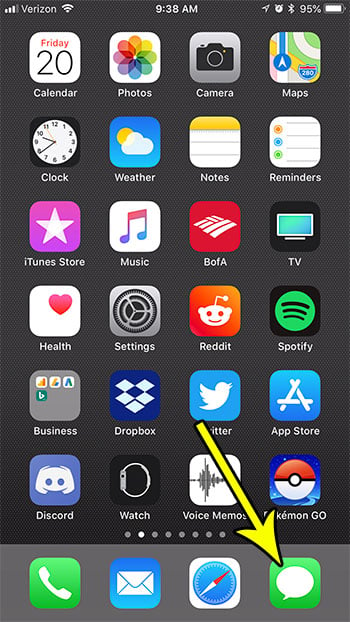
Step 2: Select the text message conversation with the crescent moon to the left of it, or select the conversation for which you want to hide alerts.

Step 3: Tap the i button at the top-right corner of the screen.

Step 4: Tap the button to the right of Hide Alerts to adjust the setting. I have alerts hidden in the picture below, which displays the crescent moon next to the conversation.

Half Moon Next to iPhone Text Message in iOS 12
The steps in this section were performed on an iPhone 7 Plus in iOS 12.1.4.
Step 1: Open the Messages app.

Step 2: Select the conversation with the crescent moon to the left of it.

Step 3: Tap the contact’s name or phone number at the top of the screen.

Step 4: Tap the info button.

Step 4: Touch the button to the right of Hide Alerts to enable or disable Do Not Disturb for this conversation.

You may have seen this crescent moon icon at the top of your screen before. This happens when you put your entire phone in Do Not Disturb mode, which will shut off all of the notifications on your phone from every app. It can even prevent you from receiving phone calls, if you would prefer to have a break from your phone every now and then.

Kermit Matthews runs Live2Tech from just outside Philadelphia. He is an IT specialist with over 20 years of experience, from a university help desk to small-business IT, IT management and his own consulting practice, and has written tech guides full time since 2020. Steps are checked against the current software on a real device or the maker’s official documentation. More about Kermit.