To switch to landscape orientation in Google Docs, click File > Page setup, select Landscape under Orientation, and click OK. The whole document turns sideways. To make only certain pages landscape, select the text on those pages first and choose Selected content or This section in the Apply to menu.
Below are steps for a computer, the Docs app on iPhone, iPad, and Android, how to make landscape your default, and what to do if you don’t see the option.
How to make a Google Doc landscape on a computer
- Open your document in Google Docs.
- Click File > Page setup.
- Make sure the Pages tab is selected at the top of the box.
- Under Orientation, select Landscape.
- Click OK.
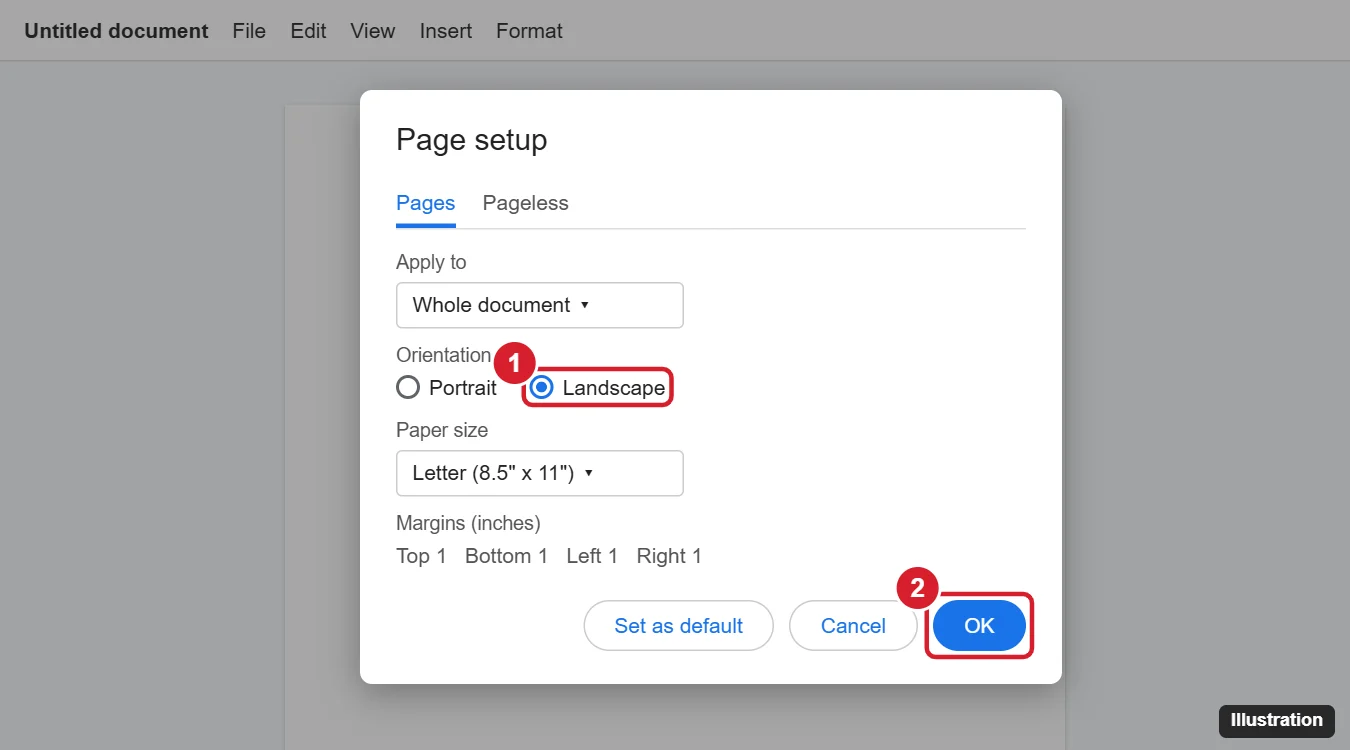
Switching orientation doesn’t delete anything, but it can change where pages break. Check tables, images, and headers afterward, and resize anything that now looks too wide or too narrow.
How to make only one page landscape
Google Docs can mix portrait and landscape pages in the same document.
- Highlight the content you want on the landscape page. For a single table or image, select just that item.
- Click File > Page setup.
- In the Apply to menu, choose Selected content.
- Select Landscape and click OK.
Docs adds section breaks before and after your selection so only those pages rotate. If your document already has section breaks, place your cursor in a section and choose This section or This point forward instead. To see the breaks, click View > Show section breaks.
How to change orientation in the Google Docs app
- Open the document in the Google Docs app.
- Tap the three-dot More icon in the top-right corner.
- Tap Page setup, then Orientation.
- Choose Landscape.
On Android, tap the pencil icon to edit before the menu shows Page setup. The app applies the change to the whole document.
How to make landscape the default for new documents
- Open any document and click File > Page setup.
- Select Landscape.
- Click Set as default, then OK.
New blank documents now start in landscape. Existing documents and templates don’t change.
Why can’t I see the Orientation option?
- Your document is in Pageless format. Pageless documents don’t have pages, so there’s no orientation. In File > Page setup, click the Pages tab to switch back.
- You only have view or comment access. Ask the owner for edit access, or make your own copy with File > Make a copy.
- You’re in Suggesting mode. Switch to Editing using the pencil icon in the top-right corner.
Landscape and printing
When you print or download a landscape document as a PDF, Docs keeps the orientation. If your printer still prints in portrait, check the Layout or Orientation setting in the print dialog and set it to Landscape or Auto.
Frequently asked questions
Can I rotate just one page in Google Docs?
Yes. Select that page’s content, open File > Page setup, choose Selected content under Apply to, and pick Landscape.
Does changing orientation affect margins?
No. Your margins stay the same, but they now apply to the wider page. You can change them in the same Page setup box.
How do I switch back to portrait?
Open File > Page setup, choose Portrait, and click OK.

Kermit Matthews is a freelance writer based in Philadelphia, Pennsylvania with more than a decade of experience writing technology guides. He has a Bachelor’s and Master’s degree in Computer Science and has spent much of his professional career in IT management.
He specializes in writing content about iPhones, Android devices, Microsoft Office, and many other popular applications and devices.