Splitting a column of full names takes one menu in Google Sheets, Data > Split text to columns, as long as the cells to the right are empty. Names with a middle name split into three columns instead of two, which is where a formula does a better job than the menu. Both routes run in Google Sheets on a computer; the sections below show which one fits your list, using sample names only.
What do your names look like?
Check a few rows of your list first. The format decides the route.
| Example in column A | Best route | Result |
|---|---|---|
| Ana Lopez | Split text to columns, or =SPLIT(A2, " ") |
Ana | Lopez |
| Lopez, Ana | =SPLIT(A2, ", ", FALSE), then swap the columns if needed |
Lopez | Ana |
| Ana Maria Lopez | First-name and last-name formulas (below) | Ana | Maria | Lopez |
| Ana de la Cruz | Split by hand or with a formula you check row by row | Depends on the row |
| Ben Carter Jr. | Last-name formula, then review suffixes | Needs a manual check |
If you need to split other kinds of data, such as addresses or product codes, splitting columns in Google Sheets covers the general tool. The rest of this article sticks to names.
Before you split: make room and keep the original
The menu route writes the pieces into the column you selected and the columns to its right. Google’s help page doesn’t say what happens to data already sitting there, so play it safe:
- Insert empty columns to the right of the names, one for each piece you expect (two for first and last, three if middle names appear). Inserting a column in Google Sheets shows how.
- Copy the name column first if you want to keep the full names. Google’s page doesn’t say the full names are kept, so a copy is the easiest way back to them.
Also clean up stray spaces. Google Sheets trims text typed into cells by default, but names pasted from another system can carry extra spaces. At the top, click Data > Data cleanup > Trim whitespace, or use =TRIM(A2), which Google says leaves just a single space between words. Google notes that non-breaking spaces are not trimmed, so if a name still won’t split, that hidden character may be the reason.
Use this when the list is done and you just want separate columns. Google’s page on splitting text and trimming whitespace gives these steps for a computer:
- Open the spreadsheet in Google Sheets and select the cells with the full names (click the column letter to select the whole column).
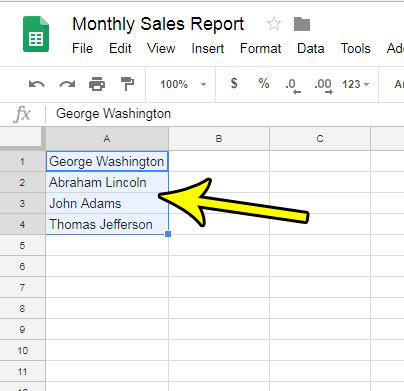
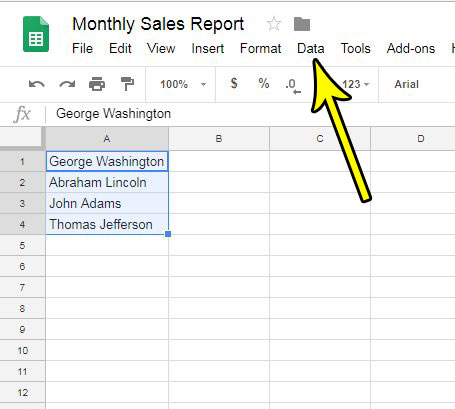
Older version shown; current screens may look different. - At the top, click Data.
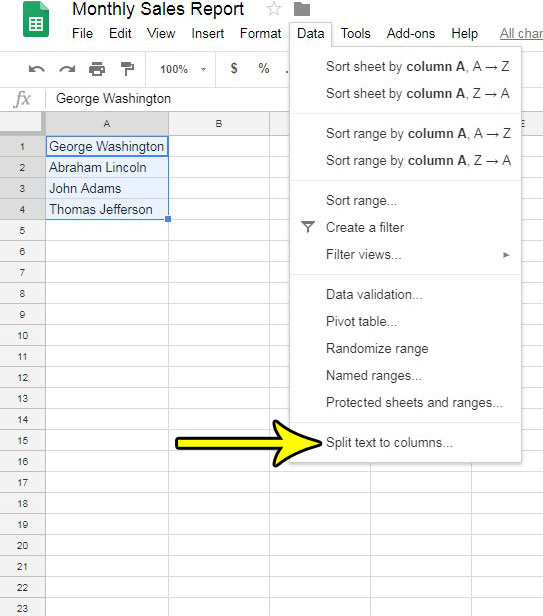
Older version shown; current screens may look different. - Click Split text to columns.
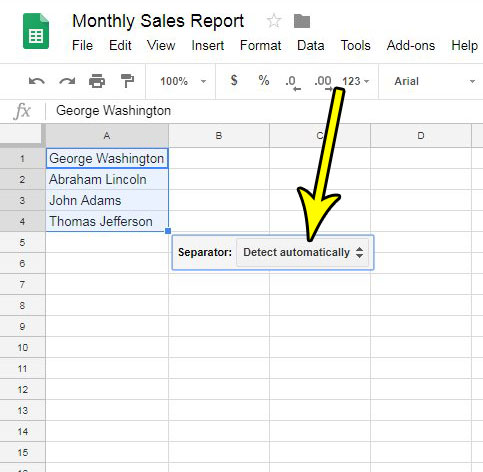
Older version shown; current screens may look different. - A Separator option appears near the data, starting at Detect automatically. Click the dropdown menu next to Separator.
Older version shown; current screens may look different. - Choose the space option for “Ana Lopez” style names, or the comma option for “Lopez, Ana” style names.
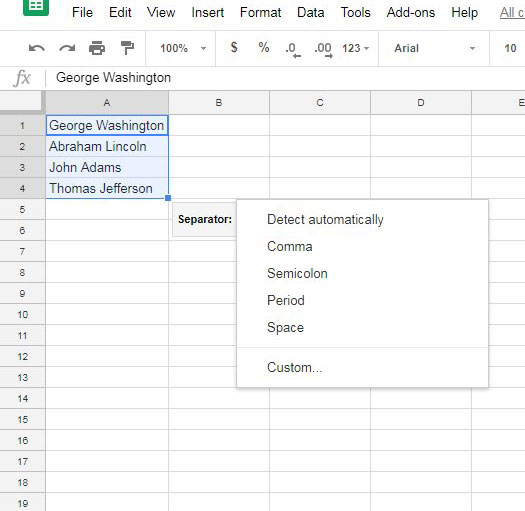
Older version shown; current screens may look different.
If the columns come out uneven, Google suggests opening the menu next to Separator and choosing Detect automatically again. When you paste names into the sheet, you can also click the Paste option that appears and choose Split text to columns straight away.
The menu is a one-time action. If someone later adds “Sam Patel” to the bottom of the list, you’ll need to split that row too.
Split with a formula that keeps updating
A formula leaves the original names untouched and updates when a name changes. Google’s SPLIT function page gives the syntax as SPLIT(text, delimiter, [split_by_each], [remove_empty_text]).
- Click cell B2, next to the first name in A2.
- Type
=SPLIT(A2, " ")and press Enter. The first name lands in B2 and the last name in C2. - Copy B2 down the column for the remaining rows. Applying a formula to an entire column shows faster ways to fill it.
Two of Google’s defaults matter for names. Each character in the delimiter counts as a separate split point, and consecutive delimiters are treated as one. That’s why =SPLIT(A2, ", ") works on “Lopez, Ana”: it splits on the comma and on the space, and the empty piece between them is dropped. The result is Lopez in one cell and Ana in the next. If some first names have two words, such as “Lopez, Ana Maria”, use =SPLIT(A2, ", ", FALSE) so only the comma-and-space pair splits the name.
Keep the cells to the right of the formula empty. The formula needs room for its results and can’t fill cells that already hold data.
Names with a middle name or a two-word surname
SPLIT turns “Ana Maria Lopez” into three cells, which is fine if every row has a middle name. When the list is mixed, it’s often better to pull out the first and last name separately. These formulas use functions from Google’s function list:
- First name (everything before the first space):
=LEFT(TRIM(A2), FIND(" ", TRIM(A2))-1) - Last name (the last word):
=REGEXEXTRACT(TRIM(A2), "[^ ]+$") - Middle name or names (whatever sits between the first and last word):
=IFERROR(REGEXEXTRACT(TRIM(A2), " (.+) "), "")
REGEXEXTRACT returns the first match, and when the pattern has a group in parentheses, it returns just that part. The IFERROR wrapper leaves the middle cell blank for two-part names instead of showing an error. Each formula trims the name first, so stray spaces at either end don’t throw it off.
No formula can tell a middle name from the first half of a two-word surname. “Ana de la Cruz” gives “Cruz” as the last name, and a suffix such as “Jr.” comes out as the last name too. Sort or filter the results and fix those rows by hand.
Tidy the results
- Capital letters:
=PROPER(B2)turns “ana” into “Ana”. Check names such as “McDonald” afterwards, since PROPER capitalizes each word and doesn’t follow name rules. - Swap “Lopez, Ana” into first and last order:
=INDEX(SPLIT(A2, ", ", FALSE), 1, 2)returns the first name and=INDEX(SPLIT(A2, ", ", FALSE), 1, 1)the last name. FALSE tells SPLIT to split only on the comma-and-space pair, so “Lopez, Ana Maria” keeps Ana Maria together. - Turn formulas into plain text: if you’re about to delete column A, copy the results and paste them as values first, or the formulas will lose their source.
Fix a split that went wrong
- Names split into too many columns: some rows have middle names or extra spaces. Trim first, then use the first-name and last-name formulas.
- Nothing split at all: the separator didn’t match. A non-breaking space looks like a space but isn’t trimmed, so retype the space between the names and split again.
- The formula shows an error instead of names: a cell it needs to fill already has something in it, or the cell has only one word. Clear the cells to the right, or wrap the formula in IFERROR.
- The option is missing on your phone: Google’s Android and iPhone instructions say to open the spreadsheet at sheets.google.com on a computer for this feature.
Splitting names in Google Sheets: answers
Will the formula update if I correct a name?
Yes. SPLIT, LEFT and REGEXEXTRACT read column A each time it changes, so fixing “Ana Lopes” to “Ana Lopez” updates the split cells. The menu route doesn’t do this.
What happens to a cell with only one name?
SPLIT returns that single word in one cell. The first-name formula shows an error because there’s no space to find, so wrap it: =IFERROR(LEFT(TRIM(A2), FIND(" ", TRIM(A2))-1), TRIM(A2)) returns the whole word instead.
How do I put first and last names back together?
Use =B2&" "&C2, or =JOIN(" ", B2:C2) to join a range with a space between each piece.
Can I share the sheet without people changing the names?
Yes. Protecting a worksheet in Google Sheets stops other people from editing it, and if a colleague works in Excel, you can download an Excel version of the Google Sheets file once the names are split.
If what you actually want is a visual line through a single header cell rather than separate columns, splitting a cell diagonally covers that formatting trick.

Kermit Matthews runs Live2Tech from just outside Philadelphia. He is an IT specialist with over 20 years of experience, from a university help desk to small-business IT, IT management and his own consulting practice, and has written tech guides full time since 2020. Steps are checked against the current software on a real device or the maker’s official documentation. More about Kermit.