Google Sheets is very similar to Microsoft Excel in many ways and, for a large number of users, is a perfectly acceptable replacement. Sheets lets you perform much of the same formatting, and many of the same calculations, that are possible in Excel, and the ability to share and collaborate on projects with other Google users is very convenient.
But sometimes you will need to work on your data in Excel instead, either because there’s a particular function you need or because a collaborator doesn’t use Google Sheets, and the prospect of recreating your spreadsheet in Excel from scratch may seem pretty intimidating. Fortunately you have the ability to download an Excel version of your Google Sheets file so that you can work on your data in Excel.
How to Download the XLSX Version of Your Google Sheets File
These steps were performed in the desktop version of the Google Chrome Web browser, but will work in other desktop browsers as well. Note that by completing these steps you will be creating a separate file of your data. Any changes made in the Sheets file after downloading, or any changes made in Excel, will not be reflected in the other version of the file.
Step 1: Sign into your Google Drive at https://drive.google.com and open the Sheets file that you wish to download for Excel.
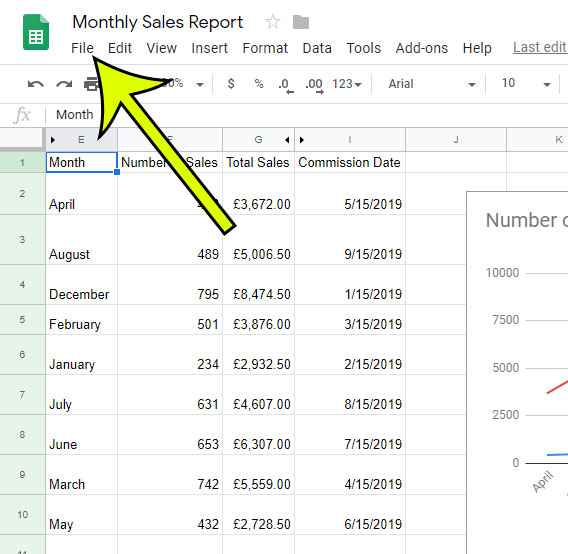
Step 2: Select the File tab at the top of the window.
Step 3: Click the Download as option, then choose the Microsoft Excel option.

Note that the file type of the download will be .xlsx. Depending on your browser and settings, the file will automatically begin downloading to the default Downloads folder.
Do you have a column in your spreadsheet with data, such as full names, that you need to split into separate columns? Find out how to split column text in Google Sheets easily and efficiently.
Related: how to save Google Sheets on a PC or Mac.
Excel treats downloaded workbooks as files from the internet, so allowing macros in a downloaded Excel file takes an extra unblock step on Windows 11.

Kermit Matthews runs Live2Tech from just outside Philadelphia. He is an IT specialist with over 20 years of experience, from a university help desk to small-business IT, IT management and his own consulting practice, and has written tech guides full time since 2020. Steps are checked against the current software on a real device or the maker’s official documentation. More about Kermit.