Google Sheets automatically saves a history of changes, so if someone deletes data, breaks a formula, or overwrites your work, you can roll the whole spreadsheet back to an earlier version. You can also restore just the data you need without undoing later changes. This guide shows how to open version history, restore a version, name important versions, and recover specific cells.
Quick Answer
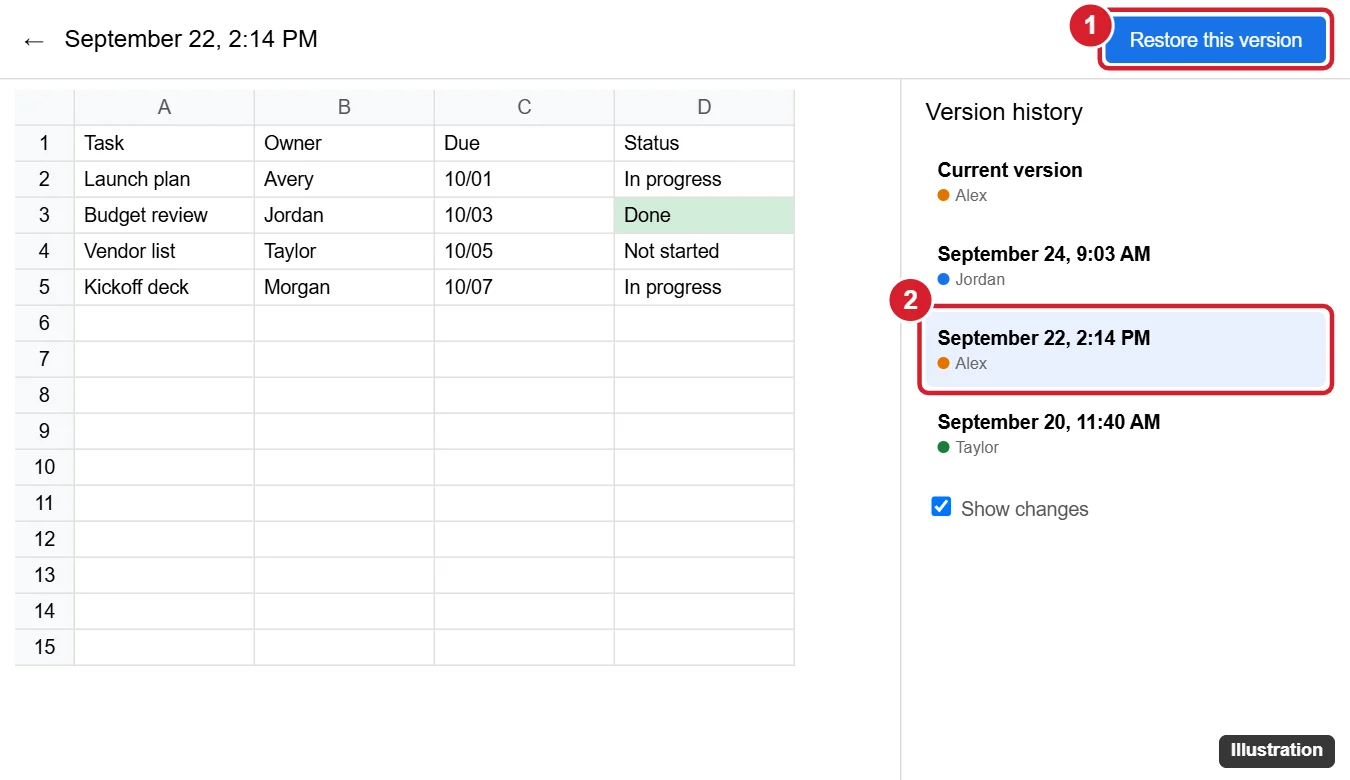
Go to File > Version history > See version history (or press Ctrl + Alt + Shift + H). Pick a version from the list on the right, review it, and click Restore this version at the top. Click Restore to confirm.
Step-by-Step: Restore a Version
- Open the spreadsheet. You need edit access.
- Click File > Version history > See version history. You can also click the clock icon near the top-right, if shown.
- In the panel on the right, click a version to preview it. Click the arrow next to a date to see smaller, grouped versions.
- Check Show changes to highlight what changed and who changed it.
- Click Restore this version, then Restore.
Restoring does not delete newer versions. The current state is kept in history, so you can switch back if needed.
Restore Only Some Data
If you only need a few cells or a sheet from an old version, do not restore the whole file:
- Open the old version in version history.
- Click the three-dot menu next to the version and choose Make a copy.
- Open the copy, select the data you need, and copy it.
- Paste it into the current spreadsheet.
See the Edit History of a Single Cell
Right-click a cell and choose Show edit history. Use the arrows to see previous values, who changed them, and when. This works for value changes, not formatting.
Name Important Versions
- Go to File > Version history > Name current version and enter a name, such as "Final budget, approved".
- In version history, turn on Only show named versions to find them quickly.
Naming versions before big changes makes it easy to roll back later.
Version History Tips
| Tip | Why it helps |
|---|---|
| Use Show changes | Highlights edits by each collaborator in different colors |
| Expand grouped versions | Older edits are grouped; expand to see finer detail |
| Name versions | Marks milestones for quick restoring |
| Make a copy | Recover data without affecting the current file |
Troubleshooting
Version history is grayed out
You have view-only or comment-only access. Ask the owner for edit access or to restore the version.
I cannot find a version
Expand grouped entries by clicking the arrows. Google may merge older revisions to save space, so very small edits from long ago may not appear individually.
The file is an Excel file
For .xlsx files stored in Drive, version history works when editing in Sheets, or use Manage versions in Google Drive for uploaded file versions.
Frequently Asked Questions
How far back does Google Sheets version history go?
Google Sheets keeps a history of changes over the life of the file, although older revisions may be merged over time.
Will collaborators know I restored a version?
The restore appears in version history under your name.
Can I undo a restore?
Yes. Open version history again and restore the version from before your restore.
Summary
- Open File > Version history > See version history.
- Select a version and click Restore this version.
- Use Make a copy to recover only part of the data.
- Name important versions for easy recovery.

Kermit Matthews is a freelance writer based in Philadelphia, Pennsylvania with more than a decade of experience writing technology guides. He has a Bachelor’s and Master’s degree in Computer Science and has spent much of his professional career in IT management.
He specializes in writing content about iPhones, Android devices, Microsoft Office, and many other popular applications and devices.