Missed Calendar alerts on iPhone usually trace back to a few settings: Calendar notifications, the event’s own alert, or a Focus. Before changing anything in Settings, open the event that didn’t alert you and look at its Alert line, because an event set to no alert will stay quiet however the rest of the iPhone is set up.
The table below matches what you noticed to the check most likely to fix it.
Which alert went missing?
| What you noticed | Most likely cause | Where to look |
|---|---|---|
| One event never alerted | That event has no alert | Start with the event’s own alert |
| New events never alert | Default alert times aren’t set | Default Alert Times |
| No Calendar alerts at all | Calendar notifications are off | Settings > Notifications > Calendar |
| Alerts appear but make no sound | Silent mode, low volume or the Calendar Alerts tone | Sound and silent mode |
| Alerts stop at certain times of day | A Focus is on | Focus |
| Only events from Google, Outlook or a shared calendar are missing | The account isn’t syncing | Calendar accounts and sync |
| Alerts come at the wrong time | Time zone settings | Time Zone Override |
Start with the event’s own alert
Each event carries its own reminder. If it says None, nothing else in Settings can make it alert. Apple describes the steps on Create and edit events in Calendar on iPhone:
- Open Calendar and tap the event.
- Tap Edit.
- Tap Alert and choose when you want to be reminded, such as At time of event or 5 minutes before.
- Tap Done.
If an event comes from an invitation or a shared calendar and you can’t edit it, ask the organizer, or add your own event with an alert for the same time.
Set default alert times for new events
Default alert times save you from adding an alert to every event by hand. Apple lists them on its Change Calendar settings on iPhone page:
- Open Settings, tap Apps, then tap Calendar. On iOS 17 or earlier, Calendar is listed directly in Settings.
- Tap Default Alert Times.
- Tap Birthdays, Events or All-Day Events, then choose an option.
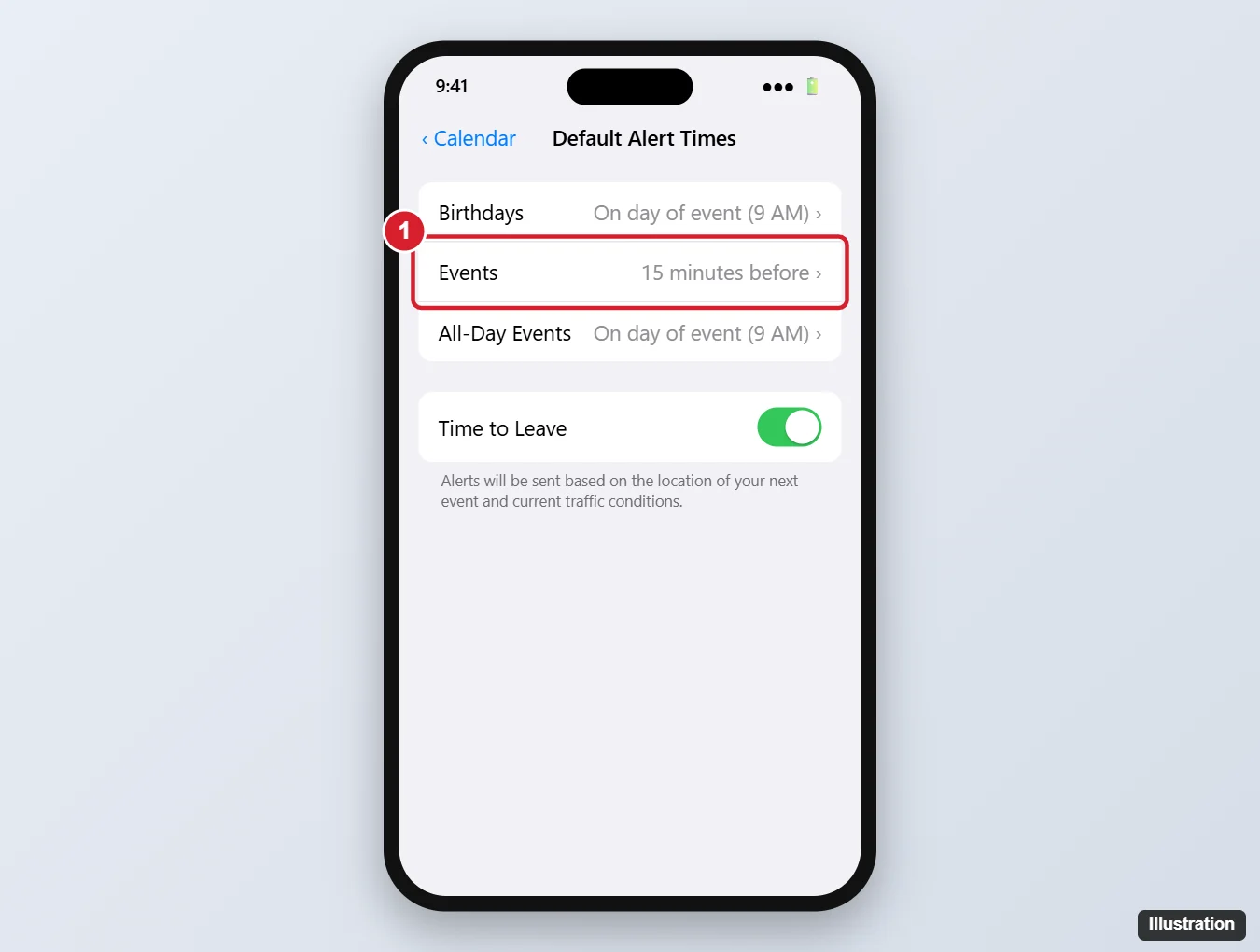
An event you already created keeps whatever its Alert line shows, so if one event still stays silent after you set a default, check it with the steps in the previous section. The same Default Alert Times screen holds the Time to Leave switch, which adds travel-time alerts; see turning on Time to Leave in the iPhone Calendar app, or stopping Time to Leave alerts if those are the ones you don’t want.
Turn Calendar notifications back on
If no Calendar alert appears at all, the app’s notifications may be off. Apple’s steps from Keep track of events in Calendar on iPhone:
- Open Settings and tap Notifications, then tap Calendar.
- Turn on Allow Notifications.
- Choose where alerts appear: on the Lock Screen, in Notification Center, as banners, and with an alert sound.
- Scroll down, tap Customize Notifications, and turn on the kinds you want, such as upcoming events.
If you end up with more alerts than you want, turning off Calendar notifications on iPhone explains how to switch off or limit them. Mail alerts follow different rules, covered in fixing iPhone Mail notifications.
Check the sound and silent mode
An alert that appears on screen without a sound usually isn’t broken. Apple’s notifications article says that if your phone is silenced or the volume is turned down completely, notification sounds will not play.
- Turn off silent mode and raise the volume, then wait for the next event.
- Go to Settings > Sounds & Haptics, tap Calendar Alerts, and pick a tone, as Apple describes in Change sounds and vibrations on iPhone. If None is selected, alerts stay silent on purpose.
To see that setting from the other side, read turning off Calendar alert sounds. The silent mode switch on iPhone has its own walkthrough too.
Check whether a Focus is holding them back
A Focus filters notifications by app. Apple’s Set up a Focus page says you choose which apps can notify you during a Focus by tapping Apps.
- Open Control Center and see whether a Focus is turned on. Tap it to turn it off if you don’t need it.
- To keep the Focus but let Calendar through, open Settings > Focus, choose the Focus, tap Apps, and add Calendar to the allowed apps.
Some versions of iOS also offer options for urgent notifications and for delivering notifications in a summary. Apple’s current pages don’t name these for Calendar, so if you see a summary or urgent-notification setting in Notifications, make sure Calendar isn’t held for a later summary. For more on Focus itself, see finding and turning off Do Not Disturb on iPhone.
Calendar accounts and sync
When only events from one account go quiet, the iPhone may not have the latest copy of that calendar, or the calendar may not be on the phone at all.
- iCloud calendars: Go to Settings, tap your name, tap iCloud, tap See All next to Saved to iCloud, tap iCloud Calendar, and turn on Use on this iPhone.
- Google, Outlook and other accounts: Go to Settings > Apps > Calendar > Calendar Accounts > Fetch New Data. Accounts that don’t use push follow the Fetch schedule; Apple notes that Automatically fetches when the iPhone is charging and on Wi-Fi.
- Refresh the app: In Calendar, tap Calendars, make sure the calendar is selected, and swipe down on the list to refresh.
Apple’s iCloud Calendar sync article also suggests checking that your date and time settings are correct for your location and that iOS is up to date. For older events that don’t show up at all, see syncing all Calendar events on an iPhone.
Alerts at the wrong time
Time Zone Override shows events in a fixed time zone instead of following where you are. Apple says it only changes the time zone shown in the Calendar app (Schedule or display events in a different time zone). If you traveled and events now look shifted, go to Settings > Apps > Calendar > Time Zone Override and check whether it is on and set to the zone you expect. You can also set a time zone for a single event by tapping its start or end time.
If nothing else works
- Restart your iPhone, as Apple’s iCloud Calendar article suggests.
- Install any update in Settings > General > Software Update.
- As a last resort, use Reset All Settings: Settings > General > Transfer or Reset iPhone > Reset > Reset All Settings.
Read what that last step changes first. Apple’s Reset All Settings article says it returns settings such as notifications, Sounds & Haptics, location preferences, Wi-Fi networks and Bluetooth pairings to their defaults, while your data, including contacts and calendar events, stays on the phone. You’ll need to rejoin Wi-Fi networks and pair Bluetooth devices again, so try every check above first.
Calendar alert answers
Can I get two alerts for one event?
Apple’s event page documents the Alert option. Some versions of the event editor show a second alert row after you set the first one; if yours does, set it the same way. Otherwise, a second event at the earlier time works as a backup.
Why do I get the alert on my Apple Watch but not on my iPhone?
Apple’s Calendar pages don’t explain how alerts are shared between an iPhone and a paired Apple Watch. If the watch shows the alert, the event does have one, so focus on the iPhone checks: Allow Notifications, Focus and sound.
Will changing default alert times add alerts to events I already made?
Apple’s page doesn’t say so. Open an existing event and check its Alert line; if it is None, set one by hand.
Once alerts are back, you may want a little more from Calendar, such as showing week numbers in the iPhone Calendar.

Kermit Matthews runs Live2Tech from just outside Philadelphia. He is an IT specialist with over 20 years of experience, from a university help desk to small-business IT, IT management and his own consulting practice, and has written tech guides full time since 2020. Steps are checked against the current software on a real device or the maker’s official documentation. More about Kermit.