If your office, school or project plan talks about “week 37” instead of a date, you don’t have to count rows on a paper calendar. The Calendar app on iPhone can show the week number beside every week of the year. On current versions of iOS, open Settings, tap Apps, tap Calendar and turn on Week Numbers. The numbers then appear in Month view. Older iOS versions, the Mac and fixes for missing numbers are covered below.
Turn on week numbers in Calendar settings
The switch lives in the Calendar section of the Settings app, not inside Calendar itself. Nothing is downloaded and your events are not changed.
- Open the Settings app.
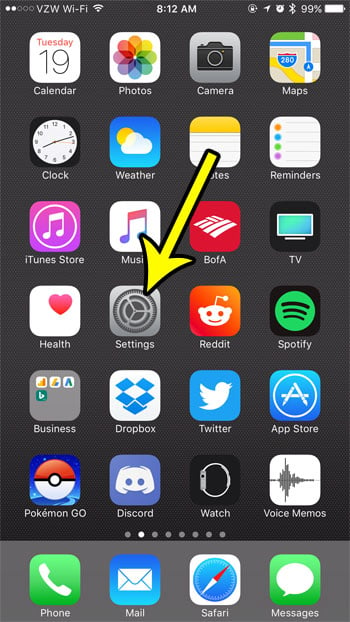
Older iOS version shown; current screens look different. - Scroll down and tap Apps, then tap Calendar in the alphabetical list.

Older iOS version shown; on current versions Calendar sits under Settings > Apps. - Turn on Week Numbers. The switch turns green when it is on.

Older iOS version shown; current screens look different. - Open the Calendar app and go to a month view to see the numbers.
Apple describes the option as a way to display the week number next to every week of the year, as listed on its Calendar settings page for iPhone.
Where the numbers appear
In Month view, each week row shows its number at the left side of the screen. A student whose timetable says “assignments due in week 9” can scroll to the right month and read the row label instead of counting forward from January.

Day view and Year view are reported not to show the numbers on iPhone, so switch to a month if you can’t find them.
Older versions of iOS
Before apps moved under Settings > Apps, Calendar was listed directly in Settings. On those versions the path is Settings > Calendar > Week Numbers, which matches the older screenshots above. Much older releases grouped it under Mail, Contacts, Calendars.
Line the weeks up with your schedule
The same Calendar settings screen has Start Week On, where you tap the day each week begins. If the rows on your phone start on Sunday but your workplace plans Monday to Friday, set this to Monday so each numbered row matches the week people are talking about. For the full steps, see how to change which day your weeks start on. A separate option, Week View Starts On Today, affects the week layout only and has nothing to do with the numbers.
If the number your iPhone shows for a date still differs from a printed company calendar, the two may count week 1 differently. Check the date your organization treats as the start of week 1 and use that as the reference.
Show week numbers in Calendar on a Mac
- Open the Calendar app on the Mac.
- Choose Calendar > Settings, then click Advanced.
- Select Show week numbers.
According to Apple’s advanced Calendar settings for Mac, the numbers can show in Week, Month and Year views there. Turn the option on in each app where you want the numbers; the iPhone switch and the Mac checkbox are separate settings.
If week numbers don’t show
- Wrong view: switch to Month view, where Calendar shows the numbers.
- Still not showing: close Calendar from the app switcher and open it again.
- Switch turned back off: return to Settings > Apps > Calendar and confirm Week Numbers is green.
- Different app: the switch only affects Apple’s Calendar app. Google Calendar, Outlook and other apps have their own settings, if they offer week numbers at all.
Week number questions
How do I hide week numbers again?
Go back to Settings > Apps > Calendar and turn off Week Numbers. Month view returns to its plain layout.
Does this change my events or alerts?
No. It is a display option only. Event times, invitations and alerts stay the same. If reminders are the real problem, you can turn off Calendar notifications or fix Calendar alerts that don’t arrive.
With the numbers showing, other Calendar settings are worth a look, such as Time to Leave alerts that factor in travel time and making sure you sync all of your calendar events so every numbered week is complete.

Kermit Matthews runs Live2Tech from just outside Philadelphia. He is an IT specialist with over 20 years of experience, from a university help desk to small-business IT, IT management and his own consulting practice, and has written tech guides full time since 2020. Steps are checked against the current software on a real device or the maker’s official documentation. More about Kermit.