Your PC crashed, an app keeps closing, or an error code flashed by too fast to read. Windows wrote it down. Right-click Start and choose Event Viewer (or press Windows + R and run eventvwr.msc). Expand Windows Logs, click System or Application, then use Filter Current Log to show only Critical and Error events from around the time of the problem. The steps are the same on Windows 11 and Windows 10.
The five-minute crash check
If you only want to know why something just went wrong, this short path covers most cases:
- Write down roughly when the problem happened (for example, “about 3:40 PM today”).
- Open Event Viewer by right-clicking Start and choosing Event Viewer.
- In the left pane, expand Windows Logs and click System for restarts, blue screens, drivers and hardware, or Application for program crashes.
- In the Actions pane on the right, click Filter Current Log.
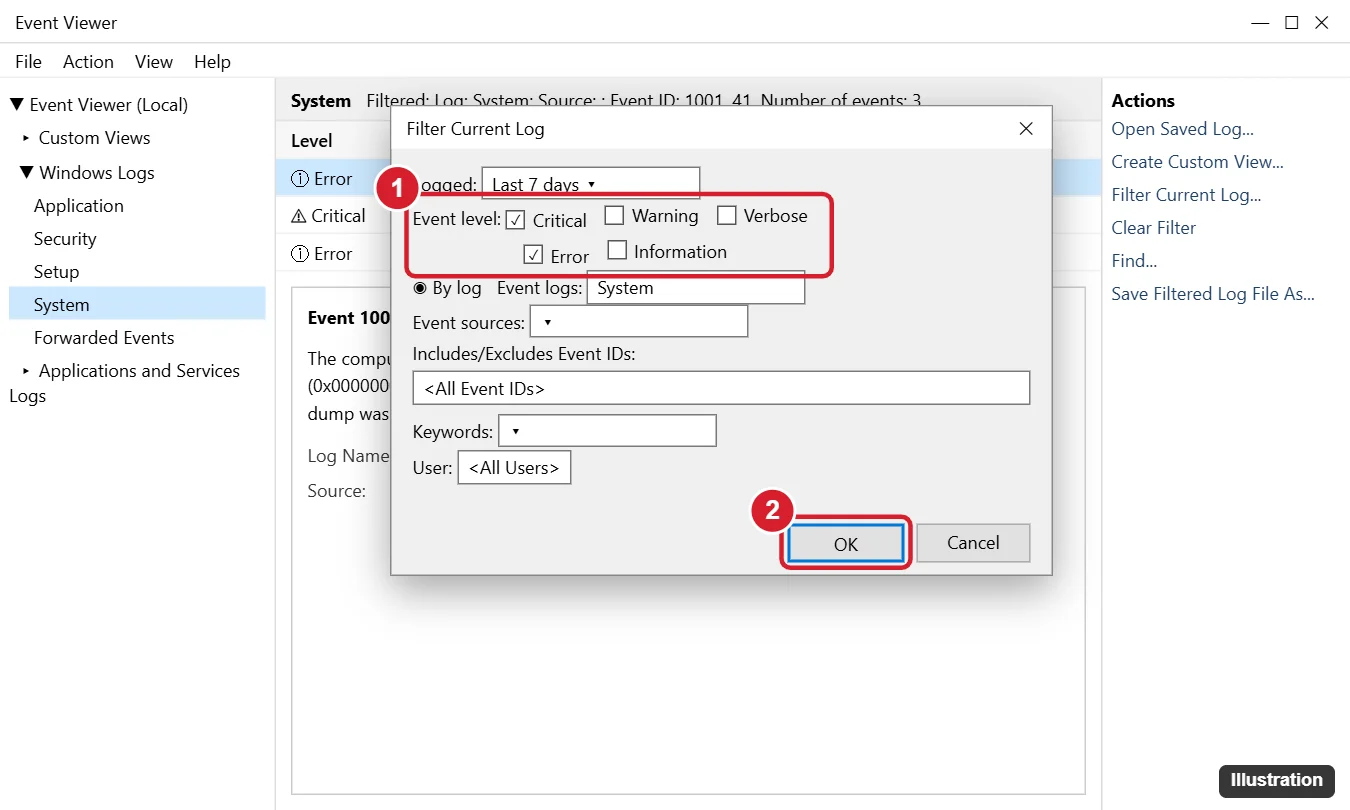
- Set Logged to Last 24 hours (or a range that includes the problem), check Critical and Error, and click OK.
- Click the entry closest to your time. Read the General tab, and note the Source and Event ID.
Searching the Source and Event ID together (for example, “Kernel-Power 41”) usually turns up the known cause. The sections below explain each part in more depth.
Every way to open Event Viewer
Pick whichever fits how you work. All of them open the same tool.
| Method | How | Good for |
|---|---|---|
| Power user menu | Right-click Start (or press Windows + X) and choose Event Viewer | The fastest mouse route |
| Start search | Press Windows, type Event Viewer, and press Enter | Beginners |
| Run box | Press Windows + R, type eventvwr.msc, press Enter |
Keyboard users |
| Command Prompt, PowerShell or Terminal | Type eventvwr and press Enter |
When a console is already open |
| Computer Management | Run compmgmt.msc (or right-click Start > Computer Management), then System Tools > Event Viewer |
Checking logs alongside Disk Management or Services |
| Control Panel | System and Security, then View event logs under Administrative Tools (Windows 10). On Windows 11, open Windows Tools there and double-click Event Viewer. | People who browse Control Panel |
| Task Manager | Press Ctrl + Shift + Esc, choose Run new task, type eventvwr.msc, click OK |
When Start or the taskbar is not responding |
| Desktop shortcut | Right-click the desktop, New > Shortcut, enter eventvwr.msc |
Frequent use |
On Windows 11, Event Viewer is also inside the Windows Tools folder in the Start menu’s All apps list. On Windows 10, the same folder is called Windows Administrative Tools. If Start or Control Panel will not open at all, the Task Manager route above still works; see the different ways to open Task Manager if you need another way in.
You do not need to be an administrator to open Event Viewer or read the System and Application logs. The Security log needs an administrator account (or membership in the Event Log Readers group, which an IT department may set up).
Find your way around the window
- Left pane (console tree): the list of logs and views. This is where you choose what to look at.
- Middle pane, top: the list of events in the selected log, with columns for Level, Date and Time, Source, Event ID and Task Category. Click a column header to sort.
- Middle pane, bottom: the preview for the selected event, with General and Details tabs. Double-click an event to open it in its own window.
- Right pane (Actions): commands for the selected log, such as Filter Current Log, Find, Save All Events As and Clear Log. If it is missing, click the Show/Hide Action Pane button on the toolbar.
When you first open Event Viewer, the middle pane shows Overview and Summary, which counts events by level over the last hour, day and week. It is a quick way to see whether errors spiked recently.
Which log to check
| Log | What it records | Check it for |
|---|---|---|
| Windows Logs > System | Windows components, drivers, hardware, power | Blue screens, unexpected restarts, driver and disk errors |
| Windows Logs > Application | Programs and app components | App crashes and freezes |
| Windows Logs > Security | Sign-ins, account changes, audit events | Failed sign-ins, who signed in when (admin only) |
| Windows Logs > Setup | Windows installs and feature updates | Update installation problems |
| Windows Logs > Forwarded Events | Events collected from other PCs | Business networks; usually empty at home |
| Applications and Services Logs | Detailed logs for individual components | Windows Update, Defender, printing and other deep troubleshooting |
Under Applications and Services Logs > Microsoft > Windows, each component has its own folder, often with an Operational log inside. A few useful ones:
- WindowsUpdateClient > Operational: update downloads and installs, including failure codes.
- Windows Defender > Operational: scans, detections and actions taken by Microsoft Defender Antivirus.
- PrintService > Operational: printed documents (event ID 307). This log is off by default; right-click it and choose Enable Log. Full steps are in checking print history on Windows 10.
- GroupPolicy > Operational: whether policies applied, which helps when you force a Group Policy update with gpupdate and nothing seems to change.
For a fast overview across all the main logs, open Custom Views > Administrative Events. It shows only Critical, Error and Warning events from every log in one list.
Event levels and what they mean
| Level | Icon | Meaning |
|---|---|---|
| Critical | Red circle with an X | A serious failure, such as the PC restarting without a clean shutdown |
| Error | Red circle with an exclamation mark | Something failed, such as a service that would not start or an app crash |
| Warning | Yellow triangle | A possible problem that did not stop anything yet, such as low disk space |
| Information | White circle with an i | Normal activity, such as a service starting |
| Verbose | None in most logs | Extra detail some components write; rarely seen in the main logs |
The Security log uses Audit Success and Audit Failure instead of these levels.
Filter, search and save a view
Filter Current Log
- Click a log, such as System.
- In the Actions pane, click Filter Current Log.
- Set Logged to a time range such as Last 24 hours or Last 7 days. Choose Custom range to pick exact dates and times.
- Under Event level, check Critical and Error (add Warning if you need more).
- To look for particular events, type IDs in the <All Event IDs> box, separated by commas, such as
41, 1001, 6008. Ranges like6005-6006work too, and a minus sign in front of an ID excludes it. - Optionally, pick one or more providers from Event sources, or enter Keywords.
- Click OK. The middle pane header shows that the log is filtered. Click Clear Filter in the Actions pane to see everything again.
Find a word in the log
Click Find in the Actions pane, type a word such as an app name or error code, and click Find Next. Find searches the visible events one match at a time, so filter first if the log is large.
Create a custom view
If you check the same events often, save the filter as a custom view:
- Click Create Custom View in the Actions pane.
- Choose the time range and levels, then pick By log (one or more logs) or By source.
- Add event IDs if you want, click OK, give the view a name such as “Crashes and restarts”, and click OK again.
The view appears under Custom Views and updates every time you open it.
How to read an event
- General tab: a plain description of what happened. It is often enough by itself, for example “The application-specific permission settings do not grant Local Activation permission…” (a common, harmless DCOM message).
- Source: the component that wrote the event, such as Kernel-Power, Application Error or Disk.
- Event ID: the number that identifies the kind of event for that source. The same number can mean different things for different sources, so always use the two together.
- Logged: the date and time. Match it to when your problem happened.
- Details tab: the raw data. For a Kernel-Power 41 event, this is where the BugcheckCode appears; for an app crash, look for the faulting module name.
Right-click an event and choose Copy > Copy Details as Text to paste the full text into an email or support ticket.
Event IDs worth knowing
| Event ID | Log / Source | Meaning |
|---|---|---|
| 41 | System / Kernel-Power | The PC restarted without shutting down cleanly |
| 1001 | System / BugCheck | A blue screen occurred (includes the stop code) |
| 6008 | System / EventLog | The previous shutdown was unexpected |
| 6005 / 6006 | System / EventLog | Event log service started / stopped (boot and shutdown times) |
| 1074 | System / User32 | A user or program started a shutdown or restart (shows which) |
| 7031 / 7034 | System / Service Control Manager | A service stopped unexpectedly |
| 1000 | Application / Application Error | A program crashed (shows the app and faulting module) |
| 4624 / 4625 | Security | Successful / failed sign-in (admin only) |
Example: a PC that restarted on its own overnight
Say a desktop was on when you went to bed and showed the sign-in screen in the morning. Filter the System log for IDs 41, 1074, 6008 over the last 24 hours. If you find a 1074 event, read its General tab: it names the process that asked for the restart, and a Windows Update entry there means an update restart, not a fault. If you find a 41 with no 1074 just before it, the PC lost power or crashed. Then check the Details tab for BugcheckCode. A nonzero value is the stop code of a blue screen worth looking up. A value of 0 means Windows recorded no stop code, which Microsoft says can point to a power supply problem or a PC that froze before it could write one; a nonzero PowerButtonTimestamp in the same event means someone held the power button. Microsoft’s Kernel-Power event ID 41 article walks through each case.
Events 6005 and 6006 make a simple boot history, which is handy alongside the methods in seeing uptime in Windows 10. For blue screens, pair event 1001 with the steps in checking blue screen logs in Windows 10 and 11, and with reading minidump files if you want the crash dump itself.
A technician may ask you for a log file. Save before you clear anything, because clearing cannot be undone.
- Save a whole log: right-click the log (for example, System) and choose Save All Events As. Pick .evtx to open it in Event Viewer on another PC, or choose XML, tab-delimited text or CSV for reading in a text editor or spreadsheet.
- Save only what you filtered: after filtering, click Save Filtered Log File As in the Actions pane.
- Save one event: select it and click Save Selected Events.
- Open a saved log: click Open Saved Log in the Actions pane and pick the .evtx file. It appears under Saved Logs.
- Clear a log: right-click the log and choose Clear Log. Windows offers Save and Clear or Clear. Choose Save and Clear unless you are sure you will not need the history.
Clearing a log does not fix anything. It only removes the record, which can make a recurring problem harder to diagnose later.
How long logs keep events
Each log has a maximum size. Right-click a log and choose Properties to see it; the main logs are commonly set to about 20 MB, with Overwrite events as needed (oldest events first) selected. That means a busy log may only reach back days or weeks. Raise Maximum log size there if you need a longer history. The files themselves live in C:\Windows\System32\winevt\Logs as .evtx files; open them through Event Viewer rather than editing them.
Check logs from PowerShell or Command Prompt
Commands are faster when you want the same check repeatedly, or need to paste results into a message. Open Terminal or PowerShell from the right-click Start menu. Use Terminal (Admin) on Windows 11 or Windows PowerShell (Admin) on Windows 10 for the Security log or for clearing logs.
| Task | Command |
|---|---|
| Latest 20 Critical and Error events in System | Get-WinEvent -FilterHashtable @{LogName='System'; Level=1,2} -MaxEvents 20 |
| Unexpected shutdowns | Get-WinEvent -FilterHashtable @{LogName='System'; Id=41,6008} -MaxEvents 10 |
| App crashes in the last day | Get-WinEvent -FilterHashtable @{LogName='Application'; Id=1000; StartTime=(Get-Date).AddDays(-1)} |
| Last three Application events as text (Command Prompt) | wevtutil qe Application /c:3 /rd:true /f:text |
| Export the System log | wevtutil epl System C:\Temp\System.evtx |
| List every log name | wevtutil el |
In Get-WinEvent, Level 1 is Critical, 2 is Error, 3 is Warning and 4 is Information, as listed in Microsoft’s FilterHashtable examples. Microsoft’s Get-WinEvent reference and wevtutil reference list every option. The wevtutil cl command clears a log, and accepts /bu: to back it up first.
Reliability Monitor: an easier view
If Event Viewer feels overwhelming, Reliability Monitor reads the same history and lays it out as a day-by-day chart.
- Press Windows + R, type
perfmon /rel, and press Enter. You can also go to Control Panel > Security and Maintenance, expand Maintenance, and click View reliability history. - Look for red X icons (critical events such as app crashes and Windows failures), yellow warning icons and blue information icons (installed updates and drivers).
- Click a day, then double-click an entry in the list below to see technical details.
Its main strength is timing: if crashes start the day a driver or update was installed, the chart makes that obvious.
Windows 11 and Windows 10 differences
Event Viewer itself looks and works the same on both. The differences are in how you reach it:
- Windows 11 groups admin tools in Windows Tools; Windows 10 calls the folder Windows Administrative Tools (Control Panel: Administrative Tools).
- The right-click Start menu offers Terminal on Windows 11 and Windows PowerShell on Windows 10.
- Windows 10 support ended on October 14, 2025. Event Viewer keeps working, but PCs without Extended Security Updates no longer get security fixes, according to Microsoft’s Windows 10 end of support page.
Why a healthy PC still shows errors
Every Windows PC logs errors and warnings that mean nothing, such as a service that timed out at startup and then started fine, or DCOM permission warnings. Focus on events that line up with the time of your problem, or that repeat every time it happens. Be wary of phone calls or pop-ups that point to Event Viewer errors as “proof” of a virus; that is a well-known tech-support scam, and Microsoft does not make unsolicited calls about errors on your PC.
Event Viewer questions
Can I look at the event log of another computer?
Yes, on a business network. In Event Viewer, right-click Event Viewer (Local) and choose Connect to Another Computer. You need administrator rights on that PC, and its firewall must allow remote event log management.
Can Event Viewer tell me if my memory test found problems?
Yes. Windows Memory Diagnostic writes its result to the System log under the MemoryDiagnostics-Results source. The steps are in checking memory diagnostic results.
Can I get a notification when a particular event happens?
Right-click an event and choose Attach Task To This Event to run a program through Task Scheduler. It is mostly used by administrators; most home users won’t need it.
Why is the Security log empty or access denied?
You opened Event Viewer from a standard account. Sign in with an administrator account, or right-click Event Viewer in Start search and choose Run as administrator.
Next time something goes wrong, note the time first. A two-minute filter in Event Viewer is far easier when you know which hour to look at.

Kermit Matthews runs Live2Tech from just outside Philadelphia. He is an IT specialist with over 20 years of experience, from a university help desk to small-business IT, IT management and his own consulting practice, and has written tech guides full time since 2020. Steps are checked against the current software on a real device or the maker’s official documentation. More about Kermit.