If you need to know what was printed on a Windows 10 PC and nobody set anything up beforehand, start with what still exists: the printer’s queue shows current jobs, and finished jobs only appear if Keep printed documents was already on. Windows records printed documents only after someone turns on the PrintService Operational log in Event Viewer (each print is event ID 307). Jobs printed before that can’t be recovered from Windows itself, though the printer may hold its own record.
What Windows can still show you
Find your situation in the table, then jump to the matching section. The options are ordered from least to most effort.
| You want to see | Where to look | Works if nothing was set up? |
|---|---|---|
| A job printing or stuck right now | The print queue | Yes |
| Jobs from earlier today, to check or reprint | The queue with Keep printed documents on | No, only jobs after you turn it on |
| A lasting list of who printed what, and when | Event Viewer, PrintService Operational log | No, only jobs after you enable it |
| Jobs from before any logging was on | The printer’s own job log, or your organization’s print server | Sometimes, depending on the printer |
| What was actually on the pages | Nowhere in Windows; only the original file | No |
A quick note on the version: Microsoft ended Windows 10 support on October 14, 2025, and PCs enrolled in consumer Extended Security Updates get security fixes through October 12, 2027. The print log steps below are unchanged either way.
Look at what is printing right now
- Press Windows + I and select Devices > Printers & scanners.
- Select your printer, then Open queue.
- The window lists each waiting or printing document with its owner, page count, size and time submitted. Use the Printer menu to pause the printer or cancel all documents if something is stuck.
This is the only view that needs no preparation, but it empties as soon as each job finishes.
Keep finished jobs in the queue
If you mainly want to glance back at today’s jobs or reprint one, this is lighter than logging. It’s set for each printer separately, so repeat it for every printer you use.
- In Printers & scanners, select the printer, then Manage > Printer properties.
- Open the Advanced tab and check Keep printed documents.
- Select OK.
Finished jobs now stay in the queue, where you can right-click one and choose Restart to print it again. Treat this as short term: the kept jobs take disk space, and the list may not survive a restart of the print spooler, so don’t rely on it as a record.
Start a lasting record with the PrintService log
This log is the closest thing Windows has to a print history. You need to be signed in as an administrator to turn it on. If you’ve never used the tool, here’s how to open Event Viewer in Windows.
- Right-click Start and choose Event Viewer.
- In the left pane, expand Applications and Services Logs > Microsoft > Windows > PrintService.
- Select Operational, then select Enable Log in the Actions pane on the right.
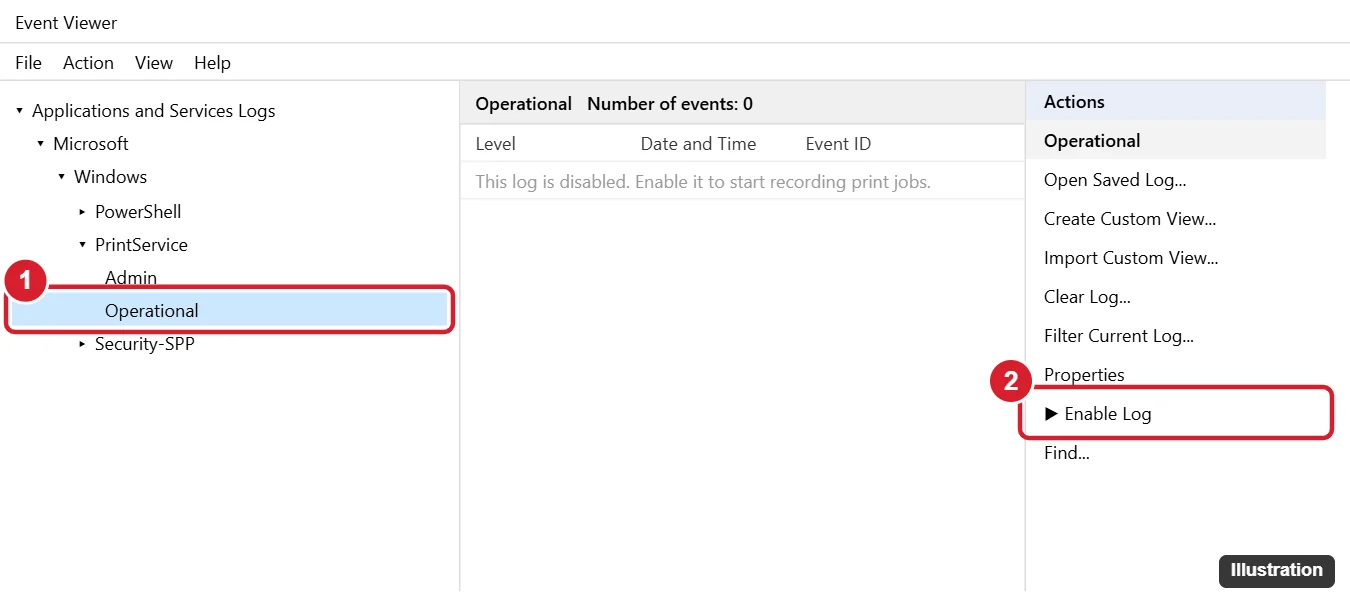
Another route gives you more control. Right-click Operational, choose Properties, check Enable logging, and set these while you’re there:
- Maximum log size: raise it if the PC prints a lot, so older entries last longer.
- When maximum event log size is reached: choose Archive the log when full if you need to keep everything, or leave overwriting on if a rolling few weeks is enough.
To confirm logging is on, print a one-page test, then select Operational again and press F5 to refresh. New entries should appear within seconds. If the list stays empty, the log isn’t enabled.
Read the log
Each successful print adds an event with ID 307, which Microsoft lists, in a Learn post on Event Viewer custom views, among the PrintService Operational events logged for completed print jobs. To see just those:
- With Operational selected, choose Filter Current Log in the Actions pane.
- Type 307 in the event ID box and select OK.
- Select any event. The General tab describes the job, usually including the document name, the user who printed it, the printer, and the number of pages.
- Group by task: right-click the Task Category column header and choose Group Events by This Column. Successful prints sit under Printing a Document; other groups can show failed or deleted jobs.
- File path: don’t expect a full path for every job. For files on the local disk, the entry may show only the document name.
- Monthly record: right-click Operational and choose Save All Events As to keep a copy you can reopen later with Open Saved Log.
Example: a small office wants to know who printed a 40-page report. After the log has been on for a week, filtering on 307 and scanning the page counts finds the entry, the user name and the printer in under a minute. For more on filtering and reading other logs, see how to check the Windows event log.
Check the printer’s own job log
If you need jobs from before logging was on, the printer itself is your best chance. Many office and network printers keep a job history; most home inkjets don’t.
- Find the printer’s IP address (often on its display or a printed network report), type it into a web browser, and look for a section such as Job Log, Job History or Usage.
- Some printers list recent jobs on their touchscreen or can print a usage report.
- Labels and limits depend on the model, so check the maker’s manual.
If a job was printed to a file rather than to paper, there’s no queue entry to find at all. The output is a file on disk, and you can open a PRN file in Windows 10 to see what it holds.
- Greyed-out options: on a managed PC, Keep printed documents or the log settings may be locked. That’s policy, not a fault, so ask IT.
- Shared or print-server printers: when jobs go through a print server, the server usually holds the record, so your own PC’s log may show little.
- Print Management: some editions include a Print Management console that lists printers and queues, but it shows current jobs, not a history.
- Privacy: the log stores document names, which can reveal personal or confidential information. On a shared PC, only turn logging on if everyone knows, and remove old entries when you’re done by right-clicking Operational and choosing Clear Log.
Readers setting up a new machine can start with how to add a printer in Windows 11, then set a default printer so jobs land where you expect.
Print log questions
What does event 307 record, and what doesn’t it?
It records the job’s details: typically the document name, user, printer, page count and time. It doesn’t store the pages themselves, so you can’t view or reprint a document from the log.
Do I need administrator rights?
To enable the log or change its size, yes. Opening the print queue doesn’t need them, but you can only manage other people’s jobs with the right permissions.
Will the history survive a restart or a full log?
A restart doesn’t clear the Event Viewer log. A full log overwrites its oldest entries unless you chose Archive the log when full, so raise the size or save copies if the record matters.
Where is the print queue on a Windows 11 PC?
Microsoft’s page on viewing a printer’s print queue gives Settings > Bluetooth & devices > Printers & scanners, then select the printer and Open print queue.
If you want a record from today on, turn on the PrintService log now and print a test page to confirm the first entry appears.

Kermit Matthews runs Live2Tech from just outside Philadelphia. He is an IT specialist with over 20 years of experience, from a university help desk to small-business IT, IT management and his own consulting practice, and has written tech guides full time since 2020. Steps are checked against the current software on a real device or the maker’s official documentation. More about Kermit.