Follow the alert trail from Settings > Apps > Mail > Notifications (older iOS: Settings > Notifications > Mail) down to each account: one switched-off account, or a Focus that’s quietly holding alerts, can silence new mail. If the switches are all on, the next suspect is how Mail gets new messages: an account set to Fetch only checks on a schedule, and Low Power Mode turns off email fetch.
Quick check: which symptom do you have?
| What you see | Likeliest cause | Go to |
|---|---|---|
| No alerts from Mail at all | Allow Notifications is off, or a Focus is on | Fixes 1 and 3 |
| One account alerts, another doesn’t | That account’s Alerts are off in Customize Notifications | Fix 1 |
| Alerts arrive, but late or in a batch | Fetch schedule, Scheduled Summary or Low Power Mode | Fixes 2, 3 and 5 |
| A badge number, but no banner or sound | Alert style or alert tone settings | Fix 1 |
| Nothing for one conversation only | The thread is muted | Fix 4 |
Work through the fixes in order. Each one takes a minute, and the early ones solve most cases.
1. Turn on Mail notifications, then each account’s alerts
Mail has two layers of notification switches: one for the whole app and one per email account. Both have to be on.
- Open Settings, tap Apps, then tap Mail.
- Tap Notifications and make sure Allow Notifications is on.
- Choose where alerts appear: Lock Screen, Notification Center and Banners. If none of the three is selected, you won’t see a visible alert for new mail.
- Tap Customize Notifications, then tap an email account.
- Turn on Alerts (and Badges if you want the red number). With Alerts on, you can also change the sound by picking an alert tone or ringtone.
- Go back and repeat step 5 for every account you want alerts from.
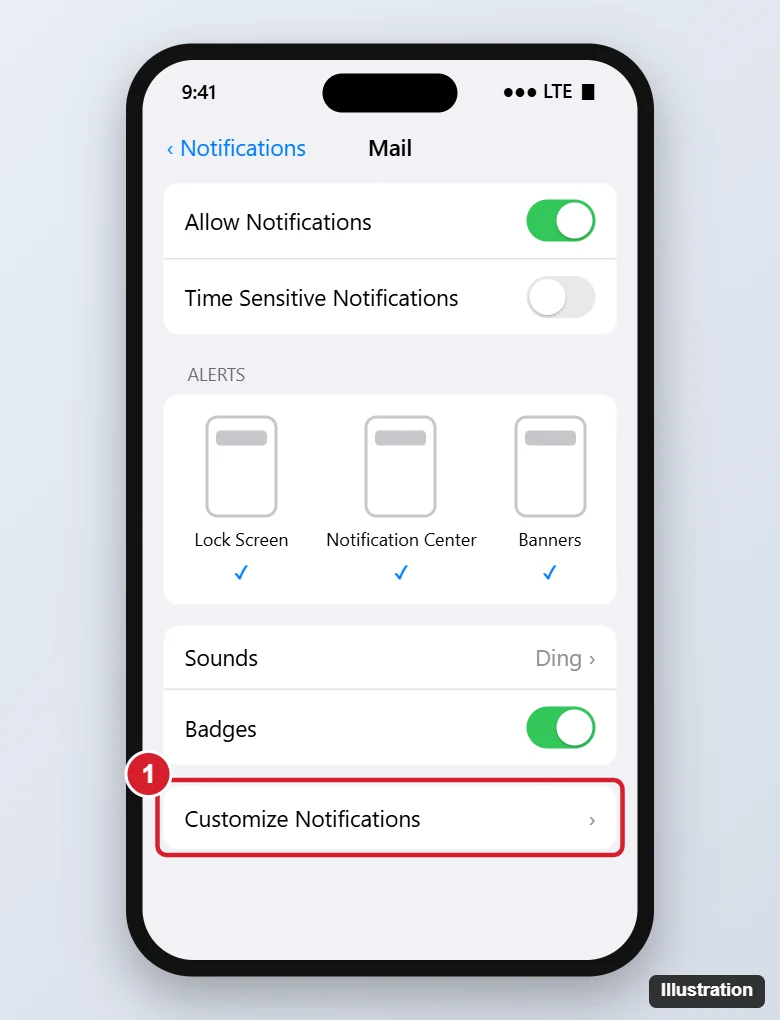
On older iOS versions that don’t have the Apps section, Apple’s route is Settings > Notifications > Mail, where you adjust Alerts, Sounds and Badges.
The per-account step is the one people miss. If you once silenced a busy work mailbox and forgot, its alerts stay off even though Mail itself is allowed to notify you. That’s the same control you’d use on purpose to turn off notifications for just one Mail account, so check it before anything else.
2. Check how Mail gets new messages: Push, Fetch or Manual
An alert can only appear after your iPhone has downloaded the message. How often that happens is set per account.
- Go to Settings > Apps > Mail > Mail Accounts > Fetch New Data.
- If your accounts offer Push, make sure it’s on, so the server sends new mail to your iPhone as it arrives.
- Tap each account and pick Push if it’s listed. If Push isn’t available as a setting, Apple says the account defaults to Fetch.
- Under Fetch, choose a schedule.
| Option | What it means for alerts |
|---|---|
| Push | New mail is delivered as the server sends it, so alerts are close to instant. Not every account offers it. |
| A timed Fetch schedule | Mail checks at that interval, so an alert can lag behind the email by up to that long. |
| Automatically | The default. Apple says new data downloads when your iPhone is charging and connected to Wi-Fi, so alerts may wait until you plug in. |
| Manually | Mail only checks when you open it. You won’t get alerts in between. |
An honest note on Fetch-only accounts: a timed schedule is the fastest the built-in Mail app can check them, so a short delay is expected rather than a fault. If mail also seems slow only away from Wi-Fi, check that Mail is allowed to use cellular data; see how to control cellular data for the Mail app, which covers the same switch in reverse.
3. Look for a Focus or Scheduled Summary holding alerts
Apple notes that a Focus delays the delivery of notifications, and Scheduled Summary deliberately bundles them. Either one can look exactly like “Mail stopped notifying me.”
- Focus: open Control Center to see whether Do Not Disturb, Sleep, Work or another Focus is on. To let Mail through, go to Settings > Focus, tap the Focus, tap Apps (or Choose Apps), and add Mail under Allow Notifications From. Also make sure Mail isn’t on a Silence Notifications From list. If you’d rather switch the Focus off, see how to turn off Focus on iPhone.
- Scheduled Summary: go to Settings > Notifications > Scheduled Summary. If it’s on, open Mail’s notification settings and, under Notification Delivery, choose Immediate Delivery instead of Scheduled Summary.
The same two settings delay other apps too, which is why Calendar alerts that don’t arrive and Instagram notifications that never show up often have the same fix.
4. Unmute threads and set alerts for the mail that matters
Mail has its own filters that sit on top of the system settings.
- Muted conversations: Apple’s route to mute is to open a message in the conversation, tap the reply menu button, then tap Mute. A muted thread won’t alert you to replies. Open a message in that thread and use the same menu to turn muting off. What else happens to muted messages is set in Settings > Apps > Mail > Muted Thread Action.
- Notify Me: when you’re waiting on one reply, open the message, tap the same menu button, and choose Notify Me. You can also tap the Subject field while writing a message and turn on Notify Me there.
- VIPs: Apple’s notification guide mentions alerts for mail from your VIPs, so marking key contacts as VIPs is another way to make sure their messages get your attention.
- Categories: where Mail sorts the inbox into Primary, Transactions, Updates and Promotions (not available in all countries or regions), Apple documents no separate alert setting per category. If one sender always lands in the wrong place, use Categorize Sender to move them.
If threading itself makes it hard to see which message is new, you can also turn off email threading on iPhone.
5. Turn off Low Power Mode
Apple lists “Turns off email fetch” and “Turns off Background App Refresh” among the things Low Power Mode does, so a Fetch account stays silent while it’s on.
- iPhone 15 and later: Settings > Battery > Power Mode, then turn off Low Power Mode.
- iPhone 14 and earlier: Settings > Battery > Low Power Mode.
A yellow battery icon in the status bar means it’s on. More detail, including the Control Center shortcut, is in how to turn Low Power Mode on or off.
6. Restart, then update iOS
- Restart your iPhone, then send yourself a test email from another device or account.
- If alerts still don’t come, check for an update in Settings > General > Software Update and install it.
7. Remove the account and add it back
If one account still won’t alert after everything above, removing and re-adding it resets its settings. Before you start, sign in to your provider’s website and confirm your mail is there, as Apple suggests.
- Go to Settings > Apps > Mail > Mail Accounts and tap the account.
- Tap Sign Out or Delete Account and confirm. Apple says this doesn’t cancel the email account; it just removes it from your iPhone.
- Go back to Mail Accounts, tap Add Account, and sign in again.
- Check fixes 1 and 2 again for the re-added account.
The full removal walkthrough is in how to delete an email account on iPhone. For an Outlook address that keeps asking for its password or was never fully added, see how to set up Outlook email on an iPhone. If the account still fails to sign in or sync, your email provider’s own help pages are the place to check the password and account settings.
Apple’s own checklist for missing mail is in If you can’t receive email on your iPhone or iPad, and its notification steps are in Set email notifications on iPhone.
Mail alert questions
Why do I get a red badge but no banner?
Badges and alerts are separate switches. The account probably has Badges on but Alerts off in Customize Notifications, or Banners isn’t selected for Mail. If the red number itself is the annoyance, see how to get rid of the red number on the Mail app.
Why do alerts for one account always arrive late?
That account is most likely on Fetch, either because it doesn’t offer Push or because Push is off. Alerts can only be as fast as the schedule you pick, and with Automatically selected, new mail may wait until the iPhone is charging on Wi-Fi.
Will removing the account delete my email?
Apple says removing the account doesn’t cancel it; it only takes it off your iPhone. Mail stored on your provider’s server stays there, which is why Apple suggests checking the provider’s website first.
Banners show up, so why is there no sound?
Each account has its own sound once Alerts are on, so pick an alert tone for that account in Customize Notifications. Also check that your iPhone isn’t in silent mode or a Focus. Sound problems in other apps follow the same pattern; Slack is a good example in why Slack might not make a notification sound.
Too many alerts after fixing this? Turning off one calendar’s or one account’s noise is easier than silencing everything, as shown in how to turn off Calendar notifications on iPhone.

Kermit Matthews runs Live2Tech from just outside Philadelphia. He is an IT specialist with over 20 years of experience, from a university help desk to small-business IT, IT management and his own consulting practice, and has written tech guides full time since 2020. Steps are checked against the current software on a real device or the maker’s official documentation. More about Kermit.