When a work mailbox and a personal mailbox share one iPhone, every newsletter and reply-all chain can light up your screen. You do not have to choose between all alerts and none. On current versions of iOS, go to Settings > Apps > Mail > Notifications > Customize Notifications, tap the account you want quiet, and turn off its Alerts (and Badges, if you also want the red count gone). Your other accounts keep alerting as before.
Before you change anything
A few points decide whether the steps below will do what you expect:
- This works for Apple’s Mail app. The settings apply to accounts added to Mail (iCloud, Gmail, Outlook.com, Exchange, Yahoo and others). If you read an account in the Gmail or Outlook app instead, that app has its own notification settings, covered further down.
- Leave Allow Notifications on. The Mail notifications screen has one master switch, Allow Notifications, which controls every account at once. Turning it off silences all your mail, which is the opposite of the goal here. Apple’s instructions for setting email notifications tell you to make sure it is on before you customize individual accounts.
- Mail still arrives. Turning off notifications for an account does not stop it from syncing. New messages land in that inbox as usual; you just are not told about them.
Turn off notifications for one Mail account
These steps follow the current Settings layout, where app settings live under Apps. The screenshots below come from an older version of iOS, so the screens you see will look different.
- Open the Settings app.

- Scroll down and tap Apps, then tap Mail.
- Tap Notifications. Check that Allow Notifications at the top is on.
- Tap Customize Notifications. You will see a list of the email accounts in Mail.
- Tap the account you want to silence, for example your work account.
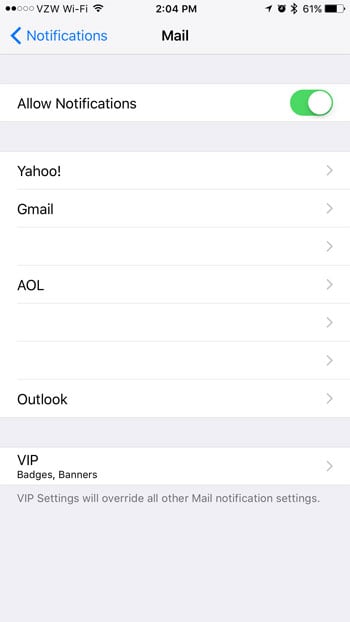
- Turn off Alerts. New mail from that account no longer alerts you.
- Turn off Badges too if you do not want that account’s unread mail counted in the red number on the Mail icon.
- Tap back to the account list and check each of your other accounts. Their Alerts should still be on.

If you only want the account to stop making noise but still want to see banners, leave Alerts on and change the sound instead. Apple’s support article on customizing Mail notifications notes that the alert settings for an account include its Sounds, where you can choose a different tone or none at all.
On older versions of iOS
Before app settings moved under Apps, the per-account switches were in the main Notifications list. If your iPhone does not show an Apps entry in Settings, try this path instead:
- Open Settings and tap Notifications.

- Scroll to Mail and tap it.

- Tap the account, then turn off its alert options and set its sound to None.
What each account option controls
The account screen gives you separate pieces to switch, which is useful if you want something between “every alert” and “nothing at all”.
| Option | What it does | Turn it off if |
|---|---|---|
| Alerts | Shows new mail from this account as banners, on the Lock Screen and in Notification Center | You do not want to be interrupted by this account |
| Sounds (inside the alert settings) | Plays a tone when a new message from this account arrives | You still want banners, just silently |
| Badges | Adds this account’s unread count to the red number on the Mail icon | The number makes you open Mail for mail you do not care about |
Badge totals have one more setting. On iOS 18.2 and later, where Mail sorts messages into categories, Apple says you can open Customize Notifications, tap Badge Count and choose All Unread Messages if you want every unread email counted rather than only the main category. If the number on the icon seems too low, that setting is the likely reason.
Keep in mind that a muted ring switch or Silent mode overrides sounds for every account, so test with the ringer on.
Quieter options that are not all-or-nothing
Sometimes the problem is one noisy conversation or one important sender rather than a whole account. Mail has finer controls for that.
Mute a single thread
- In Mail, open a message in the thread that keeps buzzing.
- Tap the More button (three dots), then tap Mute. You stop getting notifications for new replies in that thread.
In Settings > Apps > Mail, Muted Thread Action lets you choose what else happens to muted threads.
Ask to be notified about one thread
The reverse also works. If you turned off an account’s alerts but are waiting on one reply, open a message in that thread (Apple also offers this while you are writing one) and choose Notify Me. Apple’s notification guide describes this as a way to get alerts for replies in that thread only.
VIP senders
Apple’s notification guide also mentions alerts for messages from your VIPs, so marking key contacts as VIPs is another way to hear about important mail from a quiet account.
Silence an account only during a Focus
If you want work mail quiet in the evening but loud during the day, a Focus filter is a better fit than switching notifications on and off. Apple’s guide to setting up a Focus explains that Focus filters let an app show only chosen content, such as which mail accounts appear, while that Focus is on.
- Open Settings > Focus and tap the Focus you use, such as Personal or Sleep.
- Scroll to Focus filters and tap Add Filter.
- Tap the Mail app’s filter, choose the account or accounts to show during this Focus, then tap Add.
While that Focus is on, Mail shows only the accounts you picked. When the Focus ends, everything returns to normal. Apple notes that Focus filters are not shared to your other devices even when Share Across Devices is on, so set them up on each device. To switch a Focus off quickly, see how to turn off Focus on iPhone.
Accounts in the Gmail or Outlook app
If an account lives in a separate email app rather than Apple Mail, the Mail settings above do not touch it. Each app has its own controls:
- Gmail app: Google’s help for Gmail notifications on iPhone puts these under Menu > Settings > Email notifications, with a Notification sounds option you can set to None. If you have several accounts in the app, change the setting for each one.
- Outlook and other apps: look in the app’s own settings for notification options per account. You can also switch an app off entirely in Settings > Notifications, but that silences every account in that app.
Watch for duplicates: if the same account is set up in both Mail and the Gmail app, you can get two alerts for every message. Turning off that account in one of the two apps fixes it.
Check the result and undo it
Send a test email to the account you silenced from another address. The message should appear in its inbox with no banner or sound. Then send one to an account you kept on; you should get the usual alert. To undo the change, go back to Customize Notifications, tap the account and turn Alerts (and Badges) back on.
If no alerts come through for any account after this, the cause is probably elsewhere, such as Focus, fetch settings or Allow Notifications being off. The fixes for iPhone Mail notifications not working walk through those checks.
Mail notification questions
Why don’t I see the account I want in Customize Notifications?
The list shows accounts added to Mail. If an account is missing, it may be set up only in another app, or its Mail switch may be off in the account’s settings. You can add another email account to your iPhone through Settings if you want Mail to handle it.
Will turning off alerts for one account affect my Mac or iPad?
No. Notification settings are per device. Your iPad or Mac keeps its own Mail notification choices, so change those separately if you want the same result there.
Can I remove the account instead?
You can, but removing an account takes its mail off the iPhone entirely. If you never read it on the phone, see how to delete an email account on iPhone; if you still want to read it occasionally, silencing it is the gentler choice.
Does this stop the account from downloading mail?
No. Notifications and syncing are separate. The account keeps fetching or receiving pushed mail on its usual schedule, which also means it uses data and battery as before.
Next step: once the right account is quiet, tidy the rest of Mail to taste, for example by deciding whether to turn off email threading. If it is calls and texts from unwanted numbers that bother you, you can also block a caller on your iPhone.

Kermit Matthews runs Live2Tech from just outside Philadelphia. He is an IT specialist with over 20 years of experience, from a university help desk to small-business IT, IT management and his own consulting practice, and has written tech guides full time since 2020. Steps are checked against the current software on a real device or the maker’s official documentation. More about Kermit.