When the iPhone Mail app stops alerting you to new messages, the cause is almost always a setting: notifications turned off for one account, Mail set to check only occasionally, a Focus mode silencing alerts, or Low Power Mode pausing background checks. This guide walks through each fix in order, from quickest to most involved, for recent versions of iOS.
Quick Answer
Go to Settings > Notifications > Mail, make sure Allow Notifications is on, then tap Customize Notifications and turn on Alerts for each account. Next, go to Settings > Apps > Mail > Mail Accounts > Fetch New Data, turn on Push, and set each account to Push (or Fetch every 15 minutes if Push isn’t available).
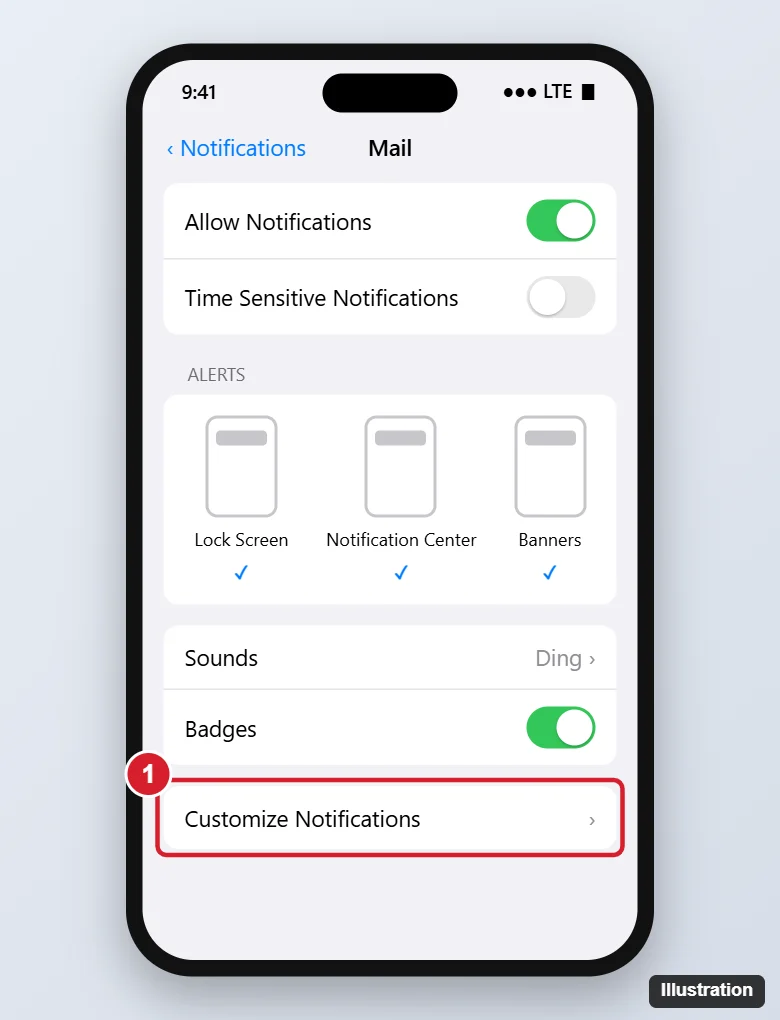
1. Check Mail Notification Settings
- Open Settings > Notifications > Mail.
- Turn on Allow Notifications.
- Under Alerts, select Lock Screen, Notification Center, and Banners.
- Set Sounds to a tone other than None if you want to hear new mail.
- Tap Customize Notifications, tap each email account, and turn on Alerts. This is the most commonly missed step: new accounts sometimes start with alerts off.
2. Turn On Push or Fetch
- Go to Settings > Apps > Mail > Mail Accounts > Fetch New Data (on older iOS: Settings > Mail > Accounts > Fetch New Data).
- Turn on Push at the top.
- Tap each account and choose Push if available. Otherwise choose Fetch.
- Under Fetch, choose Every 15 Minutes (instead of Manually or Hourly).
Some accounts, including Gmail added through the built-in Mail app, only support Fetch, so alerts can arrive up to 15 minutes late. For instant alerts from those accounts, use the provider’s own app.
3. Check Focus and Scheduled Summary
- Focus: swipe down to open Control Center and see if a Focus (Do Not Disturb, Sleep, Work) is on. In Settings > Focus, add Mail to Allowed apps for each Focus if you want alerts during it.
- Scheduled Summary: in Settings > Notifications > Scheduled Summary, make sure Mail isn’t included, or its alerts are held until the summary time. Also check the Mail notification’s Delivery setting is Immediate.
4. Check Mail’s Own Notification Filters
- In the Mail app, if a thread is muted (bell with a slash), you won’t get alerts for replies. Swipe left on the conversation and tap Unmute.
- If Mail’s categories are on (Primary, Transactions, Updates, Promotions), alerts may only come for Primary. Check Settings > Apps > Mail > Notifications or Customize Notifications for category options.
- Messages filtered to Junk don’t trigger alerts. Mark legitimate senders as Not Junk.
5. Turn Off Low Power Mode
Low Power Mode pauses background mail fetching. Turn it off in Settings > Battery or Control Center.
6. Restart and Update
- Restart your iPhone.
- Update iOS in Settings > General > Software Update.
7. Remove and Re-Add the Account
If one account still doesn’t alert, remove it (Settings > Apps > Mail > Mail Accounts > [account] > Delete Account) and add it again. Email stored on the server isn’t affected, but local drafts may be lost. Then repeat steps 1 and 2 for that account.
To see each message separately, see turning off email threading on iPhone.
No longer need an account? See how to delete an email account on iPhone.
Frequently Asked Questions
Why do I get badges but no banners?
Banners are turned off, or the account’s Alerts are off in Customize Notifications. Badges and alerts are separate settings.
Why are notifications delayed?
The account uses Fetch instead of Push, Low Power Mode is on, or Scheduled Summary is holding them.
Will turning on Push drain my battery?
Push is generally efficient. Fetching very frequently can use more battery than Push.
Summary
- Allow Mail notifications and turn on Alerts for each account.
- Turn on Push, or Fetch every 15 minutes.
- Check Focus, Scheduled Summary, muted threads, and Low Power Mode.
- Restart, update, or re-add the account if needed.

Kermit Matthews is a freelance writer based in Philadelphia, Pennsylvania with more than a decade of experience writing technology guides. He has a Bachelor’s and Master’s degree in Computer Science and has spent much of his professional career in IT management.
He specializes in writing content about iPhones, Android devices, Microsoft Office, and many other popular applications and devices.