To reset network settings on an iPhone 11, open Settings > General > Transfer or Reset iPhone > Reset, and tap Reset Network Settings. Enter your passcode and confirm. The iPhone restarts with Wi-Fi, cellular, Bluetooth, and VPN settings returned to their defaults. Your photos, apps, and other data aren’t touched, but you’ll need to rejoin Wi-Fi networks and re-pair Bluetooth devices afterward. On iOS 14 and earlier, the path is Settings > General > Reset.
This guide covers what the reset erases, when it helps, what to try first, and how to set things back up afterward.
When to reset network settings
- Wi-Fi won’t connect, keeps dropping, or shows “Incorrect password” even when it’s right.
- Cellular data, calls, or texts fail, or you see “No Service” in areas with coverage.
- Bluetooth devices won’t pair or keep disconnecting.
- VPN or Personal Hotspot problems after an update.
Try these first
- Toggle Airplane Mode on and off in Control Center.
- Restart the iPhone.
- Forget and rejoin the Wi-Fi network (Settings > Wi-Fi > tap i > Forget This Network).
- Install iOS updates and any carrier settings update (Settings > General > About prompts you if one is available).
Reset network settings
- Open Settings > General.
- Scroll to the bottom and tap Transfer or Reset iPhone.
- Tap Reset, then Reset Network Settings.
- Enter your passcode and tap Reset Network Settings to confirm.
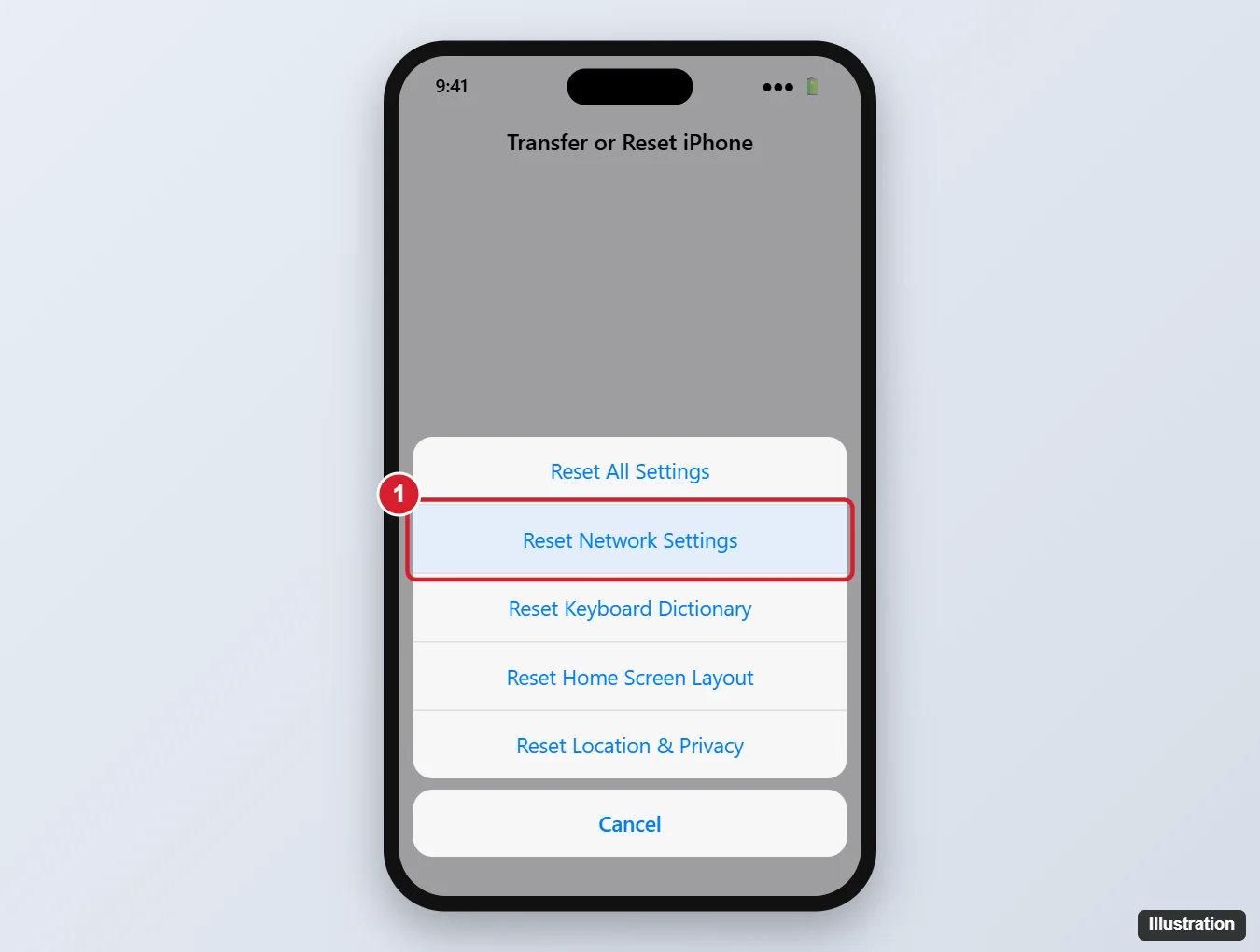
Be careful not to tap Erase All Content and Settings on the Transfer or Reset screen, which wipes the entire iPhone.
What gets reset
| Removed or reset | Not affected |
|---|---|
| Saved Wi-Fi networks and passwords | Photos, messages, apps, and files |
| Bluetooth pairings | Contacts, calendars, and accounts |
| VPN and APN settings | Your Apple Account and iCloud data |
| Cellular settings (back to carrier defaults) | eSIMs stay installed |
| Device name may reset to “iPhone” | Passcode and Face ID |
Wi-Fi passwords synced through iCloud Keychain may reconnect automatically on other devices, but you’ll likely need to re-enter them on this iPhone.
After the reset
- Join your Wi-Fi network again in Settings > Wi-Fi.
- Pair AirPods, car systems, and other Bluetooth devices again.
- Reinstall or re-enable your VPN profile if you use one.
- Rename the iPhone in Settings > General > About > Name if it changed.
If problems continue
- Test on another Wi-Fi network to rule out your router.
- Contact your carrier for cellular problems; they can check your line and SIM.
- Back up and restore the iPhone, or contact Apple Support for possible hardware issues.
Frequently asked questions
Will resetting network settings delete my data?
No. It only resets network-related settings.
How long does it take?
About a minute, including the restart.
Are the steps the same on other iPhones?
Yes. Any iPhone on iOS 15 or later uses Transfer or Reset iPhone > Reset > Reset Network Settings.

Kermit Matthews is a freelance writer based in Philadelphia, Pennsylvania with more than a decade of experience writing technology guides. He has a Bachelor’s and Master’s degree in Computer Science and has spent much of his professional career in IT management.
He specializes in writing content about iPhones, Android devices, Microsoft Office, and many other popular applications and devices.