You click a link in a spreadsheet and it opens in a browser you never use. Excel has no browser setting of its own: it passes every web link to the default browser of the operating system. On current versions of Windows 11, open Settings > Apps > Default apps, select the browser you want and choose Set default (Windows 10 uses the same path). After that, Excel links open there, and so do web links in most other apps.
Why the fix is in Windows, not Excel
When you click a hyperlink in a cell, a shape or a picture, Excel does not open the page itself. It hands the address to Windows, and Windows looks up which app is registered for web links. That registration is the default browser. So there is nothing to change under File > Options for ordinary web links, and the same choice also controls web links in Word, PowerPoint and most other apps. Outlook for Windows and Teams for Windows are exceptions: Microsoft says they open web links in Microsoft Edge unless you change their own setting (classic Outlook: File > Options > Advanced > File and browser preferences; new Outlook: Settings > General > Files and links > Open hyperlinks from Outlook in).
Two situations look similar but are different:
- The link points to a web page (an address starting with http or https). It follows the default browser.
- The link points to an Office file stored in OneDrive or SharePoint. Microsoft 365 can open that file in the Excel or Word desktop app or in the browser version, controlled by a separate Office option covered further down.
Change the default browser on Windows 11 or Windows 10
Install the browser you want first, then follow these steps. Microsoft documents the same path for both versions on its change default apps in Windows page.
- Press the Windows key + I to open Settings.
- Select Apps, then Default apps.
- Under Set defaults for applications, select the browser you want Excel links to open in (Chrome, Firefox, Microsoft Edge or another installed browser).
- At the top of the browser’s page, next to Make [browser] your default browser, select Set default.
- Close Settings, go back to Excel and click a link to check the result.
The browser’s page also lists the file types and link types it can open. If one entry still names a different app after you select Set default (web link types are usually shown as HTTP and HTTPS), select that entry and pick your browser. Microsoft gives the same steps for Windows 10.
For per-browser prompts, notes on links that still open in Edge and region differences, see how to change the default browser in Windows 11 and Windows 10. If Chrome is the browser you want, there are separate walkthroughs for making Chrome the default in Windows 10 and setting Chrome as the Windows 11 default.
Change it on a Mac
Excel for Mac has no browser option either, so change the default web browser in macOS. Apple describes it on its default web browser support page:
- Choose the Apple menu > System Settings.
- Click Desktop & Dock in the sidebar.
- Open the Default web browser menu and choose your browser.
On macOS versions before Ventura, the same menu is in System Preferences > General.
Links to Excel or Word files: desktop app or browser
If a link opens a workbook or document rather than a web page, the default browser may not be involved at all. Microsoft 365 has a File open preference for links to Word, Excel and PowerPoint files saved in OneDrive or SharePoint. In Excel for Windows:
- Select File > Options.
- Select Advanced.
- Under File open preference, choose Desktop to open those links in the Office apps or Browser to open them online.
In classic Outlook for Windows the matching option is under File > Options > Advanced > File and browser preferences. Microsoft’s open file links in Office desktop apps page lists when the option is not available (for example, when you are not signed in or the file is not in OneDrive or SharePoint) and notes that IT admins cannot control it centrally. When Browser is chosen, the file opens in the Microsoft 365 web app instead of the desktop app.
If Excel links still open in the wrong browser
- Close and reopen Excel. A quick restart rules out an Excel window that was open during the change.
- Check the link types again. One web link type can stay assigned to the old browser; fix it on the browser’s page in Default apps.
- Windows asks which app to use. Pick your browser and turn on the option to always use it, if the prompt offers one.
- The link opens Excel instead of a browser. It points to an Office file; see the File open preference section above.
- It is a work or school PC. An organization can manage default app settings, so your choice may not stick. Ask your IT team before trying workarounds.
Excel for the web
When you use Excel in a browser, you are already inside a browser, so links usually open in a new tab of that same browser. To use a different one, open the workbook from that browser instead.
Older Windows (Windows 7)
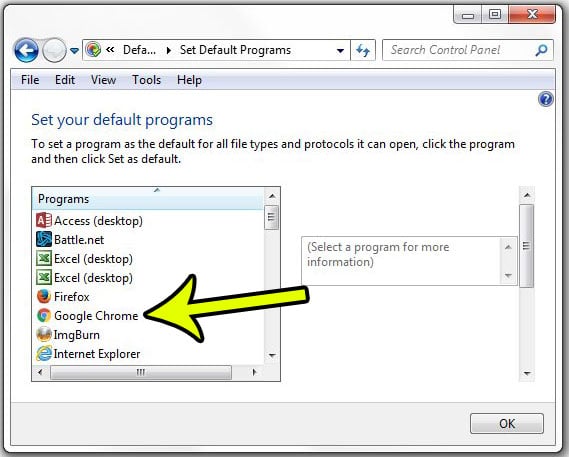
Windows 7 no longer gets updates, and most current browsers have dropped support for it. On those PCs, the setting was under Start > Default Programs > Set your default programs, where you picked the browser and selected Set this program as default, then OK. The full legacy walkthrough is in setting the default browser in Windows 7.



Excel link and browser questions
Can Excel open one link in Chrome and another in Edge?
Not with a setting. Every web link goes to the single default browser. To open a particular page elsewhere, right-click the cell, choose Edit Link (or press Ctrl+K), copy the address and paste it into the other browser.
Does the change affect Word and Outlook too?
Word and PowerPoint, yes: their web links use the same system default. Outlook for Windows and Teams for Windows open web links in Microsoft Edge unless you choose the default browser in their own settings (in classic Outlook, File > Options > Advanced > File and browser preferences). Word links are created the same way as Excel’s; see inserting a hyperlink in Word.
Will my old links still work after I switch browsers?
Yes. A hyperlink stores only the address, not the browser, so nothing in the workbook needs editing.
Once links open where you want, you can add more of them, such as a hyperlink attached to a picture, or clean up a sheet by removing all hyperlinks in Excel.

Kermit Matthews runs Live2Tech from just outside Philadelphia. He is an IT specialist with over 20 years of experience, from a university help desk to small-business IT, IT management and his own consulting practice, and has written tech guides full time since 2020. Steps are checked against the current software on a real device or the maker’s official documentation. More about Kermit.