You accepted a meeting invitation, went back to check the agenda in the email, and it was no longer in your Inbox. Outlook did not lose it. By default, Outlook moves a meeting request to Deleted Items as soon as you respond to it. In classic Outlook for Windows, you can stop that with one check box in File > Options > Mail. The new Outlook for Windows and Outlook on the web have a similar option under Settings > Calendar.
Why the invitation leaves your Inbox
A meeting request is a special type of email. When you choose Accept, Tentative or Decline, Outlook records your answer on your calendar, can send a response to the organizer, and then treats the request as done. With the default setting turned on, “done” means the email moves out of the Inbox and into the Deleted Items folder.
If you regularly empty Deleted Items, it is worth knowing how the confirmation before permanently deleting items works before you switch it off.
Meetings involve invitations, but if you only need to block time for yourself, you can set up a personal appointment in Outlook that sends nothing to anyone.
Three details are worth knowing before you change anything:
- Any response triggers it. Accepting is not the only cause. Tentative and Decline remove the request in the same way, so a declined invitation is not “deleted because you declined it.” It was removed because you answered it.
- Your calendar is not affected. If you accepted or chose Tentative, the meeting stays on your calendar after the email moves. You can open the calendar item to see the time, location, meeting link and the organizer’s notes.
- The email is not gone right away. It sits in Deleted Items until that folder is emptied, either by you or by a cleanup policy your organization sets.
Keeping the request in the Inbox helps when the invitation contains something you will need later: dial-in details, an attached agenda, or a note that is easier to find by searching your mail than by scrolling the calendar.
Find out which Outlook you have
The setting lives in a different place in each version of Outlook, so check this first.
| What you see | Which Outlook it is | Where the setting is |
|---|---|---|
| A File tab at the top left that opens a page with Options | Classic Outlook for Windows (Microsoft 365, Outlook 2016 to 2024) | File > Options > Mail > Send messages |
| No File tab; a gear icon (Settings) at the top right of the window | New Outlook for Windows | Settings > Calendar > Events and invitations |
| Outlook in a browser tab, signed in with a work, school or Outlook.com account | Outlook on the web | Settings > Calendar > Events and invitations |
| Outlook menu in the Mac menu bar | Outlook for Mac | No matching option documented (see below) |
Keep meeting requests in classic Outlook for Windows
These steps work in classic Outlook from a Microsoft 365 subscription and in the one-time purchase versions that use the same Options window. The screenshots come from Outlook 2013; the current window has a newer look, but the menu names in the steps are the same.
- Open Outlook.
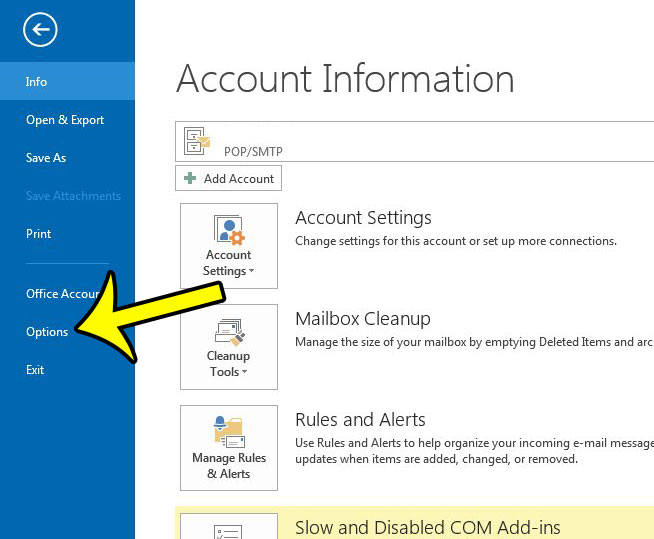
- Select the File tab at the top left of the window.

Older Outlook version shown; current screens look different. - Select Options at the bottom of the left column. The Outlook Options window opens.
Older Outlook version shown; current screens look different. - Select Mail in the left column of the Outlook Options window.

Older Outlook version shown; current screens look different. - Scroll down to the Send messages section and clear the check box for Delete meeting requests and notifications from Inbox after responding. A check mark means the option is on, so the box should be empty when you are done.

Older Outlook version shown; current screens look different. - Select OK at the bottom of the window to save the change.
The change applies to requests you answer from now on. Requests that were already moved stay in Deleted Items until you move them back (see the recovery section below). This exact label is the one Microsoft community moderators point to for classic Outlook in this Microsoft Q&A thread about accepted meetings moving to Deleted Items.
To test it, accept a low-stakes invitation (or ask a coworker to send a test meeting) and confirm the email stays in the Inbox after you respond. If you use classic Outlook on more than one computer, check the setting on each one.
New Outlook for Windows and Outlook on the web
The new Outlook for Windows and Outlook on the web share the same settings layout, so one set of steps covers both. No Microsoft support page documents this option, so the label below may differ slightly on your screen.
The calendar settings in these versions also control the forecast strip, so you can turn off calendar weather in Outlook while you are there.
- Select Settings (the gear icon) at the top right.
- Select Calendar, then Events and invitations.
- Look for the option that deletes invitations from the Inbox after you respond. Recent versions are reported to call it Delete invitations from Inbox after responding. Clear that check box.
- Select Save.
The same page can also list a separate option about updated invitations, worded in some versions as “Delete invitations and responses that have been updated” or “Delete invitations that have been updated by the organizer.” Microsoft does not document what it does; going by its name, it concerns meeting updates rather than your own responses, so clearing it alone may not stop answered requests from disappearing. Check which of the two you changed.
Because the new Outlook and Outlook on the web use the same account settings, a change made in one may show up in the other when you sign in with the same account. Classic Outlook has its own check box, so confirm it separately if you switch between apps.
Outlook for Mac
Microsoft does not document an equivalent check box for Outlook for Mac, and a college IT help page says the Mac app currently has none. If your Mac Outlook moves requests after you respond, two workable options are to open the request from Deleted Items when you need it, or, if the same mailbox works in Outlook on the web, change the option there; Microsoft does not document whether Outlook for Mac follows it. Do not expect a Mac Preferences path that matches the Windows steps.
Get back a request Outlook already removed
Requests you answered before changing the setting are usually still in Deleted Items. Microsoft’s page on recovering and restoring deleted items in Outlook lists the commands for each app.
Classic Outlook
- Open the Deleted Items folder and find the request (searching the organizer’s name or the meeting subject is quickest).
- Right-click it, choose Move, and pick your Inbox or another folder.
- If it is not in Deleted Items, select Recover Deleted Items From Server on the Home tab, select the item, then select Restore Selected Items and OK. Restored items go back into Deleted Items, so move them from there. If the command is missing, your account type does not support it.
New Outlook and Outlook on the web
- Open Deleted Items, right-click the request and select Restore, or drag it to the Inbox.
- If it has already been removed from Deleted Items, select Recover next to Recover items deleted from this folder, check the item and select Restore.
How long you have depends on your mailbox. Microsoft’s example is an administrator policy that empties Deleted Items after 30 days, plus a further period in which items can still be recovered, but your organization can set different limits. For anything you need to keep, move it out of Deleted Items soon rather than relying on recovery.
You can also change your answer without the email. Open the meeting on your calendar and choose a different response there; the restored request is only needed if you want the original message itself.
Invitations still disappearing?
If the check box is clear and requests still leave the Inbox, work through these causes:
- A different app is answering. If you respond on a phone or in a second Outlook app, that app’s own behavior applies. Change the setting in each Outlook you use to respond.
- Only updated invitations vanish. Check the separate updated-invitations option described in the new Outlook section above. In a work or school account, if that does not help, ask your IT team whether a mailbox setting applies.
- A rule is moving them. Check your rules for anything that matches meeting requests or the organizer. The guide to creating and editing rules in Outlook shows where rules are listed in each app.
- The setting did not save. Reopen File > Options > Mail in classic Outlook, or Settings > Calendar in the new Outlook, and confirm the box is still clear. If classic Outlook keeps behaving oddly after that, clearing the Outlook cache is a reasonable next step.
Older Outlook versions
Outlook 2010, 2013, 2016, 2019 and 2021 for Windows use the same File > Options > Mail > Send messages path and the same check box label, so the classic steps above apply. Outlook 2007 and earlier kept a similarly named option under Tools > Options, in the advanced email options.
Meeting request questions
Will keeping requests in the Inbox clutter it?
It can, if you receive many invitations. A rule that moves meeting requests into their own folder keeps them searchable without filling the Inbox.
Can I keep only some invitations?
The check box applies to every request you answer. If you want most requests cleared and a few kept, leave the default on and copy the important details into the calendar item’s notes, or forward the invitation to yourself before you respond.
Can I turn the old behavior back on later?
Yes. Check the same box again in classic Outlook, or turn the option back on in Settings > Calendar > Events and invitations. The change only affects requests you answer afterward.
Once your invitations stay where you can find them, you might also want Outlook to fetch new mail more often so requests arrive sooner. See how to change the send and receive frequency in Outlook. If you are going to be away, setting up automatic replies in Outlook lets organizers know before they wait on your answer.

Kermit Matthews runs Live2Tech from just outside Philadelphia. He is an IT specialist with over 20 years of experience, from a university help desk to small-business IT, IT management and his own consulting practice, and has written tech guides full time since 2020. Steps are checked against the current software on a real device or the maker’s official documentation. More about Kermit.