The box you want gone is the one that asks you to confirm a permanent delete, for example when you empty Deleted Items or delete messages that are already in it. In classic Outlook for Windows, go to File > Options > Advanced, scroll to Other, clear Prompt for confirmation before permanently deleting items, and select OK. An ordinary Delete never asks, because it only moves the item to Deleted Items.
When Outlook asks, and when it doesn’t
Outlook keeps two kinds of delete apart, and the prompt only belongs to one of them.
| What you do | Where the item goes | Confirmation |
|---|---|---|
| Press Delete on a message in the Inbox or another folder | Deleted Items (Trash on some accounts) | None; the item is easy to restore |
| Delete an item inside Deleted Items, or right-click the folder and choose Empty Folder | Removed from your folders for good | Asks, while the setting is on |
| Outlook empties Deleted Items automatically when you exit | Removed for good | Asks, while the setting is on |
| Press Shift+Delete to skip Deleted Items | Removed for good | Microsoft doesn’t say whether this prompt appears |
Microsoft 365, Exchange and Outlook.com mailboxes call the folder Deleted Items. Other accounts, such as many IMAP accounts, call it Trash. The setting behaves the same either way.
Turn off the prompt in classic Outlook for Windows
These steps match classic Outlook in Microsoft 365 and Outlook 2024, 2021, 2019 and 2016. If you cannot find File > Options, you are probably using the new Outlook for Windows, covered further down.
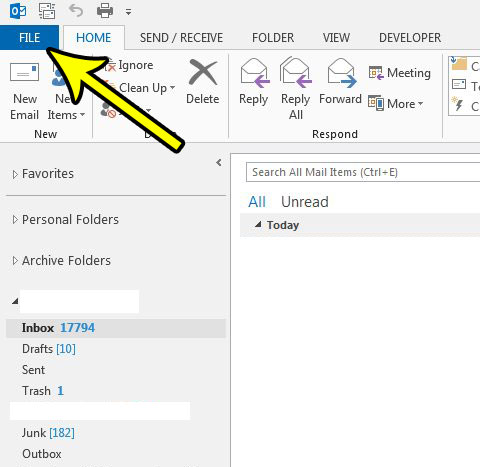
- Open Outlook and select the File tab.
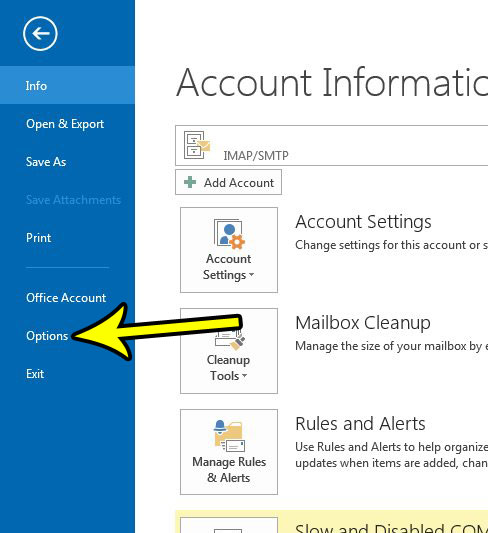
Outlook 2013 shown; current screens look different. - Select Options at the bottom of the left column.
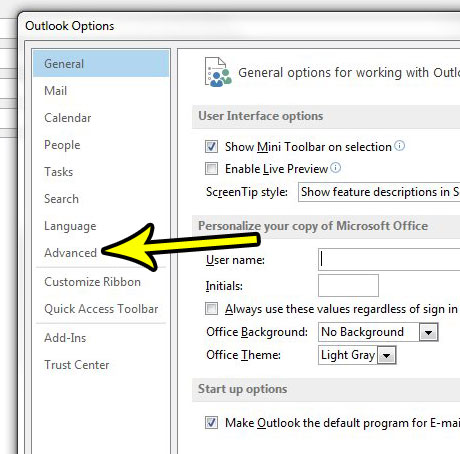
Outlook 2013 shown; current screens look different. - In the Outlook Options window, select Advanced.
Outlook 2013 shown; current screens look different. - Scroll down to the Other section and clear the Prompt for confirmation before permanently deleting items check box.
- Select OK.
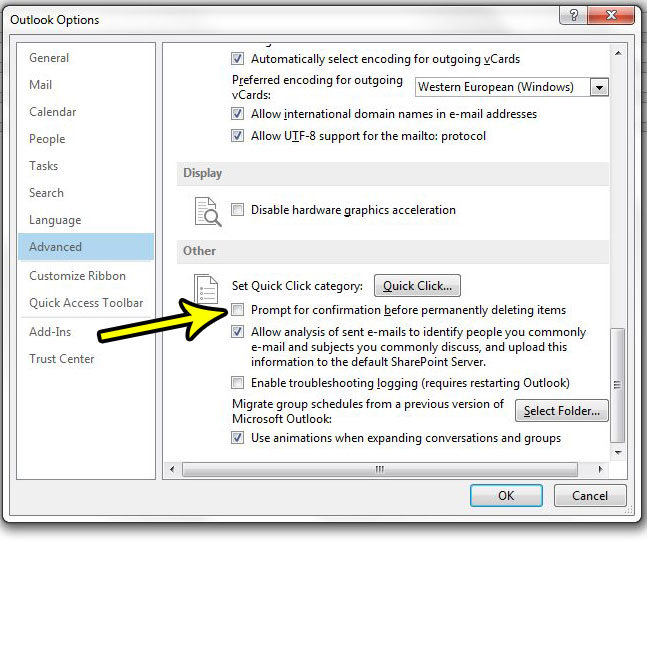
Outlook 2013 shown; the check box is still in the Other section.
To check the result, delete a test message, open Deleted Items and delete it again there. It should disappear without a question. To restore the safety net later, repeat the steps and check the box again.
What you give up without the prompt
Microsoft describes the option simply: it makes Outlook ask you to confirm before you permanently delete an item. With it off, one wrong click in Deleted Items removes the item without a second chance. Shift+Delete is permanent too: Microsoft warns that after Shift+Delete you won’t have an opportunity to change your mind later.
The setting matters most if you also use Empty the Deleted Items folder upon exiting, found on the same Advanced page under Outlook Start and Exit. Microsoft’s instructions pair the two: keep the prompt on if you want to be told before Outlook empties the folder automatically. A setup worth considering if you close Outlook many times a day is to keep auto-empty off, leave the prompt off, and empty Deleted Items yourself once a week with right-click Deleted Items > Empty Folder. That way nothing vanishes the moment you close the app, and the cleanup happens when you choose.
Turning the prompt off does not change anything else. Ordinary Delete still sends items to Deleted Items, and rules or other settings that move mail there keep working. If a rule is sending messages to Deleted Items that you wanted to keep, review it with the steps to create and manage rules in Outlook.
New Outlook, Outlook on the web and Outlook for Mac
Microsoft documents the confirmation check box only for classic Outlook for Windows, on its page about emptying the Deleted Items folder. Its help pages for the other versions do not describe a matching switch, so if the prompt bothers you there, there may be no setting to change. What each version does document:
- New Outlook for Windows: empty the folder by right-clicking Deleted Items and selecting Empty. To clear it automatically, go to View > View Settings > Mail > Message handling and, under When closing Outlook, select Empty deleted items folder.
- Outlook on the web: open Deleted Items and select More > Empty.
- Outlook for Mac: Control-click the Trash folder in the folder list and select Empty Folder. Microsoft’s Mac pages do not describe a way to turn off the confirmation.
The Mail app on an iPhone is a different case with its own switch: see how to stop iPhone Mail from asking before deleting emails.
Get back an item you deleted for good
Without the prompt, mistakes are more likely, so it helps to know the recovery route before you need it. Microsoft’s page on recovering deleted items in Outlook explains that items you delete from Deleted Items, remove by emptying the folder, or delete with Shift+Delete go to a hidden Recoverable Items folder on supported accounts.
- In classic Outlook, select the Deleted Items folder.
- On the Home tab, select Recover Deleted Items From Server.
- Select the items you want, choose Restore Selected Items, and select OK. They return to Deleted Items, where you can move them anywhere.
In new Outlook and Outlook on the web, open Deleted Items, select Recover next to Recover items deleted from this folder, pick the items and choose Restore.
Some limits apply, all from Microsoft:
- If the recover command is missing, or your folder is called Trash, your account does not support this kind of recovery.
- For POP3, IMAP, Outlook.com and other Exchange ActiveSync accounts in classic Outlook, a message is permanently gone once Deleted Items is emptied.
- On work and school mailboxes the recovery window is set by your Exchange administrator, so ask your IT team how long you have.
Outlook 2013 and Outlook 2010
The older desktop versions use the same route: File > Options > Advanced, then the check box in the Other section, as the Outlook 2013 screenshots above show. Microsoft’s current help pages cover Outlook 2016 and later, so the exact layout in older versions may differ slightly.
Outlook delete prompt: questions answered
Does turning off the prompt make Outlook empty Deleted Items on its own?
No. Automatic emptying is a separate check box, Empty the Deleted Items folder upon exiting. Unless that one is on, items stay in Deleted Items until you delete them or your mailbox policy removes them.
Outlook asks before it closes and the dialog holds up shutdown. Which setting causes that?
That is the prompt for the automatic empty on exit. Either clear the confirmation box as described above, or turn off Empty the Deleted Items folder upon exiting and empty the folder by hand instead.
Does the setting sync to my other devices?
Microsoft does not document that it does. The option sits in the Outlook Options of the classic Windows app, so check it on each computer where you use classic Outlook.
Next step: decide whether you want automatic emptying on exit, then set both check boxes on the Advanced page to match. While you are in Outlook Options, two other settings people often change are covered in how to stop saving sent messages in Outlook and how to stop Outlook from deleting meeting requests after you respond. If new mail is slow to arrive as well, see how to make Outlook check for mail more often.

Kermit Matthews runs Live2Tech from just outside Philadelphia. He is an IT specialist with over 20 years of experience, from a university help desk to small-business IT, IT management and his own consulting practice, and has written tech guides full time since 2020. Steps are checked against the current software on a real device or the maker’s official documentation. More about Kermit.