Maybe several people share one computer, your mailbox keeps hitting its size limit, or every message you send shows up twice. In classic Outlook for Windows, go to File > Options > Mail, find Save messages, clear the Save copies of messages in the Sent Items folder check box, and click OK. IMAP accounts, single messages, Outlook for Mac, the new Outlook and Outlook on the web each work differently, as explained below.
Another setting in Outlook Options controls the Outlook permanent-delete confirmation, which you can turn off if the prompt slows you down.
Turn off Sent Items copies in classic Outlook
Microsoft documents this check box for classic Outlook in Microsoft 365 and in Outlook 2024, 2021, 2019 and 2016. When it is selected, which is the usual setting, Outlook keeps a copy of everything you send. Outlook 2013 has the same box in the same place, so the older screenshots below still match the path even though the window looks a little different now.
- Open classic Outlook and click the File tab in the top-left corner.

Outlook 2013 shown; current versions look slightly different. - Click Options at the bottom of the left column. The Outlook Options window opens.

Outlook 2013 shown; current versions look slightly different. - Select Mail in the list on the left side of the window.

Outlook 2013 shown; current versions look slightly different. - Scroll down to the Save messages section and clear (uncheck) Save copies of messages in the Sent Items folder. Clicking the box toggles it, so make sure the check mark is gone rather than added.
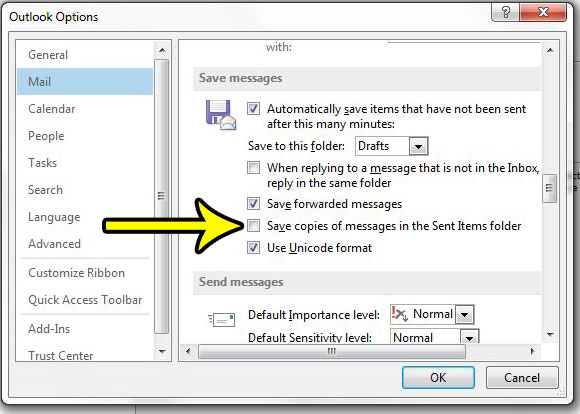
Outlook 2013 shown; current versions look slightly different. - Click OK to close the window and apply the change.
To confirm it worked, send a short test message to yourself, then open Sent Items. The test should not appear there, although it still arrives in your Inbox because you were the recipient. Microsoft’s page on changing where sent email messages are saved describes the same setting.
Microsoft does not say whether this box covers every account in your Outlook profile or only some of them. If you have more than one account set up, send a test from each one and check its Sent Items folder.
What you give up when Outlook stops saving
Turning the box off only changes what happens to messages you send from now on. Keep these points in mind before you leave it off:
- Older sent mail stays. Everything already in Sent Items remains there. If the goal is privacy on a shared computer or a smaller mailbox, delete those messages yourself.
- No resend or forward later. Without a copy, you cannot reopen a message to forward it, resend it or check exactly what you promised someone.
- Search cannot find it. Outlook search only looks at mail that is stored, so unsaved messages never turn up. If search seems to miss mail you do have, the problem is different, and there are ways to stop Outlook from limiting search results.
- Recipients notice nothing. The message is delivered normally. Only your own copy is skipped.
- Records may still exist elsewhere. A mail provider or an organization’s retention and auditing tools can keep their own records. This setting is a convenience switch in the Outlook app, not a way to erase evidence of a message.
A practical middle ground for a shared computer is to give each person a separate Windows account, so each one has their own Outlook profile and Sent Items. For a crowded mailbox, deleting or archiving old Sent Items usually frees more space than switching saving off.
Skip the copy for one message only
If you only want to leave a single sensitive message out of Sent Items, classic Outlook has a per-message option in the message window. In a new message, open the Options tab and look for Save Sent Item To, which, in many versions, offers a Do Not Save choice for that message alone. Microsoft’s current support pages do not document this button, and on the Simplified Ribbon it can be hidden under the More options (three dots) menu, so if you cannot find it, use the global check box above and turn it back on afterward.
The same Save Sent Item To menu can also send the copy to another folder instead of Sent Items. If you want every sent message filed somewhere else rather than discarded, classic Outlook rules can do that; see how to create rules in Outlook.
IMAP accounts have their own switch
IMAP accounts (common with Gmail, Yahoo, iCloud and many internet providers) store sent mail on the mail server. Microsoft says that with an IMAP account you cannot change where sent items are stored, but you can turn off saving sent messages entirely:
- In classic Outlook, select File > Account Settings > Account Settings.
- Select the IMAP account and click Change.
- Select the Don’t save copies of sent items check box.
- Click Next, then Done.
The same Account Settings list shows the type of each account, so it is also the quickest way to find out whether an account is IMAP, POP or Exchange.
Some IMAP providers create their own copy of each message in the server’s Sent folder when the message passes through their outgoing server. Microsoft notes this behavior in a page about duplicated IMAP sent messages. When the provider does this, Outlook’s setting cannot stop it, and the copy still appears in webmail and on your phone. Turning off Outlook’s copy is also the usual fix when every sent message appears twice.
Exchange, Microsoft 365 and Outlook.com accounts
For Exchange-based accounts, including work or school Microsoft 365 mailboxes and Outlook.com, the Save copies of messages in the Sent Items folder box in File > Options > Mail is the control to use. The same section has a second box, When replying to a message that is not in the Inbox, save the reply in the same folder. That one decides where a reply’s copy goes, not whether it is saved.
Shared mailboxes follow a server setting. An administrator decides whether messages sent as, or on behalf of, a shared mailbox also get a copy in that mailbox’s Sent Items, using the MessageCopyForSentAsEnabled and MessageCopyForSendOnBehalfEnabled parameters of the Set-Mailbox cmdlet. Ask IT if a shared mailbox keeps or skips copies in a way you did not expect.
New Outlook, Outlook on the web and Outlook for Mac
Microsoft does not document a setting that stops saving sent mail in the new Outlook for Windows or Outlook on the web; in those apps sent messages go to Sent Items. Outlook for Mac has one documented switch, for IMAP accounts only: go to Tools > Accounts, select the IMAP account, click Advanced, open the Folders tab, select Don’t store a copy of sent messages and click OK. Microsoft gives these steps as the fix for duplicated sent items, and labels can differ in newer Outlook for Mac versions.
In the new Outlook and Outlook on the web, your options are:
- Delete messages from Sent Items after you send them, or clear the folder from time to time.
- Use classic Outlook for Windows for the account if the no-copy setting matters to you.
For Exchange, Outlook.com and IMAP accounts, deleting a sent message in one app removes it from the mailbox the other apps show.
If the check box keeps turning itself back on
On a work computer, the setting may be enforced by IT. Outlook stores the choice in a registry value named SaveSent (0 means sent items are not saved, 1 means they are). Microsoft’s troubleshooting article on sent email not being saved to Sent Items lists the locations: HKEY_CURRENT_USER\Software\Microsoft\Office\16.0\Outlook\Preferences for your own preference, and a matching key under HKEY_CURRENT_USER\Software\Policies for a policy. Version 16.0 covers Outlook 2016, 2019 and Microsoft 365.
A value under the Policies key comes from Group Policy and overrides what you pick in Outlook Options. If that is the case, the box may be unavailable or reset itself, and only your administrator can change it. Editing the registry by hand on a managed computer is not a good idea; a policy refresh can put the value back anyway.
Turn saving back on
Go back to File > Options > Mail > Save messages, select Save copies of messages in the Sent Items folder again and click OK. For an IMAP account, also clear Don’t save copies of sent items in that account’s Change screen. Messages sent while saving was off are not recovered; copies start again with the next message you send.
Sent Items questions
Does this delete messages that are already in Sent Items?
No. The setting only affects future messages. Existing sent mail stays until you delete or archive it.
How can I keep a record of one important message with saving turned off?
Add your own address in the Bcc field. You receive a copy in your Inbox while the other recipients cannot see that you copied yourself.
Why does my webmail still show a sent copy?
Your provider’s server probably saves its own copy when the message passes through it, which is common with IMAP accounts. That copy is controlled by the provider, not by Outlook.
Does this change when Outlook actually sends my mail?
No. Timing is controlled by the Outbox and send settings, which is a separate topic: see how to send emails immediately in Outlook if messages sit in the Outbox.
Other settings that shape how your sent mail looks and behaves are worth a quick check too, such as how to change your name on emails sent from Outlook. If you are still using an older version and want new mail to arrive sooner, there is also a walkthrough on changing Outlook 2013 send and receive settings.

Kermit Matthews runs Live2Tech from just outside Philadelphia. He is an IT specialist with over 20 years of experience, from a university help desk to small-business IT, IT management and his own consulting practice, and has written tech guides full time since 2020. Steps are checked against the current software on a real device or the maker’s official documentation. More about Kermit.