Your Outlook search returns a handful of messages, or only mail from the last few months, and the one you need is missing. In classic Outlook for Windows, start with File > Options > Search and clear Improve search speed by limiting the number of results shown if your version lists it. Then check three things that cut results just as often: the search scope, the cached mail time window and indexing. New Outlook and Outlook on the web handle this differently, covered below.
Results are quicker to check when you turn on the Outlook Reading Pane so each message opens beside the list.
Three different reasons a search looks short
Before changing settings, it helps to know which kind of “limit” you are hitting, because each has a different fix.
| What you see | Likely cause | Where to fix it |
|---|---|---|
| A short list with a More option at the bottom | The results-limiting option in classic Outlook | File > Options > Search |
| Results only from recent months | Cached Exchange Mode keeps only part of your mailbox on the PC | Account Settings, Download email for the past |
| Results only from one folder or one account | Search scope | The scope list beside the search box |
| A long list that still lacks the message | The 1,000-result cap or a broad search term | Make the search more specific |
Microsoft’s current how to search in Outlook page states that “only the first 1,000 search results are returned” to keep Outlook running smoothly, and that applies to classic Outlook for Microsoft 365, new Outlook for Windows and Outlook.com. No setting removes that cap, so the last row is solved by searching smarter rather than by an option.
Turn off result limiting in classic Outlook
Older versions of classic Outlook show a reduced set of results first to keep searches fast. Microsoft documented the checkbox that controls this for Outlook 2013 in a post on getting complete search results. Current Microsoft support pages do not mention it, so in a recent Microsoft 365 build it may be missing; if so, skip to the scope and cached mode sections.
- Open classic Outlook and click the File tab. If your Outlook has a Settings gear instead of a File tab, you are using new Outlook; see the new Outlook section.
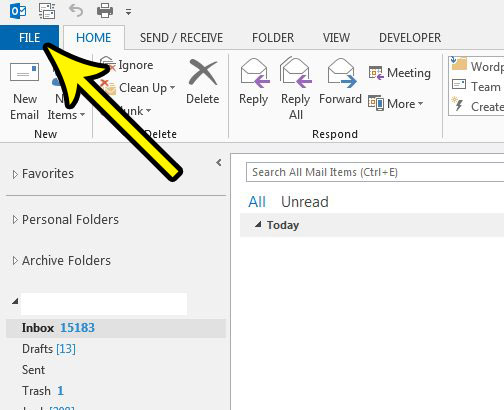
Older Outlook version shown; current screens look different. - Select Options in the left column.
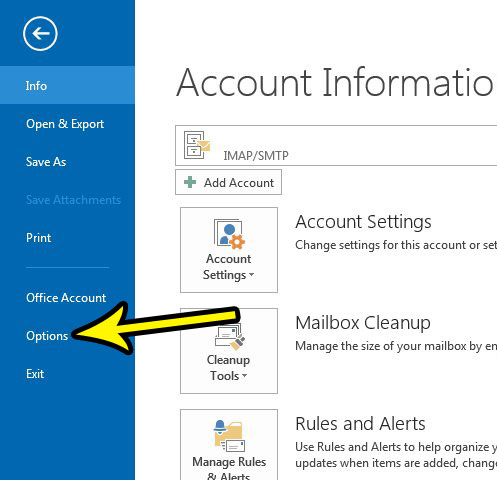
Older Outlook version shown; current screens look different. - Choose Search in the left column of the Outlook Options window.
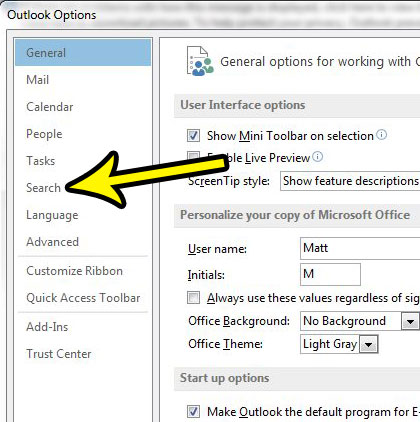
Older Outlook version shown; current screens look different. - Clear the check box for Improve search speed by limiting the number of results shown, then click OK.
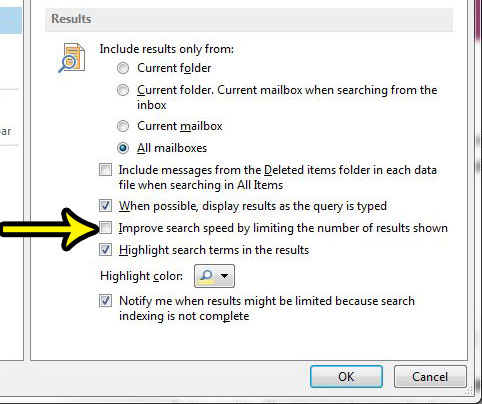
Older Outlook version shown; current screens look different. - Close and reopen Outlook, then run the same search again.
Expect searches to take a little longer on a large mailbox, since Outlook now gathers everything before it finishes. If the results grow, the setting did its job. If they look the same, the limit was coming from somewhere else.
The More option at the end of a results list is related. In the Outlook 2013 post above, Microsoft says More was of little help while the limit was on; after the box is cleared, More refers to messages that are not cached on your PC. Microsoft also notes that a server running Exchange 2013 can still stop at 250 items after you click More, a limit set on the server by an administrator (Exchange 2013 search results article).
Avoid registry tweaks that promise to remove the cap. Sources disagree about which value does what, and Microsoft does not document one for current Outlook.
Search older mail with the cached mode slider
With a Microsoft 365 or Exchange account, classic Outlook usually runs in Cached Exchange Mode, keeping a local copy of only recent mail. Instant Search mainly looks at that copy, so a search for a message from three years ago can come back empty even though the message is on the server.
- Click File > Account Settings > Account Settings.
- On the Email tab, select your account and click Change.
- Drag the Download email for the past: slider to a longer period, or to the far right for All.
- Click Next, then Done, and restart Outlook.
These steps come from Microsoft’s troubleshooting Outlook search issues page. Downloading more mail uses more disk space, and Outlook needs time to sync and index the older items, so results can keep improving for a while afterward. On a laptop with a small drive, a middle setting such as a few years can be a better trade than All.
Widen the search scope
Classic Outlook searches only part of your mail unless you widen the scope. When you click in the search box, a scope list appears beside it. Microsoft’s search and filter email training lists the choices as All Mailboxes, Current Mailbox, Current Folder, Subfolder and All Outlook Items.
- All Mailboxes covers every mail account in your profile, helpful if you have a work and a personal account side by side.
- All Outlook Items also includes calendar items, contacts and tasks.
- Current Folder is what you need for an online archive or a shared mailbox, which Microsoft says you should search by opening that folder and using this scope.
Deleted mail is another blind spot. On the same File > Options > Search page, the option Include messages from the Deleted items folder in each data file when searching in All Items lets those messages appear in wide searches.
If you navigate between mail, calendar and other modules often, you may also want to show more navigation options in Outlook so these folders are easier to reach.
Find the right message inside the 1,000-result cap
When a broad word such as “invoice” matches thousands of items, the fix is a tighter query. Microsoft documents keywords you can type straight into the search box:
- from: followed by a sender’s name or address
- subject: plus a word from the subject line
- hasattachment:yes for messages with files
- received: followed by a date to limit the period
- Quotation marks around an exact phrase, and uppercase AND, OR or NOT to combine terms
A worked example: a search for invoice returns a wall of results. Typing from:billing subject:invoice hasattachment:yes narrows it to the few billing messages that carry a file. You can also use the filter button at the right side of the search box, or the Refine group on the Search tab, to do the same with menus. Note that numbers shorter than five digits are ignored by search, so an invoice number like 4471 will not narrow anything on its own.
If mail is routinely moved by rules, searching the destination folder directly is often faster. See how to create rules in Outlook to check where messages are being filed.
New Outlook for Windows and Outlook on the web
New Outlook for Windows has no File > Options menu, and Microsoft does not document a result-limiting checkbox for it. What you can change:
- Select Settings > General > Search.
- Update the search scope (Microsoft mentions Current Folder as one of the choices) and turn on the option to include deleted items if you need them.
- Save the change.
New Outlook also keeps a limited amount of mail offline. Under Settings > General > Offline, the Days of email to save setting controls how much is stored on your PC. Microsoft also notes that searching across several accounts at once is not currently supported in new Outlook, so switch to each account and search it separately.
Outlook on the web and Outlook.com search your mailbox on the server. Microsoft’s search in Outlook on the web page repeats the 1,000-result statement and recommends a more specific search; no setting to raise the limit is documented there.
Microsoft does not document a result-limiting option for Outlook for Mac, so use specific search terms there too.
When results are missing, not just limited
If even a precise search such as a sender’s full address misses a message you can see in a folder, the search index is probably incomplete. In classic Outlook, click in the search box, open Search Tools and choose Indexing Status to see whether indexing is still running. If it reports that indexing finished but results are still wrong, Microsoft’s troubleshooting page walks through checking the indexed locations and rebuilding the index from File > Options > Search > Indexing Options. If Outlook is also slow in general, clearing its temporary files is covered in clearing the Outlook cache in Windows 10.
Notes for Outlook 2013 to 2021
Outlook 2013, 2016, 2019 and 2021 keep their search settings on the same File > Options > Search page, although the exact list of options can differ by version. Microsoft’s Outlook 2013 post notes that it cached 12 months of mail by default, which explains why many searches in that era stopped at roughly a year back.
Outlook Options also includes a setting for international domain names in email addresses.
Outlook search questions
Will turning off result limiting slow Outlook down?
Searches can take longer on large mailboxes because Outlook collects more items before it shows the full list.
Why do my results stop at about a year ago?
That pattern points to the cached mode slider rather than the results limit. Move Download email for the past to a longer period, or click More at the end of the results to include server items.
Is the limit the same as the Top results section?
They are separate. Some Outlook versions show a short group of suggested matches above the full list, and the result-limiting checkbox is not documented as controlling it. Microsoft does not document a switch for that group in the pages checked for this article.
Can an administrator change the limit?
For Exchange Server 2013, Microsoft documents a server setting that changes the 250-item cap. On Exchange Online and current Outlook, the 1,000-result cap is not something users can change.
If Outlook also feels slow while you scroll long result lists, try turning off conversation animations. For other display tweaks, see how to hide user photos in Outlook, and if new mail seems to arrive late, learn how to make Outlook check for mail more often.

Kermit Matthews runs Live2Tech from just outside Philadelphia. He is an IT specialist with over 20 years of experience, from a university help desk to small-business IT, IT management and his own consulting practice, and has written tech guides full time since 2020. Steps are checked against the current software on a real device or the maker’s official documentation. More about Kermit.