If the little slide-open effect every time you expand an email thread is distracting you, classic Outlook for Windows lets you switch it off: go to File > Options > Advanced and clear Use animations when expanding conversations and groups in the Other section. New Outlook for Windows and Outlook on the web have no documented switch for that animation, but you can stop grouping messages by conversation, or turn off animation effects for all of Windows.
If the new-mail chime is the next distraction on your list, here is how to turn off the new email sound in Outlook.
For a calmer inbox view, you can also hide user photos in Outlook so messages show names without pictures.
Another classic Outlook setting that trades completeness for speed is the search limit, and you can turn off Outlook’s search result limit if older messages never show up.
What this setting changes
Microsoft describes the option simply: by default, classic Outlook shows a brief animation while it expands a message conversation or a group in the message list. Clearing the check box removes that effect, and the thread or group opens instantly instead.
If the message list is all you see and nothing opens beside it, you may need to show the Reading Pane in Outlook again.
Two words in the label are worth clearing up:
- Conversations are threads of related messages that Outlook stacks under one heading when Conversation view is on.
- Groups are the headings Outlook uses to divide the message list, such as date groups like Today or Last Week. The word has nothing to do with Microsoft 365 Groups.
Older versions of this tutorial suggested the change would speed Outlook up or ease memory problems. Microsoft does not make that claim. The setting only removes one short visual effect, so treat it as a comfort or focus change, not a performance fix. If Outlook is genuinely slow, troubleshooting steps such as clearing the Outlook cache in classic or new Outlook are a better place to start. Slow start-up, search or sync usually points to add-ins, the cache or the data file instead.
Turn off the animation in classic Outlook for Windows
These steps apply to classic Outlook for Windows in Microsoft 365 and in Outlook 2024, 2021, 2019 and 2016. Outlook 2013 uses the same path. The screenshots below come from Outlook 2013, so the current window looks a little different, but the menu names are the same.
- Open classic Outlook and select the File tab at the top left of the window.
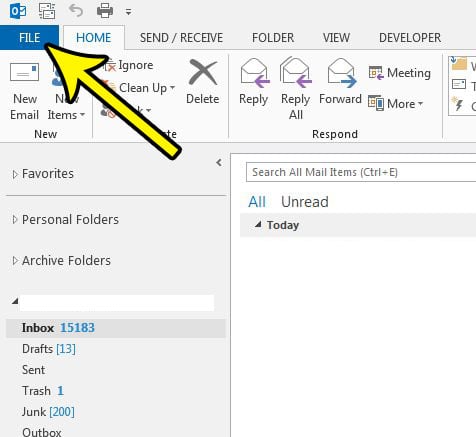
Older Outlook version shown; current screens look different. - Select Options at the bottom of the column on the left.

Older Outlook version shown; current screens look different. - In the Outlook Options window, select Advanced in the left column.

Older Outlook version shown; current screens look different. - Scroll down to the Other section near the bottom of the page and clear the Use animations when expanding conversations and groups check box.
- Select OK to save the change and close the window.

Older Outlook version shown; the check box sits in the Other section of Advanced options.
To confirm it worked, go back to your Inbox and expand a conversation or a collapsed date group. It should open in one step with no sliding motion. To bring the effect back, repeat the steps and select the check box again.
If other parts of Outlook still move: Windows animation effects
The Outlook option covers only conversations and groups. Office apps also follow the Windows animation setting, so if fades and transitions elsewhere bother you, switch them off at the system level. Microsoft notes that turning off Windows animations automatically turns off animations in Office apps too.
In current versions of Windows 11:
- Select Start > Settings.
- Select Accessibility > Visual effects.
- Turn off Animation effects.
This affects Windows itself and the apps that respect the setting, including Word, Excel and PowerPoint, so expect the whole system to feel more static. Turn the switch back on to undo it.
Windows 10 reached end of support on October 14, 2025, though many PCs still run it. On Windows 10, press the Windows logo key + U to open Ease of Access, then under Simplify and personalize Windows turn off Show animations in Windows, as Microsoft’s Turn off Office animations page describes. On Windows 7 and 8, the Ease of Access Center option was Turn off all unnecessary animations (when possible).
New Outlook for Windows and Outlook on the web
Microsoft does not document a separate setting for the expand animation in new Outlook for Windows or Outlook on the web, and Advanced options from classic Outlook do not carry over. If expanding threads is what bothers you, the practical fix is to stop grouping messages, so there is nothing to expand. In new Outlook:
- Select Settings (the gear icon).
- Go to Mail > Reading Pane.
- Under Message organization, choose Do not group messages. The other choices are Group messages by conversation and Group messages by branches within conversations.
- Save the change if Outlook shows a Save button.
Outlook on the web has a similar message organization setting in its mail settings, but the exact location can vary by account, so look for Message organization or a conversation option under Settings > Mail if the steps above do not match. The Windows Animation effects switch above also applies when you use new Outlook on a Windows PC.
You may also see posts about “Joyful Animations” in Outlook on the web. That appears to be a different feature tied to composing messages, not the conversation expand effect, so turning it off will not change how threads open.
Stop grouping by conversation in classic Outlook
If you would rather see every message as its own line, turn Conversation view off entirely. With no conversations, there is nothing to expand and no animation to watch.
- Open the folder you want to change, such as Inbox.
- Select the View tab.
- Clear Show as Conversations. If Outlook asks, choose whether to apply the change to this folder or to all folders.
If you like conversations but want them to behave differently, the View > Conversation Settings menu has options such as Always Expand Selected Conversation, Show Messages from Other Folders, Show Senders Above the Subject and Use Classic Indented View. To go back, select Show as Conversations again.
Outlook mobile
The Outlook app for iPhone and Android has no animation switch either, but you can turn off threading: open Settings, go to the Mail section, and turn off Group emails by conversation under Email Organization.
Outlook animation questions
Why can’t I find the option in Outlook Options?
You are probably using new Outlook, which has no Advanced options page. In most versions, a New Outlook toggle appears near the top of the window; if it is switched on, you are in the new app. Another clue is that new Outlook has no File tab. Use the Message organization setting instead, or switch back to classic Outlook if your organization allows it.
Does this stop animated GIFs in emails?
No. GIFs inside messages are content, not an Outlook interface effect, so this check box does not affect them.
While you are in classic Outlook’s options, you might also want to stop Outlook from deleting meeting requests after you respond, so you can find an invitation again later. For full details on each Advanced option, see Microsoft’s Advanced options in classic Outlook for Windows page.

Kermit Matthews runs Live2Tech from just outside Philadelphia. He is an IT specialist with over 20 years of experience, from a university help desk to small-business IT, IT management and his own consulting practice, and has written tech guides full time since 2020. Steps are checked against the current software on a real device or the maker’s official documentation. More about Kermit.