You have two choices: keep the new-mail pop-up and silence only the chime, or silence everything Outlook does when mail arrives. For the chime alone in classic Outlook for Windows, go to File > Options > Mail, find Message arrival, clear Play a sound, and click OK. The new Outlook for Windows and Windows itself each have their own sound switch, covered below.
Which switch do you need?
The sound can come from more than one place, so it helps to pick the right layer first:
| You use | Where the new-mail sound is controlled |
|---|---|
| Classic Outlook for Windows (has a File tab) | File > Options > Mail > Message arrival |
| New Outlook for Windows | Outlook’s own Settings > General > Notifications |
| New Outlook (and any Outlook that uses Windows notifications) | Windows Settings > System > Notifications > Outlook, or the Windows sound scheme |
| Outlook for Mac | Outlook’s Notifications & Sounds settings |
If you are not sure which Windows version of Outlook you have, look for a File tab at the top left. Classic Outlook has one; the new Outlook does not.
Classic Outlook: turn off the chime, keep the alert
These steps apply to classic Outlook in Microsoft 365, Outlook 2024, 2021, 2019 and 2016. The screenshots come from an older version, but the path is the same.
- Open Outlook and click the File tab.
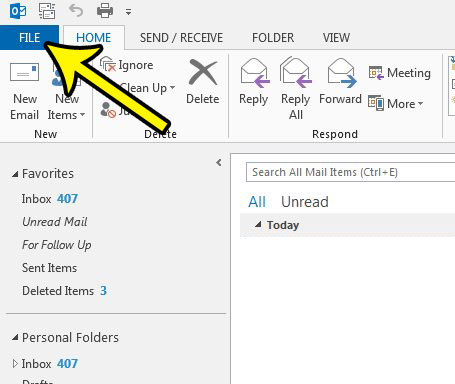
Older Outlook version shown; current screens look different. - Click Options at the bottom of the left column.
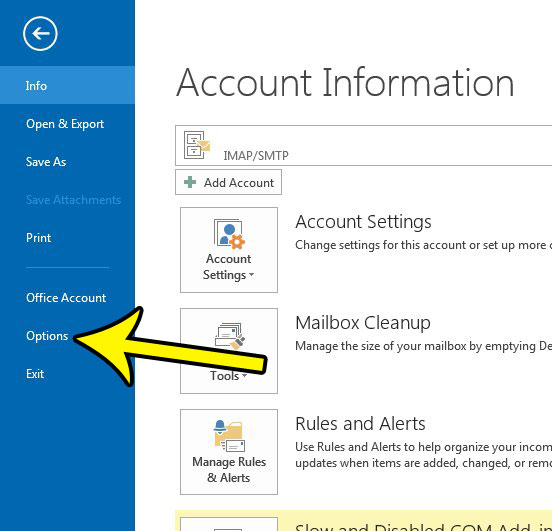
Options in an older version of Outlook. - Select Mail in the left column of the Outlook Options window.
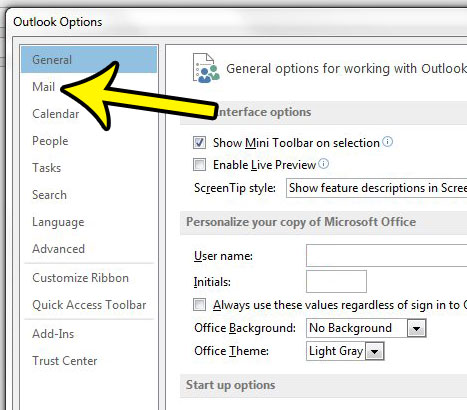
Older Outlook version shown; current screens look different. - Scroll to Message arrival, clear the Play a sound check box, and click OK.
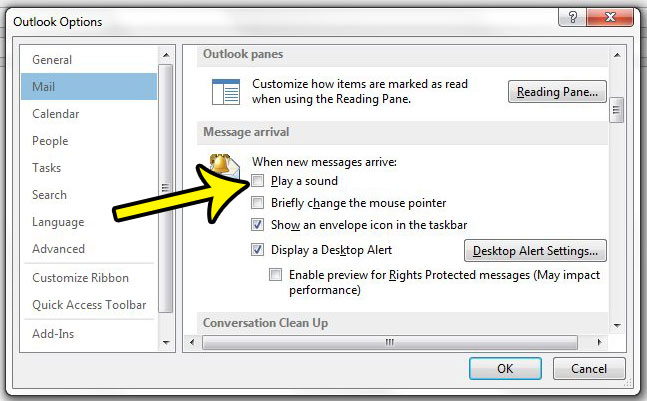
The Play a sound box in an older version of Outlook Options.
The other boxes in Message arrival are separate, so you can keep any of them: briefly change the mouse pointer, show an envelope icon in the taskbar, and display a Desktop Alert. If you would rather lose the pop-up and keep the sound, turning off the Outlook desktop alert covers that box. To get the chime back later, select Play a sound again. Microsoft’s page on Outlook sound effects lists these options.
New Outlook for Windows
The new Outlook has no File > Options window. Its notification settings, as Microsoft describes them:
- Select View > View Settings.
- Go to General > Notifications.
- Under Notify me about, open Mail.
- Under New Email and Reactions, open Play Sound and choose the option that plays no sound, if your version lists one. If it doesn’t, turning off Mail under Notify me about stops mail notifications, including their sound.
The same Play Sound setting lets you choose a different sound instead of silence. Calendar reminders have their own Play Sound setting under Calendar, which is why muting new mail does not silence meeting reminders.
Outlook on the web and Outlook for Mac
Outlook on the web and Outlook.com: notification options are usually found in Settings (the gear icon) under General > Notifications. Microsoft’s help pages that could be checked don’t document the sound switch there, so treat this as a place to look rather than an exact path. Your browser’s own notification permission for the site may also affect whether you hear anything.
Outlook for Mac: open the Outlook menu, then Preferences (newer versions may call it Settings), and choose Notifications & Sounds. Under Sounds, clear the box next to the sound you don’t want. Microsoft’s Mac page was written for Outlook 2016 for Mac, so labels in current versions may differ slightly.
Silence Outlook from Windows
In current versions of Windows 11, Windows can mute a single app’s notification sounds while still showing its banners. This applies when Outlook shows its notifications through Windows, as the new Outlook does.
- Open Start > Settings > System > Notifications.
- Under Notifications from apps and other senders, select Outlook.
- Turn off Play a sound.
Microsoft’s Windows notification settings page describes this switch along with banner and notification center options. Turning the Windows volume all the way down also stops the sound, but it silences everything else too.
Change the sound instead of muting it
If the chime is useful but you dislike the tone, Windows lets you swap it. Microsoft lists this method for classic Outlook in Microsoft 365, 2024 and 2021, and for the new Outlook for Windows.
- Exit Outlook.
- Open Control Panel, type Sound in the search box and open Sound, then select the Sounds tab.
- Under Program Events, in the Windows group, select New Mail Notification.
- Click Browse and pick a sound file. Only .wav files work.
- Click OK, then open Outlook again.
To silence that event at the Windows level, choose No Sounds for it in the same dialog. Keep in mind that the New Mail Notification event is a Windows sound, so any other mail app that uses it changes too.
Still hearing the Outlook chime?
I cleared Play a sound but it still plays
Check the Windows layer. Outlook’s notifications in Windows have their own Play a sound switch, and the New Mail Notification event in Control Panel can still have a sound assigned. Also make sure another mail app on the PC isn’t receiving the same account.
Is the sound I’m hearing a reminder instead?
Meeting and task reminders use a different setting. To silence those, see turning off the reminder sound in Outlook.
Can I keep the sound for just one sender?
The new-mail sound is all or nothing in Outlook’s settings. For special handling of one sender, look at Outlook rules, keeping in mind that the actions available differ between classic Outlook, the new Outlook and the web.
Will I miss mail if I turn off the sound?
No. Mail still arrives and any pop-up or taskbar icon you left on still appears. If you want new messages to show up sooner, making Outlook check for mail more often changes the send and receive timing in classic Outlook.
Once the chime is gone, a related Outlook task some readers look for is sending a whole folder in an Outlook email.

Kermit Matthews runs Live2Tech from just outside Philadelphia. He is an IT specialist with over 20 years of experience, from a university help desk to small-business IT, IT management and his own consulting practice, and has written tech guides full time since 2020. Steps are checked against the current software on a real device or the maker’s official documentation. More about Kermit.