You are halfway through a sentence and a new-mail pop-up slides into the corner of the screen. In classic Outlook for Windows you stop it at File > Options > Mail, under Message arrival, by clearing Display a Desktop Alert and selecting OK. The banner can also come from Windows notification settings, the new Outlook for Windows, Outlook on the web or Outlook for Mac, so the sections below cover each one. Your email still arrives as usual.
Check which Outlook you are using first
Microsoft now ships two Windows apps called Outlook, and their settings live in different places. Classic Outlook has the Outlook Options window used below; the new Outlook for Windows does not, and its settings open from the View tab.
A quick test: Microsoft says that if your account is supported, classic Outlook shows a Try the new Outlook toggle in the upper right corner. If that toggle is there and switched off, you are in classic Outlook. If it is switched on, you are in the new app, and turning it off takes you back to classic Outlook. If you read mail in a browser, skip to the Outlook on the web section, and on a Mac skip to the Mac section.
Turn off the Desktop Alert in classic Outlook
A Desktop Alert is the small notice that appears when a new email, meeting request or task request arrives. For an email it shows the sender, the subject and the first two lines of the message; meeting and task requests show the date details instead. Then it fades away. According to Microsoft’s page on the new-message alert, Desktop Alerts are on by default, and the steps below apply to Outlook for Microsoft 365 and Outlook 2024, 2021, 2019 and 2016. Outlook 2013 uses the same box in the same place.
- Open classic Outlook and select the File tab in the top left corner of the window.

Older Outlook version shown; current screens look different. - Select Options near the bottom of the left column. The Outlook Options window opens.

Older Outlook version shown; current screens look different. - Select Mail in the left column of the Outlook Options window.

Older Outlook version shown; current screens look different. - Scroll down to the Message arrival section and clear the Display a Desktop Alert check box.
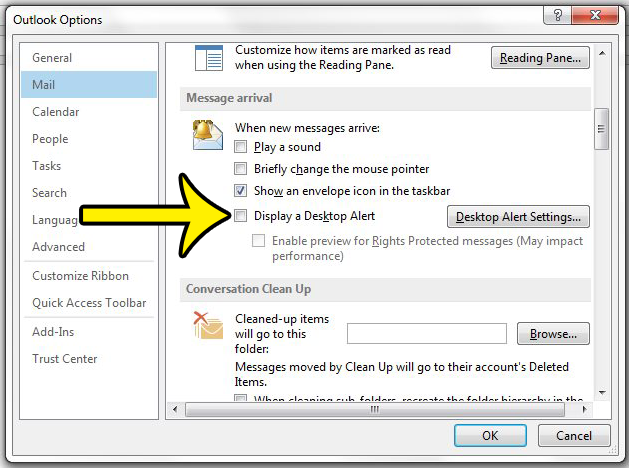
Older Outlook version shown; current screens look different. - Select OK at the bottom of the window to save the change.
The next message that arrives should land in your Inbox without the pop-up. To bring the alert back later, return to the same section and check the box again. There is also a shorter walkthrough of this same check box written for the Microsoft 365 version, how to disable Desktop Alerts in Outlook for Office 365, if you only want the bare steps.
What the other Message arrival boxes do
The Desktop Alert is only one of several signals in that section. Microsoft describes the others as a sound, a brief change to the mouse pointer, and an envelope icon in the bottom right of the Windows taskbar. Each one has its own check box, so you can mix and match:
- Play a sound: the chime that plays when mail arrives. Clear it if the noise bothers you more than the pop-up. Changing or silencing that chime is covered in turning off the new email sound in Outlook.
- Mouse pointer change: the pointer changes shape for a moment.
- Envelope icon in the taskbar: a small icon in the bottom right of the Windows taskbar. If you turn off the pop-up but still want a quiet sign that something new arrived, this is a good one to keep.
A sensible quiet setup is to clear Display a Desktop Alert and Play a sound while keeping the envelope icon. Calendar and task reminders are not controlled here; they have their own settings, explained in turning off the reminder sound in Outlook.
Turn off new-mail notifications in the new Outlook for Windows
The new Outlook replaces the check box with toggles.
- Open the new Outlook and select the View tab.
- Select View Settings.
- Select General, then Notifications.
- Under Notify me about, turn the Mail toggle off. Leave Calendar on if you still want meeting reminders.
If you only want silence, keep the Mail toggle on and look under Mail > New Email and Reactions for the Play Sound setting instead.
Outlook on the web and Outlook.com
In a browser, open Settings > General > Notifications. Under Notify me about, go to the Mail section and set the toggle to Off. Microsoft documents these steps for Outlook.com; Outlook on the web for a work or school account may label them slightly differently. Calendar has its own toggle on the same page, as described on Microsoft’s Outlook.com notifications page. Your browser can also show or block notifications for the site, so if banners keep appearing after the change, check the browser’s site permissions for Outlook as well.
Outlook for Mac
Microsoft’s Mac instructions were written for Outlook 2016 for Mac, and menu names have shifted since, so treat these labels as a guide rather than an exact match:
- Open the Outlook menu at the top of the screen and choose Preferences. Newer versions may call this Settings.
- Under Personal Settings, choose Notifications & Sounds.
- Under Message arrival, clear the option that displays an alert on your desktop. Under Sounds, clear any sound you no longer want.
The steps above follow Microsoft’s Outlook for Mac notification steps. macOS has its own switch too. Per Apple’s Notifications settings guide, choose Apple menu > System Settings > Notifications, select Microsoft Outlook under Application Notifications, and turn off Allow notifications.
Silence Outlook from Windows settings
Windows decides whether any app may show banners, so this is the place to go if you want Outlook quiet without touching Outlook itself, or if pop-ups keep appearing after you cleared the box.
- Windows 11: select Start > Settings > System > Notifications. Under Notifications from apps and other senders, select Outlook and turn notifications off, or keep them on and turn off only Show notification banners or Play a sound.
- Windows 10: go to Settings > System > Notifications & actions and switch off Outlook in the list of senders.
For a meeting or a focused hour, Do not disturb is often the better choice because it pauses banners from every app at once. Turned on by hand it stays on until you turn it off; rules under Turn on do not disturb automatically switch it on and off for you. On Windows 11 you can switch it on from the notification center (Windows key + N) or set those rules in the same Notifications page, as described on Microsoft’s Windows notifications page. More options for quieting Windows are collected in how to turn off notifications in Windows 10.
Keep the pop-up for a few important senders
Sometimes the goal is fewer alerts, not none. In classic Outlook you can clear Display a Desktop Alert for everything and then build a rule for the people who matter, such as a manager or a client. Rules start at File > Manage Rules & Alerts > New Rule. Choose a condition for messages from specific people, then look in the action list for an option that displays a Desktop Alert. Microsoft’s current rules page does not name that action, so the wording in your version may differ. A broader tour of the rule editor, including the new Outlook and the web, is in how to create rules in Outlook.
Pop-up still showing, or never showing?
If alerts keep appearing after you cleared the box, the usual causes are:
- You changed classic Outlook but are actually reading mail in the new Outlook, or the other way around.
- The banner is a Windows notification from a different mail app, such as a browser tab with Outlook on the web open.
- You did not select OK, so the Options window closed without saving.
If you want alerts and they never show, check the reverse. Microsoft notes that you might not receive a Desktop Alert when a rule moves a new message out of the default Inbox. Windows notifications for Outlook must be on, and Do not disturb must be off.
Common questions about Outlook alerts
Will I miss email if the alert is off?
No. Turning off the alert only removes the notice. Messages still download and appear in your Inbox with the unread count updated.
Can I make an alert stay on screen longer?
Microsoft’s tip is to rest the pointer over the alert before it fades. It stays visible while the pointer is on it.
Why does the alert show no message text?
A Desktop Alert does not display the contents of an encrypted or digitally signed message, so those arrive with only the basic notice.
Do these settings affect Outlook on my phone?
No. The Outlook mobile app has its own notification settings inside the app and in the phone’s settings.
Once the pop-up is gone, a related setting worth a look is the one on the sending side: requesting a read receipt in Outlook asks the recipient’s mail app to confirm when your message is opened.

Kermit Matthews runs Live2Tech from just outside Philadelphia. He is an IT specialist with over 20 years of experience, from a university help desk to small-business IT, IT management and his own consulting practice, and has written tech guides full time since 2020. Steps are checked against the current software on a real device or the maker’s official documentation. More about Kermit.