A meeting reminder chimes in a quiet office, and everyone looks up. You can keep the reminder window and lose the noise. In classic Outlook for Windows, select File > Options > Advanced, then under Reminders clear the Play reminders sound check box and click OK. The new Outlook for Windows, Outlook on the web and Outlook for Mac each have their own switch, covered below.
First, check which Outlook you have
Microsoft currently ships two Outlook apps for Windows, and the reminder sound lives in a different place in each:
- Classic Outlook (part of Microsoft 365 apps and Outlook 2016 through 2024) has a File tab at the left end of the ribbon.
- The new Outlook for Windows has no File tab. Its settings open from the gear icon at the top right, the same layout as Outlook on the web.
The reminder sound is the one that plays for calendar events, and in classic Outlook also for tasks and flagged messages that carry a reminder. It is separate from the sound for new email, which is controlled in classic Outlook at File > Options > Mail > Message arrival. To silence incoming mail instead, see how to turn off the new email notification sound in Outlook.
Turn off the reminder sound in classic Outlook for Windows
These steps follow Microsoft’s page on Outlook sound effects, which applies to Outlook for Microsoft 365 and Outlook 2016 through 2024. Outlook 2013 uses the same path; the screenshots below come from that version.
- Select the File tab.

Older Outlook version shown; current screens look different. - Select Options. It is in the left column of the File screen, usually near the bottom.
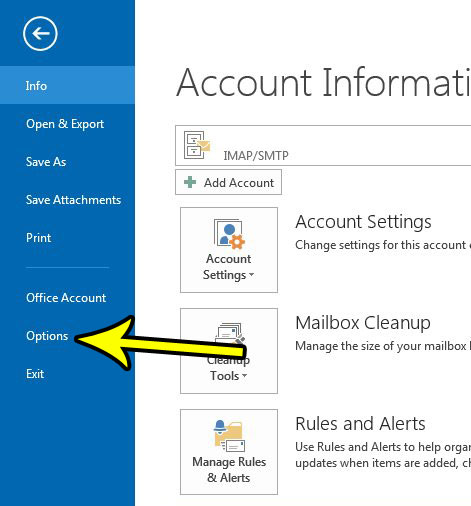
Older Outlook version shown; current screens look different. - In the Outlook Options window, select Advanced in the left column.

Older Outlook version shown; current screens look different. - Scroll to the Reminders section and clear the Play reminders sound check box (older versions label it Play reminder sound).
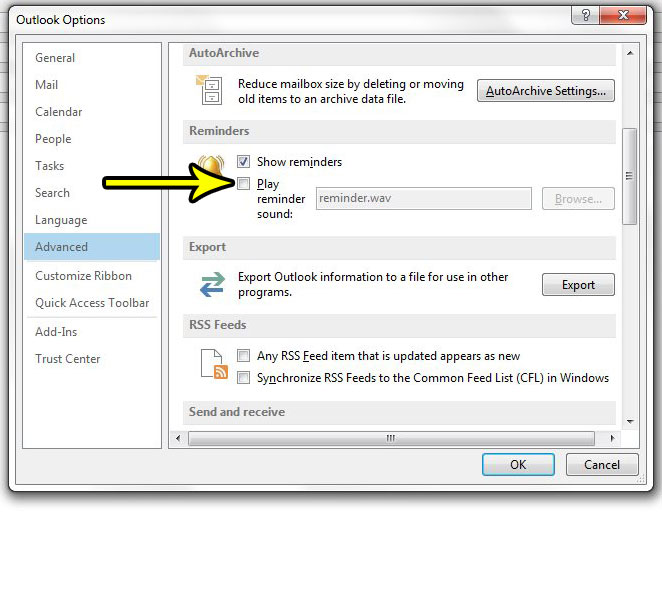
Older Outlook version shown; current screens look different. - Click OK.
The reminder window still opens on time; it just stays silent. To check, create a test appointment a few minutes ahead with a short reminder and wait for it.
In the same Reminders section you may see a box that turns reminders off completely (Outlook 2013 called it Show reminders). Think twice before clearing it: with no window and no sound, nothing tells you a meeting is about to start. Microsoft also documents a Show reminders on top of other windows option there, which is useful if you mute the sound and worry about missing the pop-up behind other apps.
If the thing interrupting you is the new-mail pop-up rather than a reminder, here is how to turn off desktop alerts in Outlook.
Change the sound instead of muting it
If the problem is the tone rather than the fact that there is one, keep Play reminders sound checked and select Browse next to it. Pick a different sound file on your PC, then click OK. A softer tone is often enough for a shared office while still catching your attention.
Turn off or change the sound in the new Outlook for Windows
The new Outlook handles reminders as notifications. According to Microsoft’s reminders help for the new Outlook:
- Select the gear icon to open Settings, then go to General > Notifications.
- Under Notify me about, expand the Calendar section.
- Choose how you want reminders to appear and whether you want a notification sound.
Turning the Calendar toggle itself to off stops calendar notifications entirely, not just the sound, so only do that if you track meetings some other way. The same expanded section has Automatically dismiss reminders for past events when your notification style is set to Reminder, which cuts down on a pile of overdue alerts after a long meeting.
Because the new Outlook also uses Windows notifications, a sound can still come from Windows itself. See the Windows section further down.
Outlook on the web and Outlook.com
The browser version uses the same layout as the new Outlook. Select the gear icon, then General > Notifications. Under Notify me about, expand Calendar and choose how reminders appear and whether a notification sound plays. Microsoft’s Outlook.com notification help notes that these notifications only appear while Outlook is open in your browser, so a closed tab means no reminder at all, silent or otherwise.
Outlook for Mac
Microsoft’s Mac instructions give two options:
- Silence the sound only: on the Outlook menu, select Settings. Under Personal Settings, select Notifications & Sounds, then under Sounds clear the Reminder check box. Outlook 2016 for Mac calls this menu item Preferences instead of Settings.
- Pause all reminders: on the Outlook menu, select Turn Off Reminders. Use the same menu to turn them back on.
Microsoft’s page applies to Outlook for Microsoft 365 for Mac and Outlook 2024 and 2021 for Mac. If the labels on your Mac differ, open Outlook’s settings and look for Notifications & Sounds.
Remove or reduce reminders instead of the sound
Sometimes the real problem is too many reminders, not the tone. Two settings help.
Change the default reminder
- Classic Outlook: select File > Options > Calendar. Under Calendar options, clear Default reminders to stop new items from getting one, or keep it and change the time before the event.
- New Outlook and Outlook on the web: go to Settings > Calendar > Events and invitations, and under Events you create change the Default reminder drop-down. Microsoft notes this setting also applies to existing meetings.
Remove the reminder from one event
Open the event and change its Reminder drop-down. In the new Outlook, Microsoft’s option is Don’t remind me; in classic Outlook and Outlook for Mac, choose None, then save and close. This is handy for a recurring all-day item, such as a team holiday, that does not need an alert. For where the Reminder box sits when you set up an item, see how to create an Outlook appointment and choose its reminder.
If a sound still plays
Muting the reminder sound in Outlook does not silence every noise Outlook makes. Microsoft’s sound-effects page explains that several other alerts, such as the warning when you select Dismiss All or permanently delete items, are played by Windows, not Outlook. Check these places:
- Windows notification settings (most likely for the new Outlook): select Start > Settings > System > Notifications, select Outlook in the list of apps, and turn off Play a sound. Microsoft’s Windows notification help gives the same steps for Windows 11 and Windows 10. For more ways to quiet Windows alerts, see how to turn off notifications in Windows.
- Windows program sounds: Microsoft’s instructions, written for Windows 10, are to search the Start menu for Sound, open Change system sounds, select the event under Program Events, and choose No Sounds at the top of the Sounds list. The Sound dialog may look slightly different on Windows 11.
- Outlook on your phone: the Outlook mobile app has its own setting. Open its settings, go to Calendar > Notifications > Sound, and select Silent, per Microsoft’s mobile sound help.
Outlook reminder sound questions
Will turning off the sound stop the reminder pop-up?
No. In classic Outlook, clearing Play reminders sound leaves the Reminder window working. Only clearing the separate box that shows reminders, or removing the reminder itself, stops the window.
Does muting on my PC also mute my phone and Mac?
No. Each Outlook app keeps its own sound setting. If the chime follows you from desk to phone, change it in each app.
Can I mute only task reminders and keep meeting sounds?
Classic Outlook has one reminder sound for calendar, task and flag reminders (Microsoft’s sound-effects page). To keep meeting sounds, remove the reminder from the tasks or flagged messages that do not need one.
How do I turn the sound back on?
Repeat the steps for your version and select the check box or sound option again. In classic Outlook, check Play reminders sound and click OK.
If you are tidying up other parts of classic Outlook at the same time, related settings include how often Outlook checks for new mail and removing weather from the Outlook calendar.

Kermit Matthews runs Live2Tech from just outside Philadelphia. He is an IT specialist with over 20 years of experience, from a university help desk to small-business IT, IT management and his own consulting practice, and has written tech guides full time since 2020. Steps are checked against the current software on a real device or the maker’s official documentation. More about Kermit.