To set up automatic replies (an out of office message) in Outlook, open the automatic replies settings, turn them on, add your dates and message, and save. Where that setting lives depends on your Outlook. In the new Outlook for Windows and Outlook on the web, go to Settings (gear icon) > Accounts > Automatic replies. In classic Outlook for Windows, go to File > Automatic Replies. On a Mac, use Tools > Automatic Replies, and in the Outlook phone app, open Settings > your account > Automatic Replies. If you can’t find the button at all, your account is probably Gmail, Yahoo, or another POP or IMAP account, and there’s a separate workaround for that further down.
Each version gets its own numbered steps below, so you only need to follow the section that matches your screen.
What You Need and Which Versions This Covers
Built-in automatic replies run on your mail server, not on your computer. That means two things. First, they only work with accounts whose server supports them: a work or school Microsoft 365 account, an Exchange account, or a personal Outlook.com, Hotmail, Live, or MSN account. Second, once they’re on, they keep working even if you close Outlook, shut down your PC, or leave your phone at home.
Gmail, Yahoo, iCloud, and other accounts added to Outlook through POP or IMAP (two standard ways an email app downloads mail from a provider) don’t get the Automatic Replies feature in any version of Outlook. For those accounts you either set up a rule in classic Outlook, which only works while Outlook is running, or turn on the vacation reply in the email provider’s own website.
This guide covers the versions Microsoft currently documents:
| Your Outlook | Where automatic replies live | Notes |
|---|---|---|
| New Outlook for Windows | Settings (gear) or View > View settings, then Accounts > Automatic replies | Same layout as Outlook on the web |
| Outlook on the web and Outlook.com | Settings (gear) > Accounts > Automatic replies | Work or school accounts and personal Microsoft accounts |
| Classic Outlook for Windows (Microsoft 365, 2024, 2021, 2019, 2016) | File > Automatic Replies | POP and IMAP accounts use a rule instead |
| Outlook for Mac | Tools > Automatic Replies | New and legacy Outlook for Mac have slightly different labels |
| Outlook for iPhone and Android | Settings > your account > Automatic Replies | Microsoft 365, Exchange, and Outlook.com accounts |
Not sure which Windows version you have? Microsoft’s quick test is to look at the top right corner of the Outlook window. If there’s a Settings gear there, you have the new Outlook. If there’s no gear and the ribbon starts with a File tab, you have classic Outlook. Microsoft’s What version of Outlook do I have page shows both apps side by side if you want to compare.
Contents
- Set up automatic replies in the new Outlook for Windows and Outlook on the web
- Set up automatic replies in classic Outlook for Windows
- Classic Outlook with a POP or IMAP account: use a rule
- Set up automatic replies in Outlook for Mac
- Set up automatic replies in the Outlook app for iPhone and Android
- Inside vs. outside your organization: which option to pick
- How automatic replies behave once they’re on
- Example out of office messages
- How to turn off automatic replies
- Troubleshooting
- Frequently Asked Questions
How to Set Up Automatic Replies in the New Outlook for Windows and Outlook on the Web
The new Outlook for Windows and Outlook on the web share the same settings screen, so these steps work for both. They also work for a personal Outlook.com or Hotmail account in a browser. Your work or school account opens at outlook.office.com, and a personal account opens at outlook.live.com.
Step 1: Open Settings
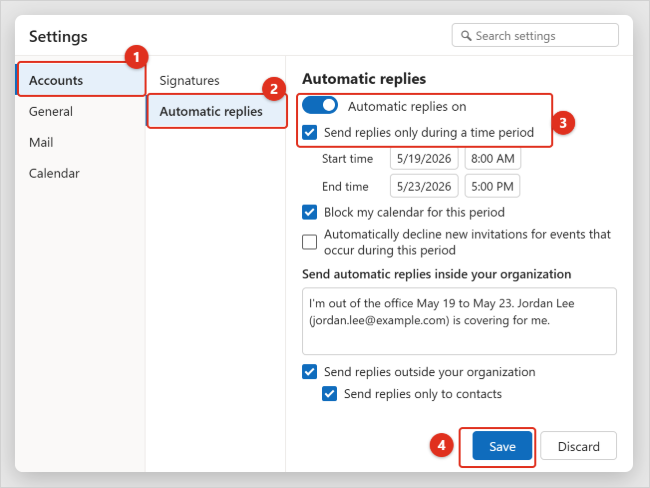
Select the Settings gear at the top right of Outlook. In the new Outlook for Windows you can also open the View tab and select View settings. The Settings window opens with a list of categories on the left. If you’re using Outlook in a phone’s web browser and can’t see the gear, Microsoft volunteers on its support forum point out that the menu icon at the top left leads to Settings instead.
Step 2: Go to Accounts > Automatic replies
Select Accounts (some screens show it as Account), then Automatic replies. If you can’t spot it, type “automatic” into the search box at the top of Settings. You should see a page with a single switch at the top.
Step 3: Turn on the Automatic replies toggle
Switch the Automatic replies toggle on. Until you do, the rest of the page is greyed out or hidden, so don’t worry if you don’t see a message box yet.
Step 4: Set a time period (recommended)
Check Send replies only during a time period, then pick a start date and time and an end date and time. Outlook starts sending replies at the start time and stops on its own at the end time. If you skip this, replies stay on until you come back and turn them off yourself.
Step 5: Choose calendar options (work or school accounts)
Once a time period is set, you may see three extra check boxes: Block my calendar for this period, Automatically decline new invitations for events that occur during this period, and Decline and cancel my meetings during this period. Blocking your calendar adds an out of office event so colleagues see you’re away when they schedule. The two decline options send responses to meeting organizers, so read the warning below before you check them.
Warning: Declining and canceling meetings sends real responses and cancellations to other people. If you only want to show that you’re away, choose Block my calendar and leave the decline options unchecked.
Step 6: Type your message
Type your reply in the message box. This is the message people inside your organization receive. You can use the formatting toolbar above the box to change the font, size, or color, or add a link. With a personal Outlook.com account, this one message goes to everyone.
Step 7: Decide who outside your organization gets a reply
With a work or school account, you’ll see Send replies outside your organization. Check it if clients, vendors, or other outside contacts should get a reply, and type a separate message for them in the second box. Microsoft recommends also checking Send replies only to contacts, which limits outside replies to people in your Contacts list. Without that, every outside email gets a reply, including newsletters, advertisements, and some junk mail.
Step 8: Select Save
Select Save. Outlook confirms that automatic replies are turned on, and you can close Settings. Your replies now run on the server, so they work in every Outlook app on every device for that account.
How to Set Up Automatic Replies in Classic Outlook for Windows
These steps apply to classic Outlook for Microsoft 365 and Outlook 2024, 2021, 2019, and 2016 with a Microsoft 365, Exchange, or Outlook.com account. If you have more than one account in Outlook, the reply is set per account, so pick the right one first.
Step 1: Open the File tab
Select File at the left end of the ribbon. The Info page opens. If you have several accounts, use the drop-down at the top of the Info page to choose the one that needs the reply. Look for the Automatic Replies button on this page. If it’s not there, jump to the rule method instead.
Step 2: Select Automatic Replies
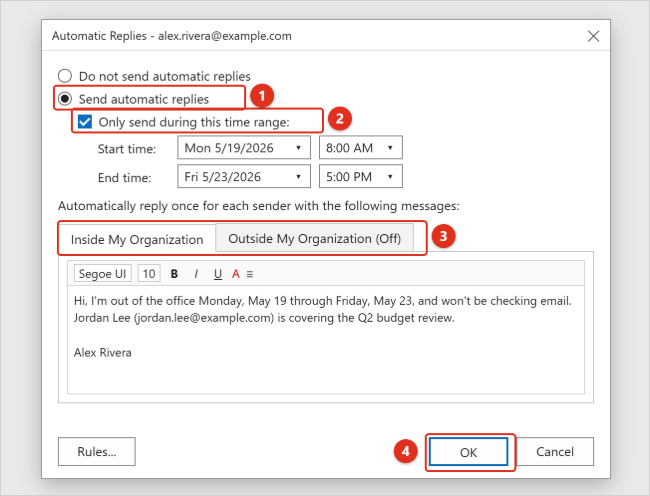
Select Automatic Replies. The Automatic Replies dialog box opens with Do not send automatic replies selected and the rest of the window greyed out.
Step 3: Select Send automatic replies
Select Send automatic replies. The date fields and message boxes become available.
Step 4: Set the start and end time
Check Only send during this time range, then set the Start time and End time with the date and time lists. Outlook turns replies off by itself at the end time. A good habit is to end the reply at the close of your last day away rather than the morning you return, so it’s still covering you if you start late.
Step 5: Write the message for people inside your organization
On the Inside My Organization tab, type the reply your coworkers will get. You can format it with the toolbar or paste formatted text, including links.
Step 6: Check the Outside My Organization tab
Select the Outside My Organization tab. Its label ends in (On) or (Off) to show whether outside replies are active. To reply to outside senders, check Auto-reply to people outside my organization, choose My Contacts only or Anyone outside my organization, and type a separate message. If you don’t want outside replies, make sure the box is unchecked. It’s worth opening this tab every time, because it’s easy to save an outside reply you never meant to send.
Step 7: Select OK
Select OK. A bar appears under the ribbon saying automatic replies are being sent for this account, with a Turn off button. The Automatic Replies block on the File tab also changes color to remind you it’s on. If you can’t see an OK button, Microsoft notes that some screen resolution and display scaling settings can push it off the bottom of the dialog; lowering your scaling in Windows display settings or using a larger monitor brings it back.
Optional: Use automatic reply rules
The Automatic Replies dialog also has a Rules button. These are extra rules that run only while your out of office is on, such as forwarding mail from a particular client to a coworker. You don’t need them for a normal out of office message, and old rules here are a common reason for duplicate or unexpected replies (see Troubleshooting).
Classic Outlook with a POP or IMAP Account: Use a Rule
If your File tab has no Automatic Replies button, your account doesn’t support the feature. Microsoft’s workaround for classic Outlook is to save your out of office message as a template and create a rule that replies with it. To confirm your account type first, select File > Account Settings > Account Settings and check the Type column: IMAP/SMTP or POP/SMTP means you need this method, while Microsoft Exchange means you should have the Automatic Replies button.
Before you start: this rule only runs while classic Outlook is open, signed in, and connected on your computer. If the PC sleeps or Outlook closes, no replies go out until Outlook runs again. If you’ll be away for days, your email provider’s own vacation reply is usually more reliable. In Gmail, that’s the Gmail vacation responder, and Yahoo has its own vacation response in Yahoo Mail.
Step 1: Write the reply as a new email
Select New Email. Type a subject, such as “Out of office until May 26”, and your reply in the body. Leave the To line empty.
Step 2: Save it as an Outlook template
Select File > Save As. In the Save as type list, choose Outlook Template (*.oft). Outlook switches to its default Templates folder, which is usually C:\Users\your user name\AppData\Roaming\Microsoft\Templates. Give the template a name and select Save, then close the message without sending it.
Step 3: Start a new rule
Select File > Manage Rules & Alerts. On the E-mail Rules tab, select New Rule. Under Start from a blank rule, select Apply rule on messages I receive, then Next.
Step 4: Leave the conditions blank to reply to everyone
To reply to every message, don’t check any conditions and select Next. Outlook asks whether the rule should apply to every message you receive; select Yes. If you’d rather reply only to certain people, check a condition such as from people or public group and pick them.
Step 5: Choose reply using a specific template
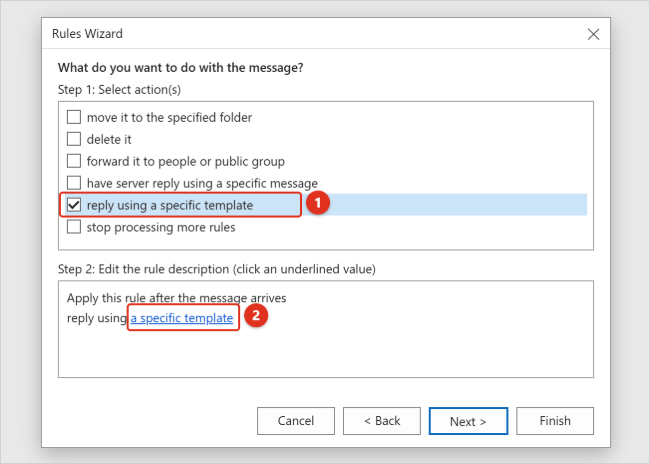
Under Step 1: Select action(s), check reply using a specific template. Don’t confuse it with have server reply using a specific message, which needs an Exchange account. Under Step 2: Edit the rule description, select the underlined a specific template link.
Step 6: Pick your template
In the Select a Reply Template window, change Look In to User Templates in File System. Your template appears in the list. Select it, select Open, and then select Next.
Step 7: Add exceptions
Add any exceptions you need. A useful one is except if it is an automatic reply, which stops your rule from answering other people’s out of office messages. Select Next.
Step 8: Name and turn on the rule
Give the rule a name, such as Out of Office. Turn on this rule is checked by default. Select Finish to start replying now, or uncheck the box if you’re setting it up ahead of time. Outlook may warn that the rule only runs when you check email in Outlook; that’s expected for this kind of rule. To turn it on later, go back to File > Manage Rules & Alerts, check the box next to the rule, and select OK.
Two things work differently from real automatic replies. According to Microsoft, the rule replies to each sender only once per Outlook session, and the list of people it has answered is cleared when you restart Outlook, so someone may get your reply again after a restart. The reply also arrives with your template’s subject line rather than “Automatic reply”. When you’re back, uncheck or delete the rule in Manage Rules & Alerts.
The new Outlook for Windows and the new Outlook for Mac don’t have this workaround. If you see a message that rules aren’t available, our guide to “Rules are not supported for this account” explains why and what to do instead.
How to Set Up Automatic Replies in Outlook for Mac
Outlook for Mac supports automatic replies for Microsoft 365, Exchange, and Outlook.com accounts, but not for Gmail, Yahoo, or other POP or IMAP accounts. Microsoft notes that support for legacy Outlook for Mac ends in October 2026, so the first set of steps, for the current Outlook for Mac, is the one most people need.
Step 1: Open Automatic Replies
Select Mail in the navigation pane, then choose Tools > Automatic Replies from the menu bar at the top of the screen.
Step 2: Choose the account and turn replies on
If you have more than one account, pick the right one from the drop-down at the top. Turn on the toggle next to Send Automatic Replies.
Step 3: Write the inside message
Under Message for inside your organization, type your reply.
Step 4: Set the dates
Turn on Send replies during a specific time period and choose the start and end dates and times. Replies stop automatically at the end time.
Step 5: Set up the outside message
If your organization allows it, check Message for outside your organization, choose Send only to my contacts or Send to everyone, and type the outside reply.
Step 6: Close the window
Close the Automatic Replies window. Your settings are saved when it closes.
If you use legacy Outlook for Mac
In legacy Outlook, the same Tools > Automatic Replies menu opens an older window. Check Send automatic replies for account, type your message under Reply once to senders within my organization, and check Send replies only during this time period to add dates. For outside senders, check Send replies outside my organization, choose Send only to my Contacts or Send to all external senders, type the message, and select OK. To check your account type on either version, choose Tools > Accounts and look above the account description.
How to Set Up Automatic Replies in the Outlook App for iPhone and Android
The Outlook app for iPhone, iPad, and Android can set automatic replies for Microsoft 365, Exchange, and Outlook.com accounts.
Step 1: Open Settings
Open the Outlook app, tap your profile picture or account icon at the top left, and tap the Settings gear.
Step 2: Choose your account
Under your mail accounts, tap the account that needs the out of office reply.
Step 3: Tap Automatic Replies and turn it on
Tap Automatic Replies and turn on the switch at the top.
Step 4: Pick who gets replies
Choose whether to reply to everyone or only to people in your organization. With a work account, you can also write a separate message for external senders.
Step 5: Add a time period and calendar options
Turn on Reply during a time period and set the start and end. You can also turn on Block my calendar to add an out of office event, or use Clear my calendar to choose meetings in that period to cancel or decline. As on the web, clearing your calendar sends responses to other people, so only use it if you mean it.
Step 6: Type your message and save
Type your reply and tap Save (it may appear as a check mark). The setting syncs to your mailbox, so desktop Outlook and Outlook on the web show the same reply. If your screens don’t match these steps, update the Outlook app from the App Store or Google Play first.
Inside vs. Outside Your Organization: Which Option to Pick
With a work or school account, Outlook treats two groups of senders differently. “Inside your organization” means people whose mailboxes belong to the same company or school account as yours, usually everyone with your company’s email domain. “Outside your organization” is everyone else: customers, partners, friends, and every mailing list you’re on.
Here’s a simple way to decide:
- Short absence, mostly internal email: send an inside reply only and leave outside replies off.
- Vacation or leave where customers email you: turn on outside replies and choose contacts only (Send replies only to contacts, My Contacts only, or Send only to my contacts, depending on your version).
- Shared role such as sales or support: reply to everyone outside, but point senders to a team address rather than a personal one.
Keep the outside message more general than the inside one. Your return date and who to contact are enough; travel plans, internal project names, and personal phone numbers don’t belong in a reply that strangers and spammers can receive. Some organizations block outside replies entirely, in which case the outside option is missing or nothing goes out even when it’s checked.
How Automatic Replies Behave Once They’re On
- One reply per sender. Microsoft’s Exchange documentation says each person gets your automatic reply only once while it’s on, even if they email you several times. The list of people who’ve been answered is cleared whenever you turn automatic replies off and on or change the settings.
- They run without Outlook open. Built-in automatic replies are server-side rules, so they work while your computer is off. The classic Outlook rule method is the exception.
- Junk mail doesn’t get a reply. Microsoft says messages filed as junk don’t trigger an automatic reply.
- Colleagues may see it before they send. In many Microsoft 365 organizations, Outlook shows your automatic reply as a notice at the top of a new message when a coworker adds you to the To line.
- Teams stays in sync. If you schedule out of office in Microsoft Teams, Microsoft says automatic replies turn on in Outlook with the same dates and message, and changes made in Outlook show up in Teams.
- Your IT team can set it for you. If you forget before you leave, a Microsoft 365 admin can turn on your automatic replies from the Microsoft 365 admin center under Users > Active users, then the user’s Mail settings and Automatic replies.
Example Out of Office Messages
A good out of office reply answers three questions: when you’re back, whether you’re checking email at all, and who to contact in the meantime. Here’s how that looks for a fictional employee, Alex Rivera, who is away from May 19 to May 23.
| Situation | Example message |
|---|---|
| Inside the organization | Hi, I’m out of the office Monday, May 19 through Friday, May 23, and won’t be checking email. Jordan Lee ([email protected]) is covering the Q2 budget review. Anything else can wait until Tuesday, May 27, after the holiday. |
| Outside the organization (contacts only) | Thank you for your email. I’m away until Tuesday, May 27, and will reply when I’m back. For anything urgent, please contact our team at [email protected]. |
| One afternoon away | I’m in training this afternoon and will reply to messages by 10 a.m. tomorrow. For urgent issues, call the front desk. |
| Extended leave | I’m on leave until July 7. During this time, please send requests to Jordan Lee at [email protected], who is handling my accounts. |
Don’t count on your everyday email signature being added to the reply. Type your name and any contact details right into the message so they’re always there. If you need to update the signature you use for everyday mail, see how to set up a signature in Outlook.
How to Turn Off Automatic Replies
If you set an end time, replies stop by themselves and you don’t need to do anything. To turn them off early, or if you didn’t set dates:
- New Outlook and Outlook on the web: go to Settings > Accounts > Automatic replies, switch the toggle off, and select Save.
- Classic Outlook: select Turn off on the bar under the ribbon, or go to File > Automatic Replies, select Do not send automatic replies, and select OK.
- Outlook for Mac: choose Tools > Automatic Replies and turn off Send Automatic Replies (or clear the check box in legacy Outlook).
- Outlook mobile: go to Settings > your account > Automatic Replies, turn off the switch, and save.
- Rule method: go to File > Manage Rules & Alerts and uncheck or delete your out of office rule.
Turning replies off doesn’t remove an out of office calendar block or undo meetings you declined, so check your calendar too. If you reuse the reply for your next trip, check both the message and the dates before you save.
Troubleshooting
There’s no Automatic Replies button or setting
First make sure you’re looking in the right place for your version, because the new Outlook doesn’t have a File tab and classic Outlook doesn’t have a Settings gear. If the option is still missing, the selected account is almost certainly a POP or IMAP account such as Gmail or Yahoo. Use the rule method in classic Outlook or the provider’s vacation reply. If you have several accounts, check that you selected your work or Outlook.com account and not a secondary one.
“Your automatic reply settings cannot be displayed because the server is currently unavailable”
Classic Outlook shows this when it can’t reach your mail server. Check your internet connection, make sure Outlook isn’t in Work Offline mode (on the Send / Receive tab), and try again. You can also set the reply in Outlook on the web, which talks to the same server. If the error keeps coming back, your IT team may need to check your mailbox; Microsoft lists causes such as a disabled Exchange Web Services setting or a full rules quota.
Someone emailed me but didn’t get a reply
- They may have already received one. Each sender gets one reply until you turn automatic replies off and on again, so test from a different address.
- Their email may have landed in your Junk Email folder, which doesn’t trigger a reply.
- They’re outside your organization and outside replies are off, set to contacts only, or blocked by your organization.
- Your mailbox forwards all mail somewhere else. Microsoft says forwarding set on the mailbox stops automatic replies from being generated.
- The time period has ended, or hasn’t started yet. Check that the dates and your Outlook time zone are correct.
- You’re using the rule method and Outlook wasn’t running.
Replies keep going out after I turned them off
Look for a leftover rule. In classic Outlook, check File > Automatic Replies > Rules and File > Manage Rules & Alerts for an old out of office rule and delete it. Also check Outlook on the web in case replies were turned on from another device, and ask your IT team whether an admin set replies for you.
Two different out of office messages are being sent
This usually means an extra rule is sending a second reply. Microsoft’s advice is to open File > Automatic Replies > Rules in classic Outlook, select the extra rule, and delete it.
The reply text looks tiny or oddly formatted
Check the font size in the message box before you save. In classic Outlook, select your text and pick a larger size from the dialog’s toolbar, or type and format the message in Outlook on the web instead, then send yourself a test to see how it looks.
Frequently Asked Questions
Do automatic replies work if my computer is turned off?
Yes, for Microsoft 365, Exchange, and Outlook.com accounts. The replies run on Microsoft’s mail servers, so your computer and the Outlook app can be off. The classic Outlook rule method for POP and IMAP accounts is different: it only replies while Outlook is open on your computer.
Will someone get my out of office reply every time they email me?
No. Built-in automatic replies go to each sender once while they’re turned on. If you turn replies off and back on, or change the settings, the list resets and people can get one new reply. The rule method replies once per sender each time Outlook starts.
Can I schedule my out of office message in advance?
Yes. Set a start time in the future using Send replies only during a time period (new Outlook, web), Only send during this time range (classic Outlook), or the time period option on Mac and mobile. Outlook starts and stops the replies on schedule without you touching it.
Why don’t I see Automatic Replies for my Gmail account in Outlook?
Microsoft doesn’t support automatic replies for Gmail, Yahoo, or other POP or IMAP accounts in any version of Outlook. Turn on the vacation responder in Gmail itself, which Google says runs from 12:00 AM on the start date to 11:59 PM on the end date. See Google’s vacation responder instructions for the current steps.
Can I send different messages to coworkers and outside contacts?
Yes, with a work or school account. Every version gives you one message for people inside your organization and a second, optional message for people outside it. Personal Outlook.com accounts have a single message.
Can I set an out of office reply for someone else?
A Microsoft 365 administrator can turn on automatic replies for any user from the Microsoft 365 admin center or the Exchange admin center. As a regular user, ask your IT team; you can’t normally set replies for another person’s mailbox from your own Outlook.
Does setting out of office in Teams change my Outlook reply?
Yes. Microsoft says scheduling out of office in Teams turns on Outlook automatic replies with the same message and time range, and changes in Outlook show up in Teams.
How do I know my automatic replies are on?
Classic Outlook shows a bar under the ribbon saying automatic replies are being sent. Outlook on the web shows a notice after you save, and the Automatic replies toggle stays on in Settings. To be sure, ask a coworker (or a second account you own) to send you a test email and confirm the reply arrives.
Next Steps
Set your out of office the day before you leave, open the outside-your-organization option on purpose, and send yourself a test from another address so you know it works. If your work and personal email live in different places, set the reply in each one, for example the Outlook setting for work and the Gmail vacation response for personal mail. For Microsoft’s own reference steps, see How to set up out of office automatic replies in Outlook on Microsoft Support.

Kermit Matthews is a freelance writer based in Philadelphia, Pennsylvania with more than a decade of experience writing technology guides. He has a Bachelor’s and Master’s degree in Computer Science and has spent much of his professional career in IT management.
He specializes in writing content about iPhones, Android devices, Microsoft Office, and many other popular applications and devices.