To reply all in Gmail on a computer, open the email and click Reply all below the message, or click the three-dot More menu next to the time and choose Reply all. In the Gmail app on iPhone, iPad, or Android, open the email, tap the three-dot menu at the top of the message, and tap Reply all. Your reply goes to the sender and everyone in the To and Cc fields.
You can also press A on your keyboard if Gmail keyboard shortcuts are on, or make Reply all the default. Here’s how each option works and how to avoid reply-all mistakes.
How to reply all in Gmail on a computer
- Open Gmail and click the email.
- Scroll to the bottom of the message and click Reply all.
- Check the recipients at the top of the reply box, write your message, and click Send.
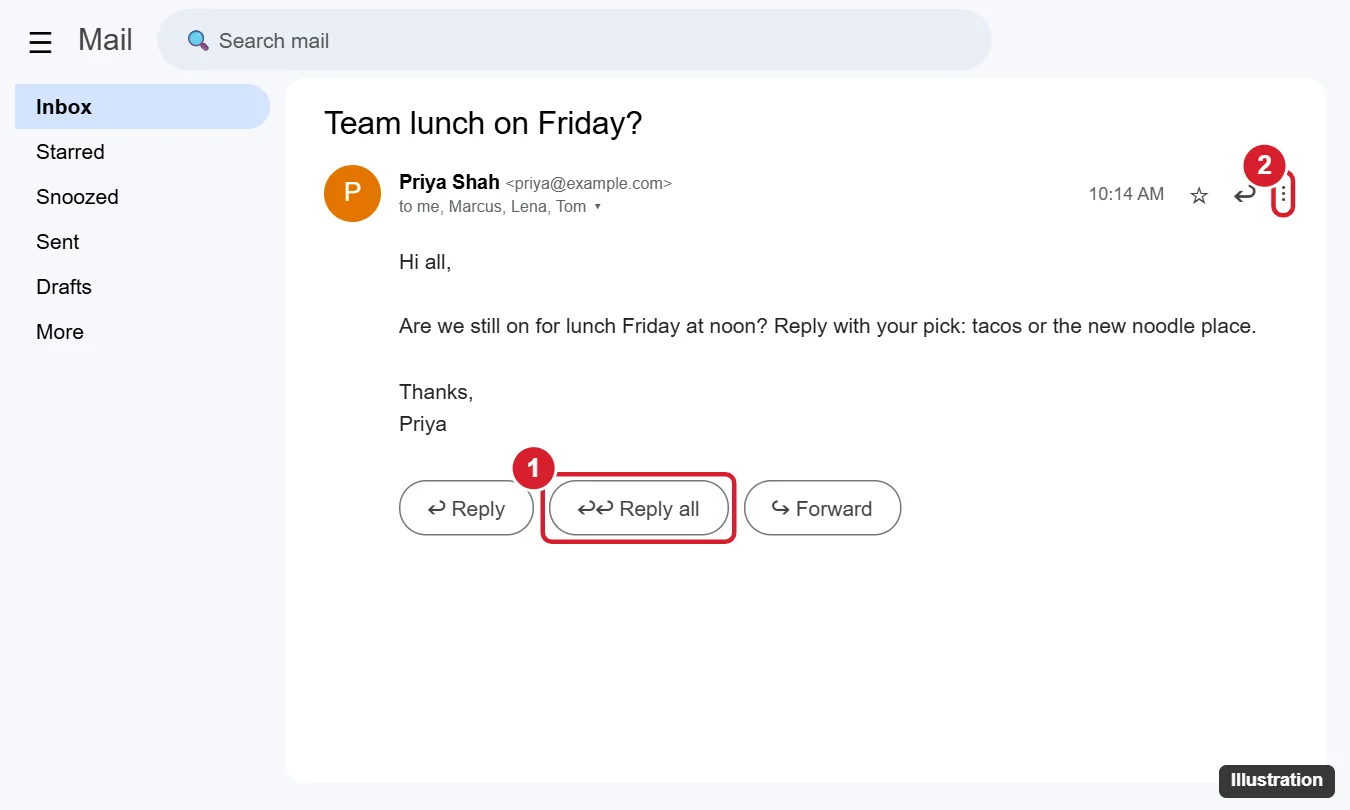
In a long conversation, reply to a specific message by clicking the three-dot menu next to that message’s time and choosing Reply all.
Already started a regular reply? Click the small arrow next to the recipient’s name in the reply box and choose Reply all to switch.
How to reply all in the Gmail app
- Open the Gmail app and tap the email.
- Tap the three-dot More icon at the top right of the message (not the one at the top of the screen).
- Tap Reply all.
- Write your reply and tap Send.
You can also scroll to the bottom of the email and tap Reply all if the button appears there.
Keyboard shortcut for Reply all
- In Gmail, click the Settings gear > See all settings.
- On the General tab, set Keyboard shortcuts to Keyboard shortcuts on, and click Save Changes.
- Open an email and press A to reply all. Press R to reply only to the sender, or F to forward.
How to make Reply all the default
- Click the Settings gear > See all settings.
- On the General tab, find Default reply behavior.
- Choose Reply all, then click Save Changes.
Now the main reply button and the R shortcut reply to everyone. This setting is on the web and doesn’t change the mobile app. For more, see how to change the default reply behavior in Gmail.
Who gets your reply
| Original recipient | Reply | Reply all |
|---|---|---|
| Sender | Yes | Yes |
| People in To | No | Yes |
| People in Cc | No | Yes (in Cc) |
| People in Bcc | No | No. Bcc addresses are hidden, so they aren’t included. |
| You | No | No |
If the sender set a Reply-To address, your reply goes to that address instead of the sender’s.
Tips to avoid reply-all mistakes
- Check the recipient list before you hit Send. Remove people who don’t need your reply by clicking the X next to their name.
- Move people to Bcc when you’re replying to a large group but only a few need to see future replies.
- Turn on Undo Send so you have time to catch errors. In See all settings > General, set the Send cancellation period to up to 30 seconds.
- Mailing lists and Google Groups may send your reply to the whole group even when you click Reply, depending on the group’s settings.
Press a to reply all once keyboard shortcuts are turned on in Gmail.
Frequently asked questions
Why don’t I see Reply all?
The button only appears when an email was sent to more than one person. If you were the only recipient, Reply and Reply all do the same thing.
Can people in Bcc reply all?
If someone in Bcc clicks Reply all, their reply goes to the sender and the visible recipients, which reveals they were copied. That’s a good reason to be careful with Bcc.
Does Reply all include attachments?
No. Replies don’t include the original attachments. Use Forward to send them along.
How do I forward an email to everyone instead?
Click Forward and add the addresses you want. Forwarding lets you choose recipients and includes attachments.

Kermit Matthews is a freelance writer based in Philadelphia, Pennsylvania with more than a decade of experience writing technology guides. He has a Bachelor’s and Master’s degree in Computer Science and has spent much of his professional career in IT management.
He specializes in writing content about iPhones, Android devices, Microsoft Office, and many other popular applications and devices.