You type an address like anna@café.example or one with a Cyrillic or Chinese domain, and classic Outlook will not accept it or the message never leaves. The usual fix is in File > Options > Advanced: in the International options section, tick the checkbox that allows international domain names in email addresses, then click OK. This is a classic Outlook for Windows setting; Microsoft does not document it on its current help pages, so labels in Outlook for Microsoft 365 may differ slightly.
What an international domain name is (and what it is not)
An email address has two parts: the name before the @ (the local part) and the domain after it. An internationalized domain name (IDN) is a domain that uses characters outside the basic Latin letters, digits and hyphen. Microsoft describes IDNs as a way for people to use meaningful domain names in their own script without transcribing them into Latin letters. Examples include a domain with an accented letter such as münchen or café, or one written entirely in Cyrillic, Arabic or Chinese characters, including country endings such as .中国.
An IDN is not simply a domain from another country. Addresses ending in .fr, .de, .mx or .jp use plain Latin letters and never need this setting. If mail to an ordinary country domain is the problem, see the section on blocked country domains further down, because that is a different Outlook feature.
There is also a third case. Email Address Internationalization (EAI) goes further than an IDN and allows non-Latin characters before the @ as well, as in a fully Cyrillic or Thai address. Microsoft notes that EAI support depends largely on the email server, so whether these addresses work is decided by your mail provider and the recipient’s, not only by an Outlook checkbox.
| Address type | Example | What decides whether it works |
|---|---|---|
| Ordinary address, country domain | [email protected] | Nothing special; works everywhere |
| IDN (non-Latin domain only) | anna@café.example | Outlook’s international domain names checkbox, plus the domain being registered |
| EAI (non-Latin before the @ too) | анна@пример.рф | Support on both mail servers |
Turn on international domain names in classic Outlook
These steps come from Outlook 2013, where the checkbox sits in the International options section of Advanced. Microsoft’s current help page for classic Outlook’s Advanced options does not list this section or checkbox, so the wording in Outlook for Microsoft 365 may differ.
- Open classic Outlook on your Windows PC.
- Click the File tab at the top left.

- Click Options at the bottom of the left column.

- In the Outlook Options window, select Advanced on the left.
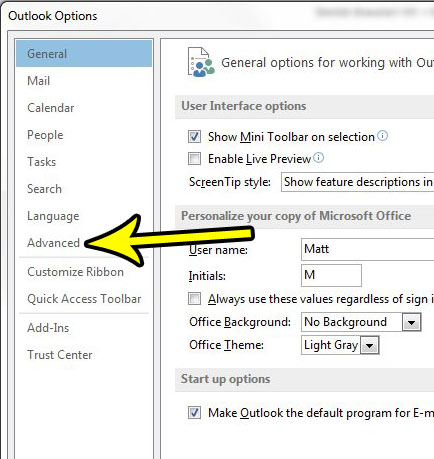
- Scroll down to the International options section, which sits toward the bottom of the page.
- Tick the checkbox for international domain names. In Outlook 2013 it reads Allow international domain names in e-mail addresses.

- Click OK to save the change.
To test it, start a new message, type the address with its accented or non-Latin domain, and send it. If Outlook accepts the address without an error and the message leaves the Outbox, the setting is working. To undo it, clear the same checkbox and click OK.
In some versions the same section also has an option for UTF-8 support for the mailto: protocol, which affects email links you click on web pages. It is separate from the international domain names checkbox.
New Outlook for Windows, Outlook on the web and Outlook for Mac
Microsoft does not document an equivalent checkbox in new Outlook for Windows, Outlook on the web or Outlook for Mac. The language settings Microsoft documents for new Outlook cover the display language and time formats, not domain names. Microsoft’s EAI reference says support depends largely on the email server, so if an IDN address fails in these apps, the mail service is the place to look. If an address works in classic Outlook but not in another Outlook app on the same account, try sending from classic Outlook or contact your email administrator.
How the address actually travels
The internet’s domain system was built for plain ASCII, so an IDN is converted before it is looked up. Microsoft explains that IDNs are stored in DNS as ASCII strings using Punycode. A converted label starts with xn--, so café.example becomes xn--caf-dma.example and münchen becomes xn--mnchen-3ya.
This explains two things readers often notice:
- The recipient sees a strange xn-- address. Some mail apps show the converted form instead of the original characters. Answers on Microsoft’s community forum say Outlook has no option to change how the other person’s app displays it.
- The headers show the xn-- form. If you look at the message source, the domain may appear in its Punycode form. To check what was sent, see how to view full email headers in Outlook.
Microsoft’s internationalized domain names reference covers the Punycode rules and length limits in more detail.
If the message still bounces
Turning on the checkbox only lets Outlook accept the address. Delivery still depends on the servers along the way. Work through these points:
- Read the bounce message. A non-delivery report that mentions UTF-8 or SMTPUTF8 usually means the receiving system does not support internationalized addresses. Nothing in Outlook can fix that; ask the recipient for an alternative ASCII address.
- Check the characters before the @. If the local part has non-Latin characters, it is an EAI address, which needs support on both servers. Microsoft’s Email Address Internationalization reference notes that a server may support sending to such addresses without supporting hosting them.
- Check the spelling. Look-alike letters from different scripts (a Latin o and a Cyrillic о, for example) are different characters, so a copied address may not match the real domain. Copy the address from a message the person sent you rather than typing it.
- Look in the Outbox. If the message sits there without a bounce, the problem may be timing rather than the address; see how to send emails immediately in Outlook.
Blocked country domains are a different setting
If you were sent here because mail to or from a country domain like .ru or .cn is going missing, look at the Junk Email filter instead. In classic Outlook, select Home > Block > Junk Email Options. Microsoft describes a Blocked Top-Level Domains list, where ticking a country code (such as CA, US or MX) blocks messages from addresses ending in that code, and a Blocked Encodings list for messages written in another character set. Microsoft’s overview of the Junk Email filter in classic Outlook explains both. These lists filter incoming mail; they do not stop you from sending.
International domain name questions
Do I need this setting to email someone at a .de or .fr address?
No. Country endings in Latin letters are ordinary domains. The checkbox only matters when the domain itself contains accented or non-Latin characters.
Can I type the xn-- form instead?
Often, yes. Because the xn-- version is plain ASCII, it is a valid domain name, and typing it avoids the conversion step entirely. Ask the recipient to send you that form so you know it is exact.
Will my own display name be affected?
No. The display name people see next to your address is a separate setting; to change it, see how to change your name on emails sent from Outlook.
While you are in Outlook Options > Advanced, the Send and Receive button there controls how often Outlook checks for mail, an unrelated but handy setting covered in making Outlook check for mail more often.

Kermit Matthews runs Live2Tech from just outside Philadelphia. He is an IT specialist with over 20 years of experience, from a university help desk to small-business IT, IT management and his own consulting practice, and has written tech guides full time since 2020. Steps are checked against the current software on a real device or the maker’s official documentation. More about Kermit.