If your emails arrive showing an old name, a nickname or only your address, the fix depends on the kind of account you send from. For a POP or IMAP account in classic Outlook for Windows, go to File > Account Settings > Account Settings, select the account, choose Change and edit Your name. For an Outlook.com address, edit the name on your Microsoft account. For a work or school account, your administrator controls the name.
If Outlook rejects an address with accented or non-Latin letters in the domain, see how to allow international domain names in Outlook.
Find out which kind of account you have
The display name (the “From” name recipients see above your address) is stored in different places depending on who runs your mailbox. Work out which case you are in first, because the other routes will not work:
| Account type | Typical address | Where the name is changed |
|---|---|---|
| POP or IMAP (internet provider, web host, many addresses added to Outlook by hand) | [email protected], [email protected] | Classic Outlook account settings, or the Mac account settings |
| Personal Microsoft account | @outlook.com, @hotmail.com, @live.com | Your Microsoft account profile |
| Work or school (Microsoft 365, Exchange) | [email protected], signed in through your employer or school | Your IT administrator |
In classic Outlook, the Account Settings dialog shows each account’s type, so you can see whether it is POP, IMAP or Microsoft Exchange. If you are not sure, open that dialog with the first three steps below and look before changing anything.
Change the name for a POP or IMAP account in classic Outlook
These steps cover classic Outlook for Windows in Microsoft 365, Outlook 2024, 2021, 2019 and 2016. The screenshots come from an older Outlook version; most button names are the same, but your screens will look newer.
- Open classic Outlook.
- Select the File tab at the top left.
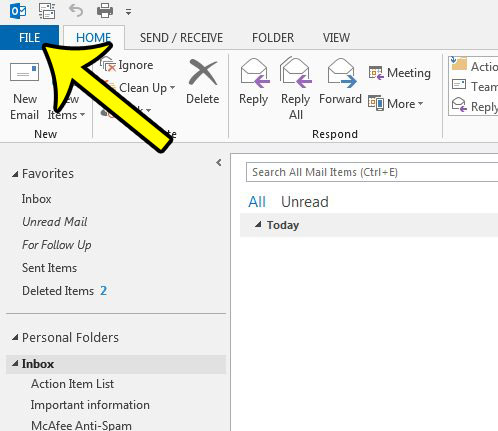
Older Outlook version shown; current screens look different. - Choose Account Settings, then Account Settings again from the menu that opens.
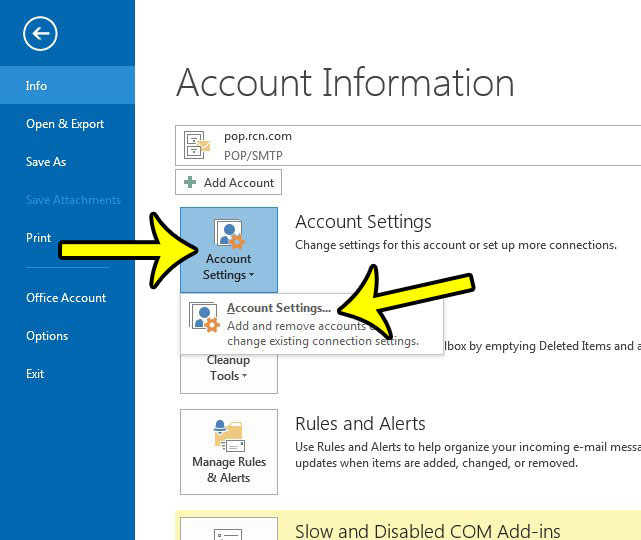
Older Outlook version shown; current screens look different. - Select the email account whose name you want to change, then choose Change. If the account type is Microsoft Exchange, stop here and use the personal Microsoft account section (Outlook.com, Hotmail) or the work or school section below.
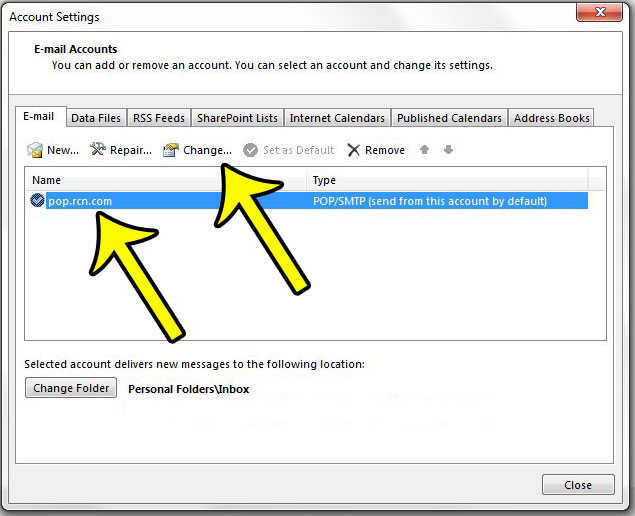
Older Outlook version shown; current screens look different. - Replace the text in the Your name field with the name you want recipients to see. This changes only the name, not the email address.
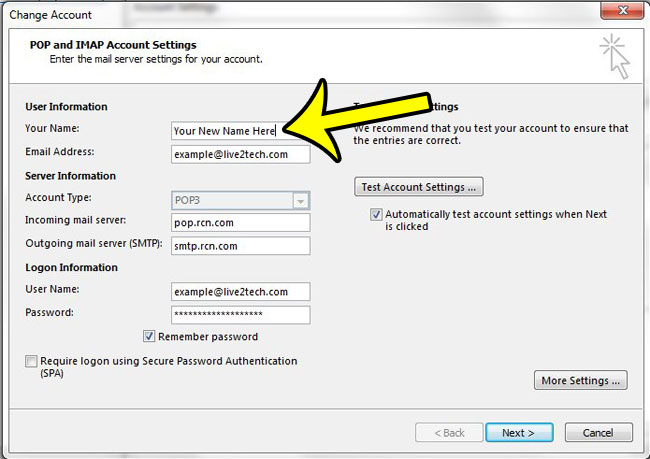
Older Outlook version shown; current screens look different. - Select Next. When Outlook finishes, select Close to return to your mailbox.
Each account in Outlook has its own Your name field. If you send from both a personal address and a shared one, such as a customer service inbox, repeat the steps for each, so the shared mailbox can show something like “Support Team” while your own keeps your name.
If you would rather not keep a copy of what you send at all, Outlook can also skip saving sent messages in Sent Items.
Outlook.com, Hotmail and other personal Microsoft accounts
For a personal Microsoft account, the name people see when you send email comes from the account itself, not from an Outlook setting.
- In a web browser, open Microsoft’s page on changing your Microsoft account name and use it to sign in to your account.
- Find your profile details and select Edit name.
- Make your changes, then select Save.
Microsoft says it may take up to 24 hours for the new name to update everywhere, so a test message sent right away can still show the old one.
Work or school accounts (Microsoft 365 and Exchange)
If your account is a Microsoft Exchange account, which includes most Microsoft 365 work and school mailboxes, you can’t change the display name yourself. Only an administrator can. In Outlook on the web, your profile shows the name, but Microsoft notes that details such as your name and job title might be provided by your IT or human resources department.
Ask your IT team to update it. For administrators, the change is made in the Microsoft 365 admin center:
- Go to Users > Active users and select the person.
- On the Account tab, select Manage contact information.
- Edit the display name and save the changes.
Changing the email address itself is a separate option (Manage username and email). Microsoft’s admin article on changing a user name covers both and notes the role you need. Allow some time before testing.
New Outlook for Windows, Outlook on the web and Outlook for Mac
New Outlook for Windows: Microsoft states that the option to edit the display name for email recipients is not yet available in new Outlook. Change the name at the source instead: your Microsoft account for Outlook.com addresses, your administrator for work accounts, or your email provider for other addresses. If classic Outlook is still installed on your PC, you can open it and use the steps above for a POP or IMAP account.
Outlook on the web: the name follows the account. Personal accounts use the Microsoft account name; work and school accounts use the name set by the organization.
Outlook for Mac:
- Go to Tools > Accounts and select the account.
- Under Personal Information, if the full name is editable, enter the name you want recipients to see.
- If the full name is unavailable or read-only, update it through your email provider or ask your organization’s administrator.
Sending from the Mail app on an iPhone uses a separate setting; see changing the name on emails you send from an iPhone.
Why some people still see your old name
Your change controls the name in the From line of new messages. What a recipient sees can still differ, for reasons on their side:
- They saved you as a contact. Many email apps show the name from the recipient’s own address book instead of the name in your message. They need to edit their contact entry.
- Their app remembers addresses. Outlook and other apps suggest names as people type, based on earlier messages, and those suggestions can keep the old name for a while.
- Old messages do not change. Emails you sent before the change keep the old name in their headers.
To check what actually went out, send a test message to an address you own at a different provider, then open it there. If you want proof beyond the inbox view, the From line in the full email headers shows exactly what was sent.
Sender name questions
Why is the Your name field missing or grayed out?
The account is most likely a Microsoft Exchange account, or you are using new Outlook, which does not have the option. Use the work account or personal account route instead.
Does changing my name change my email address?
No. The address stays the same; only the label in front of it changes. A new address needs a new alias or account from your provider or administrator.
Is the sender name the same as my signature?
No. The signature is text at the bottom of the message body and is edited separately, as explained in setting up a signature in Outlook. Update both if you changed your name.
While you are in classic Outlook’s settings, you might also want to make Outlook check for mail more often; that walkthrough was written for Outlook 2013, so expect some menus to look different today.

Kermit Matthews runs Live2Tech from just outside Philadelphia. He is an IT specialist with over 20 years of experience, from a university help desk to small-business IT, IT management and his own consulting practice, and has written tech guides full time since 2020. Steps are checked against the current software on a real device or the maker’s official documentation. More about Kermit.