To remove every hyperlink on a sheet in Excel, press Ctrl+A to select all cells, right-click any selected cell, and choose Remove Hyperlinks. The words and numbers stay in the cells; only the clickable links go away. If Excel keeps turning new web addresses into links as you type, the AutoFormat setting covered further down stops that.
Remove every hyperlink on a sheet at once
Microsoft documents this method for Excel for Microsoft 365, Excel 2024, Excel 2021 and Excel 2019. It works on whatever cells you have selected, so selecting the whole sheet first catches links to web pages, email addresses and other places in the workbook in one pass.
- Open the workbook and click the sheet tab that holds the links.
- Click any cell that is not a link (clicking a link opens it), then press Ctrl+A. If your data sits in a solid block, Excel may select just that block first; press Ctrl+A a second time to select the entire sheet. You can also click the small Select All button where the row numbers and column letters meet.
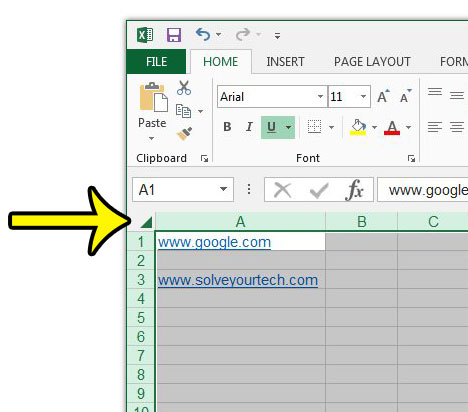
- Right-click inside the selection.
- Choose Remove Hyperlinks from the menu. When only one linked cell is selected, the item is singular: Remove Hyperlink.
- Click a cell that used to be a link. It should now select the cell instead of opening a browser or an email message.
If you are not sure the result is what you wanted, press Ctrl+Z (Undo) straight away, before you type or change anything else. Microsoft’s hyperlink help doesn’t describe undoing this command, so treat Undo as a quick safety net rather than something you can rely on after you have saved and closed the file. Working on a copy of an important workbook is the safer habit.
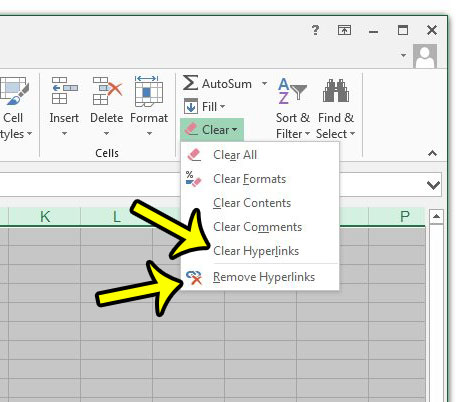
Excel also has a ribbon route. Microsoft’s page on clearing cells of contents or formats documents Clear Hyperlinks on the Clear menu; it doesn’t list a Remove Hyperlinks item there, so the second label below comes from the older Excel 2013 screens shown here.
- Select the cells, or the whole sheet, as described above.
- Click the Home tab.
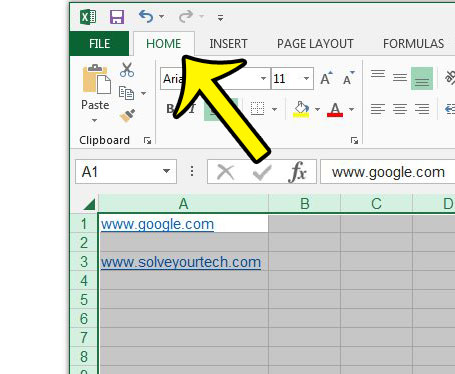
- In the Editing group at the right side of the ribbon, click Clear (the eraser icon).
- Click Clear Hyperlinks. In Excel 2013 the menu also offered Remove Hyperlinks; check your own menu for it.
Here is what each route removes:
| Option | Link | Text |
|---|---|---|
| Remove Hyperlinks (right-click) | Removed | Kept |
| Clear Hyperlinks (Clear menu) | Removed | Kept |
| Clear Contents or the Delete key | Removed | Removed |
If the cells still look blue and underlined afterward, see If the text still looks like a link below.
Remove links from only part of a sheet
You don’t have to clear the whole sheet. Select only the cells you want to change, then right-click and choose Remove Hyperlinks. Useful selections:
- A column or row: click the column letter or row number.
- A block of cells: click the first cell and drag, or click the first cell and Shift+click the last one.
- Scattered cells: hold Ctrl while you click each one.
More selection shortcuts are in selecting cells, rows and columns in Excel.
One cell. Right-click the linked cell (right-clicking doesn’t open the link) and choose Remove Hyperlink. Microsoft’s longer Excel links page calls this item Remove Link on the shortcut menu, so either name may appear depending on your version. To select a linked cell without opening it, click a neighboring cell and move onto the link with the arrow keys.
Several sheets. Microsoft’s steps don’t cover more than one sheet at a time, so repeat the select-all and Remove Hyperlinks steps on each sheet tab that has links.
A picture or shape with a link. These links sit on the object, not in a cell, so selecting cells won’t touch them. Microsoft notes that to delete a link along with the graphic, you hold Ctrl, click the graphic and press Delete. To keep the picture and drop only the link, right-click the picture and look for a link option; the steps for adding one are in adding a hyperlink to a picture in Excel.
Cells that use the HYPERLINK function
Some links aren’t stored links at all but formulas such as =HYPERLINK(“https://example.com”,”Price list”). The link is part of the formula, so the fix is to replace the formula with its result. Microsoft’s method:
- Select the cell (or the column) that contains the HYPERLINK formulas.
- Press Ctrl+C to copy.
- Right-click the same selection and paste using the Values paste option.
The cells now hold plain text (the friendly name, or the address if no name was given). If the result still looks blue and underlined, clear that formatting as described below. Changing the formula itself is the other route: edit it in the formula bar and remove the HYPERLINK part.
Stop Excel from turning typed addresses into links
Excel creates a link automatically when you type something that looks like a web address or an email address. To turn this off, follow Microsoft’s steps for Excel:
- Click File > Options > Proofing.
- In the Excel Options box, click AutoCorrect Options, then open the AutoFormat As You Type tab.
- Clear the Internet and network paths with hyperlinks check box and click OK.
This changes how Excel treats new typing; links that already exist stay until you remove them with the steps above. Turn the box back on if you later want automatic links again.
For a single address Excel just turned into a link, point to it and click the AutoCorrect Options button that appears, then click Undo Hyperlink. The same button offers Stop Automatically Creating Hyperlinks.
If the text still looks like a link
Blue, underlined text after a removal is usually leftover formatting, not a working link. Click the cell: if Excel selects it without opening anything, the link is gone. To make the text look normal, select the cells and change the font color and underline on the Home tab, or clear the formatting entirely. Clearing formats also removes other styling such as number formats and fills, so the options in formatting Excel cells are worth a look before you clear everything.
If Remove Hyperlinks doesn’t appear on the right-click menu, the selection may contain no stored links, or the links come from HYPERLINK formulas, which need the Paste Values fix instead.
Using Excel for Mac or Excel for the web? Microsoft’s removal steps above are not split out for those versions, so right-click a linked cell and look for a Remove Hyperlink item; the labels may differ.
Hyperlink removal: quick checks
Will it affect links to other workbooks in my formulas?
Formulas that pull values from another workbook are external references, which Microsoft treats separately from hyperlinks. Its Remove Hyperlinks steps are about hyperlinks; check any linked formulas afterward if you are unsure.
Can I remove only the links that point to email addresses?
Not with a single command. Excel removes every stored link in the selection, so select just the email cells (Ctrl+click them, or sort or filter the column so they sit together) before you right-click.
Why does clicking a link open the wrong browser?
Excel hands links to the default browser set in Windows. If you are keeping some links and want them to open elsewhere, see changing the default browser for Excel links.
Cleaning up a Word document instead? Blue link styling there has its own fixes, covered in removing the blue line in Word. For anything not covered here, Microsoft’s page on removing or turning off hyperlinks and its broader guide to working with links in Excel are the reference sources.

Kermit Matthews runs Live2Tech from just outside Philadelphia. He is an IT specialist with over 20 years of experience, from a university help desk to small-business IT, IT management and his own consulting practice, and has written tech guides full time since 2020. Steps are checked against the current software on a real device or the maker’s official documentation. More about Kermit.