A blue double underline in Word is a grammar or style suggestion from Word’s Editor. To remove all of them at once, go to File > Options > Proofing and uncheck Mark grammar errors as you type. To fix one, right-click the underlined text and accept or ignore the suggestion. These underlines never print.
Working in a spreadsheet instead? Here is how to remove every hyperlink from an Excel sheet.
Other blue lines have different causes: a solid blue underline is usually a hyperlink, and a blue line across the page is usually a paragraph border. Each is covered below.
Quick Answer
Grammar underlines: File > Options > Proofing > uncheck Mark grammar errors as you type. Link underline: right-click > Remove Hyperlink. Line across the page: Home > Borders > No Border.
What Kind of Blue Line Do You Have?
| What it looks like | What it is | How to remove it |
|---|---|---|
| Double blue underline under words | Grammar or refinement suggestion | Right-click > Ignore, or turn off grammar marks |
| Solid blue underlined text | Hyperlink | Right-click > Remove Hyperlink |
| Blue line all the way across the page | Paragraph border (often from typing — and Enter) | Home > Borders > No Border |
| Blue line under the header | Border in the header | Double-click the header, then Borders > No Border |
| Colored text with a line through or under it | Tracked changes | Review > Accept or Reject |
Turn Off Blue Grammar Underlines
- Click File > Options (on a Mac, Word > Preferences > Spelling & Grammar).
- Select Proofing.
- Under When correcting spelling and grammar in Word, uncheck Mark grammar errors as you type.
- Click OK.
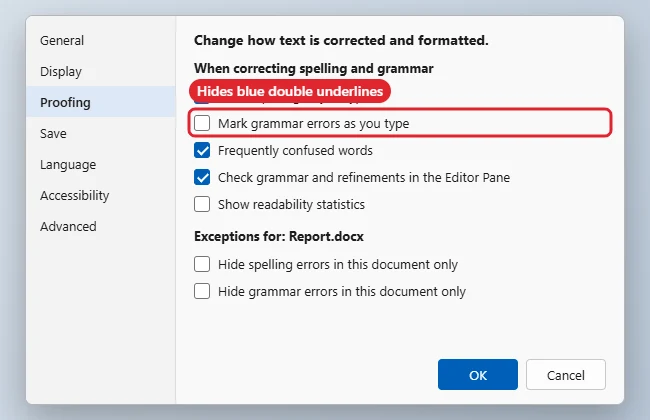
To hide them in just one document, check Hide grammar errors in this document only under Exceptions on the same page. You can still run a full check any time with Review > Editor (or F7).
Remove a Blue Hyperlink Underline
- One link: Right-click it and choose Remove Hyperlink.
- All links: Press Ctrl + A, then Ctrl + Shift + F9. This converts every field, including links, to plain text.
- Stop automatic links: File > Options > Proofing > AutoCorrect Options > AutoFormat As You Type, then uncheck Internet and network paths with hyperlinks.
Remove a Blue Line Across the Page
- Click in the paragraph just above the line.
- On the Home tab, click the arrow next to Borders.
- Choose No Border.
To stop Word from turning three dashes or underscores into a line, go to AutoCorrect Options > AutoFormat As You Type and uncheck Border lines.
For tracked formatting marks, see accepting all formatting changes in Word.
Troubleshooting
- The line can’t be selected: It’s a border, not a shape. Use Borders > No Border on the paragraph above it.
- Removing formatting didn’t help: See how to remove all formatting in Word; borders and links sometimes need their own fix.
- Underlines come back: They’re recreated when you edit. Turn off the Proofing option instead of ignoring each one.
- The blue line is a drawn shape: Click it and press Delete.
To restyle every link at once rather than one at a time, modify the Hyperlink and Followed Hyperlink styles, as covered in how to insert and style hyperlinks in Word.
A light grid across the whole page is a different setting, covered in turning Word gridlines on or off.
If the unwanted link is on a picture rather than text, see how to stop Word from linking screenshots and remove the link from the image.
Frequently Asked Questions
Do blue grammar lines print?
No. Spelling and grammar underlines show only on screen.
What’s the difference between red and blue underlines?
Red squiggles mark possible spelling errors. Blue double underlines mark grammar, clarity, or style suggestions.
Why is there a double blue line in Word?
It’s Word’s Editor suggesting a grammar or refinement change. Right-click to see the suggestion.
Summary
- Identify the type of blue line.
- Turn off grammar marks in File > Options > Proofing.
- Right-click links and choose Remove Hyperlink.
- Use Borders > No Border for lines across the page.

Kermit Matthews runs Live2Tech from just outside Philadelphia. He is an IT specialist with over 20 years of experience, from a university help desk to small-business IT, IT management and his own consulting practice, and has written tech guides full time since 2020. Steps are checked against the current software on a real device or the maker’s official documentation. More about Kermit.