Auto-Lock in Settings > Display & Brightness decides how long the iPhone screen stays on, and Low Power Mode can hold it at 30 seconds no matter what you pick. On iPhone models with Face ID, Attention Aware Features add a second layer: the display stays bright while you’re looking at it. Below are each of the controls Apple documents, plus the reasons the screen may still go dark sooner than you expect.
Why the screen turns off on its own
Apple’s iPhone User Guide puts it plainly: the display stays on while you’re looking at it, but it dims and eventually locks, for your security, when you look away for a while. Two things are happening there. Dimming is the first warning, and locking is the end of the countdown, after which you need Face ID, Touch ID or your passcode again.
That countdown is Auto-Lock. Everything else on this page either changes the countdown, overrides it for a while, or keeps a dimmed Lock Screen visible after the iPhone has locked.
Give Auto-Lock a longer delay
- Open the Settings app.
- Tap Display & Brightness.
- Tap Auto-Lock.
- Choose a length of time. The choices vary, so pick the longest one that suits how you use the phone.
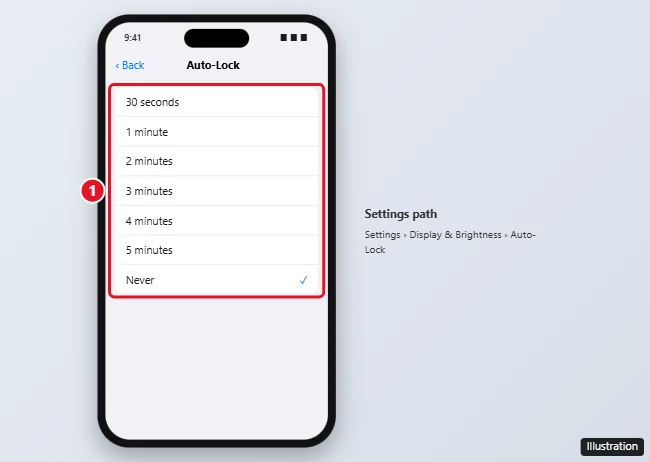
Apple adds one caution on that page: delaying or preventing Auto-Lock may increase power consumption. There’s a security cost too. If the screen never locks on its own, anyone who picks up the phone while it’s awake can use it, so a long setting makes the most sense at home or at a desk, and a short one in public.
If only one app needs the screen on longer, the Guided Access section below sets a separate timer for that app.
A longer Auto-Lock time is especially useful when you use your iPhone as a level and need the screen to stay lit while you adjust a shelf.
When Low Power Mode pulls it back to 30 seconds
According to Apple, Low Power Mode sets Auto-Lock to 30 seconds while it’s on, along with lowering display brightness and pausing some background activity. So if your new Auto-Lock time doesn’t seem to stick, check for a yellow battery icon in the status bar. To turn Low Power Mode off:
- iPhone 15 and later: Settings > Battery > Power Mode, then turn off Low Power Mode.
- iPhone 14 and earlier: Settings > Battery, then turn off Low Power Mode.
Apple notes that Low Power Mode also turns itself off once the battery charges to 80 percent or more. More on the switch and what else it changes is in turning Low Power Mode on or off, and if the Auto-Lock row stays dimmed for another reason, see what to do when you can’t change Auto-Lock.
Let your attention keep the display awake
Attention Aware Features use the TrueDepth camera on Face ID models to check if you’re looking at the screen, and it works even if you haven’t set up Face ID. In Apple’s words, your display won’t dim until you stop paying attention to your device. That’s why a Face ID iPhone can feel as if it ignores a short Auto-Lock time while you read: the countdown effectively waits for you to look away.
- Open Settings.
- Tap Face ID & Passcode and enter your passcode.
- Turn on Attention Aware Features.
Apple’s same article says the feature also lowers the volume of some alerts when you’re looking at the phone.
Keep the Lock Screen showing with Always On Display
Always On Display doesn’t stop the iPhone from locking. Instead, Apple’s guide says it lets a dimmed version of the Lock Screen stay visible after the phone locks, so the time, widgets and notifications stay readable at a glance. Turn it on or off in Settings > Display & Brightness > Always On Display.
Apple lists the models where it’s on by default: iPhone 14 Pro and iPhone 14 Pro Max, iPhone 15 Pro and iPhone 15 Pro Max, iPhone 16 Pro and iPhone 16 Pro Max, iPhone 17, iPhone 17 Pro and iPhone 17 Pro Max, iPhone 18 Pro and iPhone 18 Pro Max, and iPhone Duo. Apple says it’s off by default on iPhone Air. Apple’s guide also notes that the always-on display turns off when Low Power Mode is on.
On a model without Always On Display, StandBy can still keep a clock on screen while the phone charges on its side. In Settings > StandBy, Apple’s guide says to tap Display and choose Automatically, After 20 Seconds or Never. Setting up StandBy as a nightstand clock covers the rest.
Give one app its own lock timer with Guided Access
Guided Access keeps the iPhone in a single app, and it has its own timer. Apple describes the Display Auto-Lock option as a way to set how quickly the device locks when not in use during a Guided Access session. Outside a session, your normal Auto-Lock setting applies again.
- Go to Settings > Accessibility > Guided Access and turn it on.
- Tap Display Auto-Lock and choose a time for sessions.
- Open the app you want, then start a session with the shortcut Apple describes on its Guided Access page (triple-click the side button, or the Home button on an iPhone that has one).
This suits a recipe app on the counter, a kiosk, or a game handed to a child, where you want the screen to stay on longer without leaving the whole phone set that way.
Work or school iPhones, and dimming that only looks like locking
An iPhone managed by an employer or school can have its Auto-Lock limit set by the organization, and the person using it may not be able to choose a longer time. If your choices look shorter than on a personal phone, ask whoever manages the device about the limit.
Sometimes the screen isn’t locking at all, it’s just getting darker. That’s brightness, not Auto-Lock. Auto-Brightness changes the screen level with the light around you, and Apple’s display article says you can turn it on or off in Settings > Accessibility > Display & Text Size, then scroll to Auto-Brightness. Model-specific dimming steps are in stopping an iPhone 14 from dimming.
On iPad the Auto-Lock route is the same (Display & Brightness, then Auto-Lock), and Apple’s iPad guide adds that if you can’t change it, Guided Access may be turned on.
Auto-Lock timing questions
Why does the screen go dim a few seconds before it turns off?
Dimming is the first stage Apple describes: the display dims, then locks, when you look away for a while.
Does Always On Display use the Auto-Lock time?
No. Auto-Lock still locks the phone on schedule. Always On Display only decides whether a dimmed Lock Screen stays visible afterward, on the models Apple lists.
Do older iPhones get the same options?
Auto-Lock works the same way on current iOS, but Always On Display appears only on the models Apple lists, and Attention Aware Features rely on the TrueDepth camera of Face ID models, so Touch ID iPhones go without it. For model-specific screens, see changing the iPhone 14 screen timeout or keeping an iPhone 5 screen from turning off.
For a phone you mostly use at home, start with a longer Auto-Lock time and Attention Aware Features, check that Low Power Mode is off, and keep Guided Access in mind for the one app that needs the screen lit the longest. Apple’s own pages on keeping the iPhone display on longer, Low Power Mode, Attention Aware Features, Always On Display and Guided Access have the current details.

Kermit Matthews runs Live2Tech from just outside Philadelphia. He is an IT specialist with over 20 years of experience, from a university help desk to small-business IT, IT management and his own consulting practice, and has written tech guides full time since 2020. Steps are checked against the current software on a real device or the maker’s official documentation. More about Kermit.