To set up Dynamic Lock in Windows 11, pair your phone with the PC over Bluetooth, then go to Settings > Accounts > Sign-in options > Dynamic lock and turn it on (on many versions this is a checkbox labeled Allow Windows to automatically lock your device when you’re away). After that, when you walk away with your phone, Windows locks the PC within about a minute of the phone leaving Bluetooth range.
Dynamic Lock is a backup, not a replacement for locking the PC yourself. It only locks, it never unlocks, and it waits until the PC is idle. The sections below cover pairing, turning it on, testing it, what it can and cannot do, fixes when it doesn’t work, and the other ways to make Windows 11 lock automatically.
What you need and which versions this covers
- A Windows 11 PC with Bluetooth. Most laptops have it built in. A desktop without Bluetooth can use a USB Bluetooth adapter.
- A phone with Bluetooth (iPhone or Android). Microsoft’s documentation says the phone is the only device type Dynamic Lock currently supports, so a smartwatch, earbuds, or a fitness band won’t act as the trigger.
- A password, PIN, or other sign-in method on your account. Locking only protects you if someone has to sign in to get back in. If your account has no password or PIN, set one up first in Sign-in options.
- Windows 11, any currently supported version. This guide is written for Windows 11 version 26H2 (released September 2026) and also applies to 25H2 and 24H2. The setting lives in the same place in all of them. Windows 10 has the same feature under Settings > Accounts > Sign-in options as well.
On a work or school PC, your organization may control Dynamic Lock. If the option is missing or greyed out, see the troubleshooting section.
How Dynamic Lock works
When Dynamic Lock is on, Windows keeps an eye on the strength of the Bluetooth signal from your paired phone. Bluetooth signal strength is measured as RSSI (Received Signal Strength Indicator), and it gets weaker as the phone moves away. When the signal drops below a set level, Windows treats that as “you’ve left” and locks the PC, as long as nobody is using the keyboard or mouse at that moment.
Microsoft says the lock happens within about a minute after you’re out of Bluetooth range. In practice the exact distance varies, because walls, desks, your body, and other wireless devices all weaken Bluetooth signals. The default threshold is designed so you can move around an average office or cubicle without triggering a lock.
A locked PC is not signed out or asleep. Your open apps and documents stay open behind the lock screen, and you pick up where you left off after signing in again with your PIN, password, face, or fingerprint.
Set up Dynamic Lock in Windows 11
Setup has two parts: pair the phone once, then turn on the setting. If your phone already appears as a paired device in Settings > Bluetooth & devices, skip to Step 3.
Step 1: Turn on Bluetooth on the PC and the phone
On the PC, select the Network, Sound, or Battery icon next to the clock on the taskbar to open quick settings, and make sure the Bluetooth tile is highlighted (on). You can also check in Settings > Bluetooth & devices, where the Bluetooth switch should be set to On. If you can’t find any Bluetooth controls, see our guide on how to turn on Bluetooth in Windows 11 and 10.
On the phone, turn on Bluetooth. On an iPhone, open Settings > Bluetooth and keep that screen open so the phone stays discoverable (visible to other devices). On Android, open the Bluetooth settings or the pairing screen, which usually makes the phone discoverable while it is open.
Step 2: Pair the phone with the PC
In quick settings on the PC, select the arrow (chevron) on the Bluetooth tile, labeled Manage Bluetooth devices. Your phone should appear under New devices. Select it. On some versions you can also go to Settings > Bluetooth & devices and use the add-a-device option there.
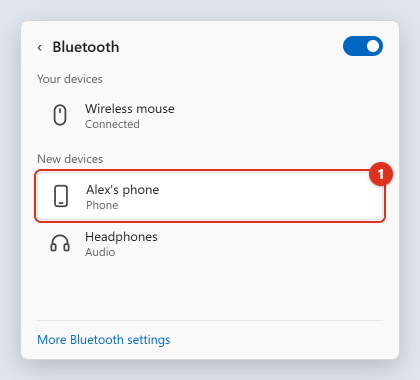
Both screens then show a matching code. Confirm the code matches, then accept the pairing on the phone and on the PC. When it finishes, the phone shows up under Your devices in quick settings, or in the device list in Settings > Bluetooth & devices. The phone does not have to show “Connected” all the time; it only needs to be paired.
Step 3: Open Sign-in options
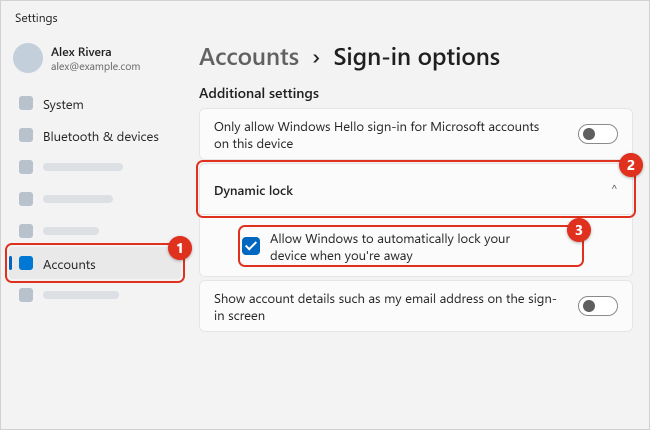
Press Windows + I to open Settings. Select Accounts in the left pane, then select Sign-in options on the right. This page holds Windows Hello, your PIN and password, and a group called Additional settings further down.
Step 4: Turn on Dynamic lock
Scroll down to Additional settings and select Dynamic lock to expand it. Turn on the option inside it. On many Windows 11 versions it is a checkbox labeled Allow Windows to automatically lock your device when you’re away; Microsoft’s current support page describes it as a toggle, so if you see a switch instead, set it to On. The setting takes effect right away and doesn’t need a restart.
Step 5: Check the status message
Once the option is on, look under Dynamic lock for a status line. If Windows can’t find a paired phone, it shows a message telling you that Dynamic lock isn’t working because there’s no paired phone, with a pointer to the Bluetooth settings. If you see that, go back to Step 2. If there’s no warning, you’re done.
Test that Dynamic Lock works
It’s worth testing once so you know how far and how long it takes on your setup:
- Leave the PC signed in with something harmless open, such as a blank Notepad window.
- Take your phone with you and walk somewhere well out of Bluetooth range, such as another room or down the hall. Don’t touch the keyboard or mouse before you go.
- Wait at least a minute, then come back.
- You should see the lock screen. Sign in, and Notepad should still be open.
If the PC didn’t lock, try again from farther away and for longer. Thick walls or a strong Bluetooth adapter can keep the signal above the threshold. If it still doesn’t lock, see the fixes below.
A realistic example: Alex works at a desk with a paired iPhone in a pocket. Alex walks to a meeting room two doors away and doesn’t press Windows + L. About 30 to 60 seconds after the phone’s signal fades, the PC locks on its own. If Alex had left the phone on the desk, the PC would have stayed unlocked, because the phone never left.
Turn off Dynamic Lock
To stop automatic locking, go back to Settings > Accounts > Sign-in options, expand Dynamic lock, and clear the checkbox (or turn the toggle Off). Your phone stays paired, so it keeps working for anything else you use Bluetooth for.
If you no longer want the phone paired at all, open Settings > Bluetooth & devices, find the phone in the device list, open its menu (the three dots or the arrow next to it), and choose Remove device. This only removes the pairing; nothing on the phone is deleted. Dynamic Lock will then show the “no paired phone” message until you pair a phone again.
If your PC is locking when you don’t want it to and Dynamic Lock isn’t the cause, our guide on turning off Windows auto lock walks through the other settings that can lock the screen.
What Dynamic Lock won’t do
- It doesn’t unlock the PC when you come back. You always sign in again yourself. For quick sign-in, set up Windows Hello face recognition, fingerprint, or a PIN.
- It isn’t instant. There’s a delay of up to about a minute after the phone goes out of range. Someone who sits down at your PC in that window could still use it.
- It won’t lock while the PC is in use. Microsoft notes that Dynamic Lock only locks if the system is idle. If someone starts typing or moving the mouse before the lock kicks in, the PC stays unlocked.
- It only knows where the phone is, not where you are. Leave the phone on the desk and the PC never locks. Turn off Bluetooth on the phone, let the battery die, or put it in airplane mode, and the signal disappears, so the PC may lock even though you’re sitting right there.
- It has no timing or distance settings in the Settings app. On a home PC you can’t adjust how far away or how quickly it locks.
- It only works with a phone. Other Bluetooth devices aren’t supported as the trigger.
Because of those gaps, the most reliable habit is still pressing Windows + L as you stand up, with Dynamic Lock catching the times you forget. Our guide to locking your screen in Windows lists every manual method.
Dynamic Lock not working: fixes
Windows says there is no paired phone
If the Dynamic lock section shows a warning about a missing paired phone, Windows can’t see one. Open Settings > Bluetooth & devices and check that the phone is in the device list. If it isn’t, pair it again (Steps 1 and 2). If you replaced your phone, the new one has to be paired separately; the old pairing doesn’t carry over.
The PC never locks when you walk away
- Make sure you actually carried the phone out of range and waited a full minute or more.
- Check that you didn’t touch the PC right before leaving, and that nothing else (like a remote session) kept it active.
- Confirm the checkbox or toggle is still on. Major Windows updates and resets occasionally change settings.
- Check that the paired device is a phone. A tablet or a watch won’t trigger the lock.
- Remove the phone in Settings > Bluetooth & devices, restart the PC, and pair it again. A fresh pairing clears up many stale connections.
- Install pending updates in Settings > Windows Update, including optional driver updates for Bluetooth, or get the latest Bluetooth driver from your PC maker’s support site.
The PC locks while you’re still at your desk
The phone’s Bluetooth signal is dropping. Common causes are the phone going into a low-power mode, a nearly dead battery, airplane mode, Bluetooth being switched off on the phone, or the phone sitting in a bag or drawer that blocks the signal. Keep the phone nearby with Bluetooth on. If it keeps happening and the lock is more annoying than useful, turn Dynamic Lock off and rely on a short screen timeout instead.
Dynamic lock is missing or greyed out
- No Bluetooth: if the PC has no working Bluetooth adapter, Dynamic Lock has nothing to use. Check Settings > Bluetooth & devices for a Bluetooth switch.
- Managed PC: on a work or school device, an administrator can turn Dynamic Lock on or off through policy. If the option is locked, ask your IT department.
- Settings page differs: Microsoft notes that some Sign-in options settings vary by device configuration. Look for Dynamic lock under Additional settings near the bottom of the page, or type dynamic lock in the Settings search box.
The PC locks but anyone can get back in
Your account doesn’t require a password or PIN, or Windows is set not to ask for one. In Settings > Accounts > Sign-in options, set up a PIN or password and check the setting If you’ve been away, when should Windows require you to sign in again? is not set to Never.
Other ways to lock Windows 11 automatically
Dynamic Lock works best alongside at least one of these. Pick the one that suits how you work:
| Method | Where to set it | What triggers the lock | Best for |
|---|---|---|---|
| Windows + L | Keyboard shortcut | You press it | Everyone, every time you stand up |
| Dynamic Lock | Settings > Accounts > Sign-in options | Paired phone leaves Bluetooth range | People who carry their phone and sometimes forget to lock |
| Screen timeout + sign-in required | Settings > System > Power & battery, plus Sign-in options | No keyboard or mouse activity for a set time | A safety net for any PC, with or without a phone |
| Presence sensing | Settings > System > Power & battery > Screen and sleep | A built-in sensor sees you walk away | Laptops and PCs that have a presence sensor |
Screen timeout with sign-in required
Then, in Settings > Accounts > Sign-in options, set If you’ve been away, when should Windows require you to sign in again? to a short option so a sign-in is required when you come back. This works on every PC and doesn’t depend on Bluetooth, but it waits for inactivity, so a short timeout matters.
Presence sensing on supported PCs
Some newer Windows 11 PCs have a presence sensor, a small sensor near the camera that detects whether someone is in front of the screen. If yours has one, go to Settings > System > Power & battery > Screen and sleep and turn on Automatically turn off my screen when I leave. Select the arrow next to it to open the Presence Sensing settings, where you can choose how far away counts as gone and how long to wait before the screen turns off. If you don’t see these options, your PC doesn’t have a supported sensor.

When the screen turns off this way, the sign-in-again setting in Sign-in options decides whether Windows asks for your PIN when you return, so check that it isn’t set to Never. Presence sensing can also wake the PC when you sit back down (Automatically wake up my device when I approach), something Dynamic Lock can’t do.
Dynamic Lock on work and school PCs
Organizations can switch Dynamic Lock on for managed PCs using Group Policy (the Configure dynamic lock factors setting under Windows Components > Windows Hello for Business) or Microsoft Intune. Administrators can also adjust the signal-strength rule, though Microsoft recommends the default values and testing before any change. If your work PC locks when you leave with your phone, or the setting can’t be changed, this is probably why. Microsoft’s Dynamic lock documentation for IT admins has the details.
Frequently Asked Questions
How long does Dynamic Lock take to lock my PC?
Microsoft says Windows locks within about a minute after your phone is out of Bluetooth range. It is often quicker, but the exact time depends on how fast the signal fades in your space. There’s no setting to change the delay on a home PC.
Does Dynamic Lock work with an iPhone?
Yes. Any phone that can pair with Windows over Bluetooth can be used, including iPhone and Android phones. Pair it in Bluetooth settings first, then turn on Dynamic lock in Sign-in options.
Can I use a smartwatch or Bluetooth earbuds instead of a phone?
No. Microsoft’s documentation says the phone is the only currently supported device type for Dynamic Lock, so other Bluetooth devices won’t trigger the lock even if they’re paired.
Will Dynamic Lock unlock my PC when I come back?
No. It only locks. You’ll sign in again with your PIN, password, face, or fingerprint. If you want faster sign-in, set up Windows Hello.
Does Dynamic Lock drain my phone battery?
It relies on an ordinary Bluetooth pairing, the same kind used for headphones or a car. Keeping Bluetooth on uses some power, but Dynamic Lock itself doesn’t run an app on your phone.
Does locking close my apps or lose my work?
No. Locking hides your desktop behind the lock screen while apps keep running. Unsaved work stays open, though saving before you walk away is still a good habit in case of updates or power loss.
Is Dynamic Lock safe to rely on?
It’s a useful extra layer, but not a complete one. It waits up to about a minute, it won’t lock while someone is actively using the PC, and it does nothing if you leave your phone behind. Use it together with Windows + L and a short screen timeout.
Is Dynamic Lock available on Windows 11 Home?
Yes. The setting is in Settings > Accounts > Sign-in options on Windows 11 Home, Pro, and other editions, as long as the PC has Bluetooth. The Group Policy controls for admins are a separate, business-oriented way to manage it.
Next step
Once Dynamic Lock is on, take a minute to set a short screen timeout and confirm Windows asks you to sign in after you’ve been away. Those two settings together cover the gaps Dynamic Lock leaves. For Microsoft’s own description of the setting, see Sign-in options in Windows on Microsoft Support, and for pairing help, Pair a Bluetooth device in Windows.

Kermit Matthews runs Live2Tech from just outside Philadelphia. He is an IT specialist with over 20 years of experience, from a university help desk to small-business IT, IT management and his own consulting practice, and has written tech guides full time since 2020. Steps are checked against the current software on a real device or the maker’s official documentation. More about Kermit.