Apple documents two reasons the Auto-Lock time can be out of your hands. The first is Low Power Mode: Apple lists “Sets Auto-Lock to 30 seconds” among the things it does. The other cause Apple documents is a limit set by a work or school organization that manages the iPhone. A quick look at the battery icon and the top of Settings tells you which one you’re dealing with.
Why is Auto-Lock dimmed?
Check these two things before changing anything:
| What you see | Likely cause | Who can change it |
|---|---|---|
| The battery icon in the status bar is yellow, and Auto-Lock shows 30 seconds | Low Power Mode is on | You, in a few taps |
| A message about supervision sits at the top of Settings, or a profile is listed under VPN & Device Management | Your school or employer manages the iPhone and may cap Auto-Lock | The organization’s administrator |
Apple says the battery icon turns yellow while Low Power Mode is on, so the color alone is a reliable first clue. If the icon is yellow, start with the next section. If it isn’t and the iPhone belongs to a company or school, skip to the section on organization limits.
Turn off Low Power Mode on your model
Apple moved the switch on newer iPhones, so the path depends on your model.
iPhone 15 and later models
- Open Settings.
- Tap Battery.
- Tap Power Mode.
- Tap to turn Low Power Mode off.
iPhone 14 and earlier models
- Open Settings.
- Tap Battery.
- Turn off Low Power Mode.
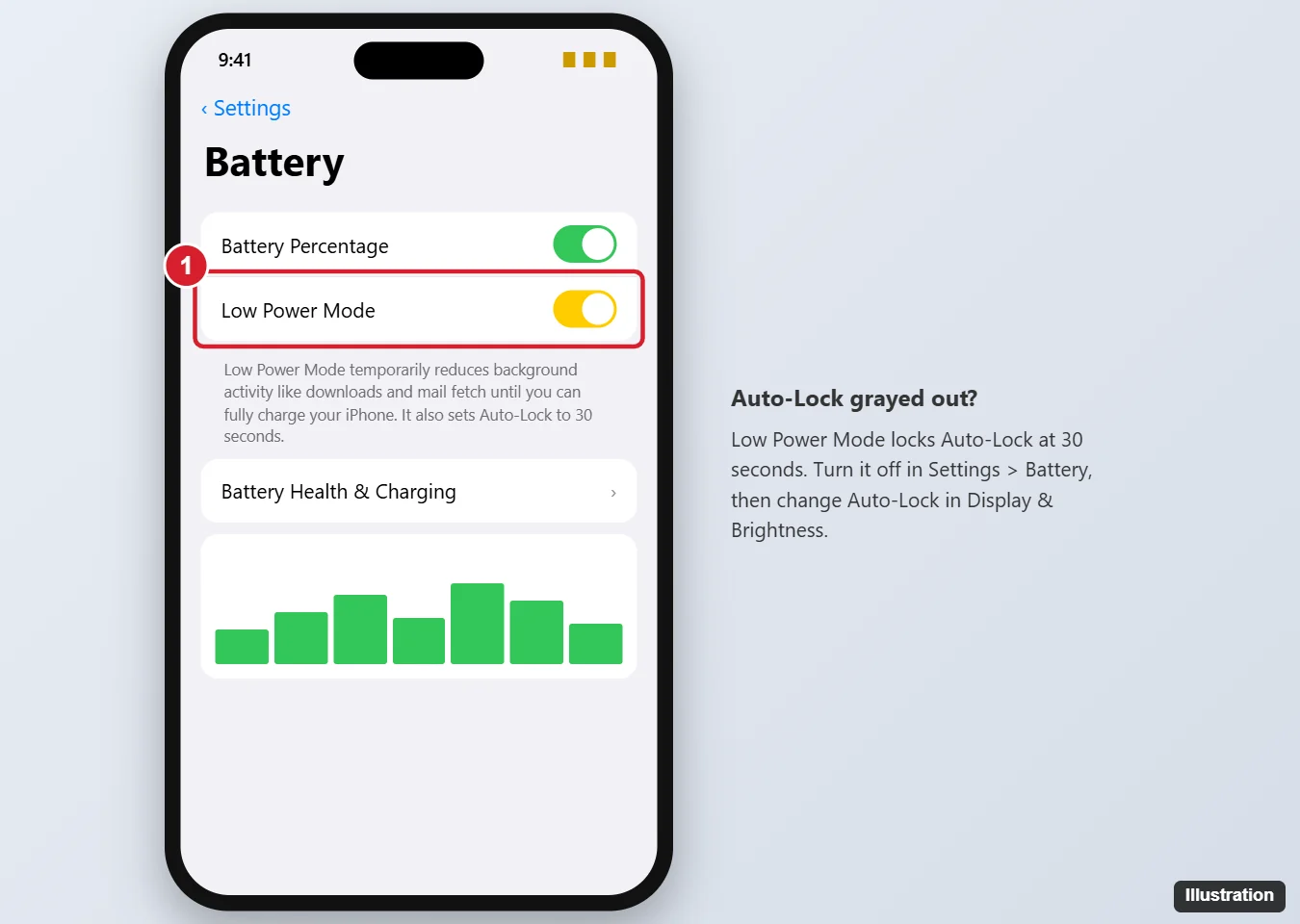
The illustration shows the iPhone 14 and earlier layout, where the switch sits directly on the Battery screen. On iPhone 15 and later, it’s one level down under Power Mode.
Two faster routes work on any model. Swipe down from the top-right corner of the screen to open Control Center and tap the battery icon, or say “Siri, turn off Low Power Mode.” For everything else the mode changes, see turning Low Power Mode on or off on iPhone, and for the status bar clue, what the yellow battery icon means.
Change Auto-Lock once it’s available
With Low Power Mode off, the Auto-Lock row should respond again:
- Open the Settings app.
- Tap Display & Brightness, then tap Auto-Lock.
- Choose a length of time.
Apple’s page on keeping the iPhone display on longer has these steps and adds one caution: delaying or preventing Auto-Lock may increase power consumption. That is the trade Low Power Mode avoids by fixing the time at 30 seconds. If you want help picking a time, changing the iPhone screen timeout goes through the choices.
Auto-Lock decides when the screen goes dark and locks. Whether the iPhone then asks for a passcode is a separate setting, explained in requiring a passcode on an iPhone.
When Low Power Mode keeps coming back
If Auto-Lock is greyed out again a few hours after you fixed it, Low Power Mode has probably turned itself back on. Apple documents two automatic changes on its Low Power Mode page:
- It turns on below 20% with Adaptive Power. If your iPhone supports Adaptive Power and it’s turned on, Low Power Mode turns on when the battery goes below 20%. Auto-Lock drops to 30 seconds at the same moment.
- It turns off at 80%. When you charge the iPhone to 80% or higher, Low Power Mode turns off.
So a phone that runs low every evening and charges overnight can show a dimmed Auto-Lock in the evening and a normal one in the morning. Apple’s page doesn’t say whether Auto-Lock returns to your earlier choice after the mode turns off, so check Display & Brightness > Auto-Lock once the battery is charged and set it again if needed.
When your school or employer sets the limit
Schools and businesses manage iPhones with configuration profiles, and some of their devices are also supervised. Apple’s passcode settings for managed devices include a passcode setting called Maximum Auto-Lock (in minutes): if the device isn’t used for the period the organization specifies, it locks automatically. Apple’s page says the setting can allow “never” on some enrollment types or a lock after one to five minutes, so what you can choose depends on how the organization set it.
To see whether this applies to you:
- Open Settings and look at the top of the main page. Apple says the supervision message for a supervised iPhone is shown there.
- Go to Settings > General > VPN & Device Management to see the profiles installed on the iPhone.
- If either shows your school or employer, ask the administrator whether the Auto-Lock setting is enforced and whether it can be changed for you.
Apple’s own advice on supervised iPhones is to ask your administrator whether these settings are enforced. The limit belongs to the organization, so the request goes to them rather than to the phone’s settings.
Greyed-out Auto-Lock questions
Can I keep Low Power Mode on and still pick a longer Auto-Lock time?
Apple lists the 30-second Auto-Lock as part of what Low Power Mode does and doesn’t describe a way to keep one without the other.
Why can’t I choose Never on my work iPhone?
Apple’s deployment guide says the Maximum Auto-Lock setting is honored on devices enrolled through User Enrollment, and that on those devices the user can’t choose “never.” Your administrator is the person who can explain the policy.
Does Attention Aware Features stop the screen from locking?
Not on its own. On iPhone models with Face ID, Apple says that with Attention Aware Features on, the display won’t dim until you stop paying attention to the device. It’s in Settings > Face ID & Passcode. Apple’s Auto-Lock page notes that the display stays on while you’re looking at it, but still dims and eventually locks.
In most cases the whole fix is turning off Low Power Mode and setting Auto-Lock again. If the row stays dimmed with a battery icon that isn’t yellow and no management profile in sight, restart the iPhone and check again before looking any further.

Kermit Matthews runs Live2Tech from just outside Philadelphia. He is an IT specialist with over 20 years of experience, from a university help desk to small-business IT, IT management and his own consulting practice, and has written tech guides full time since 2020. Steps are checked against the current software on a real device or the maker’s official documentation. More about Kermit.