The Level isn’t in the Compass app anymore: Apple moved it into the Measure app, where it has its own Level tab. Open Measure, tap Level, and hold your iPhone against the object you want to check until the screen turns green. For straight photos, the Camera app has a separate level you switch on in Settings.
Why the Level is no longer in Compass
On early versions of iOS, the level was a second screen inside Compass. When Apple introduced the Measure app, the level moved there, and Compass went back to being only a compass. If you open Compass today and swipe around looking for the level, you won’t find it.
According to Apple’s Compass guide, the current Compass app shows the direction your iPhone is pointing, your current location and your elevation. It does show crosshairs that you line up by holding the phone flat, but Apple describes them as part of reading the compass, not as a level for a shelf or a picture.
Here’s which tool to use for each job:
| What you want to do | Use this | Where it is |
|---|---|---|
| Check whether a shelf, frame or table is level | Measure app, Level tab | Utilities folder on the Home Screen |
| Copy the angle of one object onto another | Measure app, Level tab (tap to capture) | Same as above |
| Keep the horizon straight in photos | Camera app level | Settings app > Camera |
| Find north, your coordinates or elevation | Compass app | Search the Home Screen for “Compass” |
Open the Level in the Measure app
The screenshots below come from an older version of iOS, so current screens look different, but the steps are the same.
- Find the Measure app. Apple keeps it in the Utilities folder on the Home Screen. If you can’t spot the folder, see where the Utilities folder is on iPhone, or use Search on the Home Screen and type “Measure.”
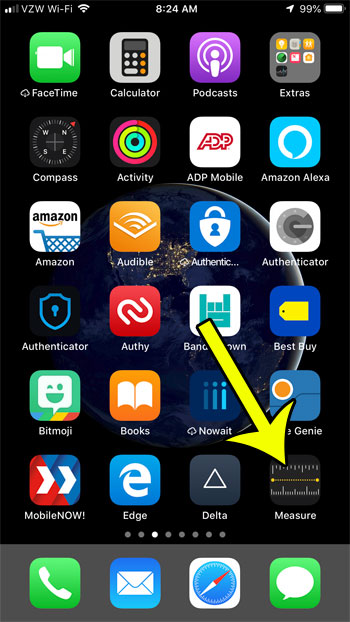
- Open Measure and tap Level.
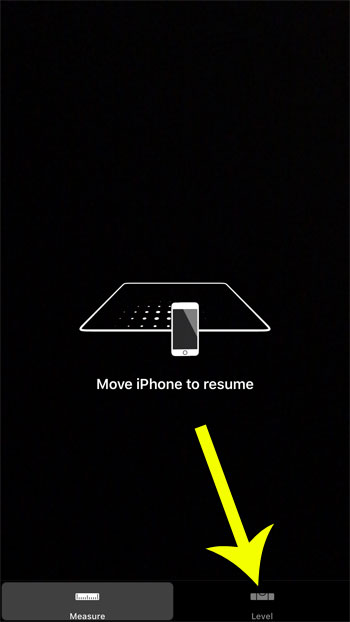
- Hold your iPhone against the object you want to check, such as the top edge of a picture frame.
Check whether something is level
Apple’s Use iPhone as a level guide describes the Level as a way to see whether an object near you is level (parallel to the ground) or how many degrees it varies from level. The number on screen is that difference in degrees.
- With the Level open, hold an edge of the iPhone against the object.
- Read the number of degrees. The bigger the number, the further the object is from level.
- Adjust the object, and keep the iPhone against it, until you see green. Green means level.
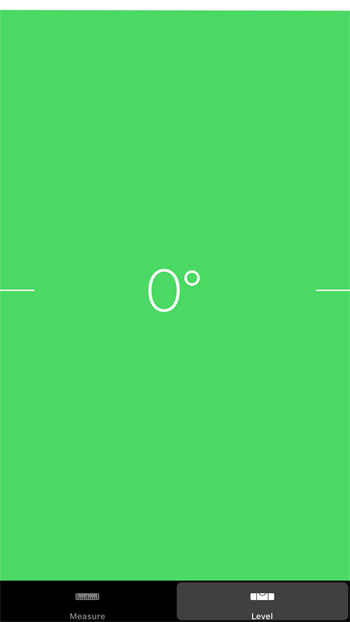
As an example, say a picture frame reads 3 degrees. Lift the low corner a little at a time, keeping the phone pressed to the top edge, and stop when the screen turns green. Then mark the spot for the nail before you take the phone away.
You can also lay the iPhone flat on a surface such as a table or shelf. The screen looks different in that position, and Apple’s guide doesn’t describe the flat view in detail, so go by the same signal: adjust until the screen turns green.
Match the angle of two objects
The Level can also copy a slope that isn’t level. This is handy for a stair rail, a slanted shelf, or a second frame that should hang at the same angle as the first.
- Hold iPhone against the first object.
- Tap the screen to capture its slope.
- Hold iPhone against the second object.
- Rotate the second object (and the phone with it) until the screen turns green. The two objects now share the same angle.
- To reset the level, tap the screen again.
Keep in mind that after you capture a slope, green means “matches the captured angle,” not “level.” Tap to reset before you go back to checking for level.
Tips for a better reading
- Treat it as approximate. Apple says the Level’s measurements are approximate. It’s good for hanging pictures and checking furniture; for building work, confirm with a traditional level.
- Keep the screen awake. If the display dims while you adjust a shelf, you can make the iPhone screen stay on longer with the Auto-Lock setting.
Use the Camera level for straight photos
The Camera app has its own level, separate from Measure. It appears on the camera screen to help you straighten and compose a shot, which is useful for horizons and buildings.
- Open the Settings app.
- Tap Camera. If you don’t see it in the list, use the search field at the top of Settings and type “Camera.”
- Turn on Grid and Level, as Apple’s camera tools guide describes.
The grid helps you place the subject, and the level helps you keep the shot from tilting. To learn how to use the grid lines for composition, see turning on the camera grid on iPhone.
Older iPhones and iOS versions
If your iPhone runs a very old version of iOS from before the Measure app, the level may still be inside Compass as a second screen reached by swiping, which is how the original version of this page described it. Any iPhone that can install current versions of iOS has the Level in Measure instead, so updating iOS is the simplest way to get the current tool.
iPhone level questions
Does the Camera level affect the Measure app?
They are separate tools: the Camera level appears on the camera screen, and the Level tab in Measure is its own feature.
Next time you hang a frame or set up a shelf, open Measure first and check the Level before you drill. Other built-in tools are just as easy to miss; for example, here’s where the flashlight is on iPhone when you need light to work in a dark corner.

Kermit Matthews runs Live2Tech from just outside Philadelphia. He is an IT specialist with over 20 years of experience, from a university help desk to small-business IT, IT management and his own consulting practice, and has written tech guides full time since 2020. Steps are checked against the current software on a real device or the maker’s official documentation. More about Kermit.