To change an email account’s name on an iPhone, go to Settings > Apps > Mail > Mail Accounts, tap the account, and edit its Description (the label shown in the Mail app’s mailbox list). To change the Name people see when you send email, edit the Name field in the same account settings, usually under Account for IMAP and POP accounts.
On older iOS versions, the path is Settings > Mail > Accounts (or Settings > Passwords & Accounts). The fields are the same.
Quick Answer
Settings > Apps > Mail > Mail Accounts > select the account > Account > change Description (mailbox label) or Name (sender name) > Done.
Change the Account Description
- Open Settings and tap Apps, then Mail.
- Tap Mail Accounts and choose the account.
- For IMAP or POP accounts, tap Account to open the account details. For Gmail, Outlook, and similar accounts, the Description field may be on the first screen.
- Tap Description (shown as Label in some versions) and type a new name, such as Work or Personal.
- Tap Done.
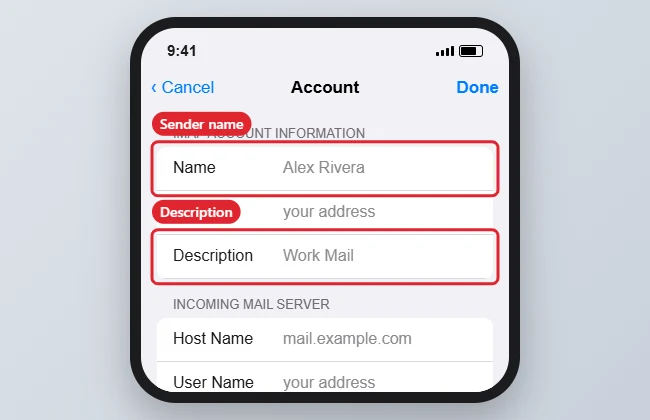
Name vs. Description
| Field | Who sees it | Example |
|---|---|---|
| Name | People you email, in their From line | Alex Rivera |
| Description | Only you, in the Mail app’s mailbox list and Settings | Work Mail |
| Email address | Everyone; can’t be changed here | Your full address |
iCloud Mail Accounts
Apple handles iCloud accounts differently. The primary iCloud account is always labeled iCloud, and in iOS 26 some users report the Description or Label field for additional iCloud addresses is no longer editable on iPhone. If you can’t change it, try editing the description in Mail settings on a Mac signed in to the same Apple Account. The sender name for iCloud Mail can be changed in iCloud Mail settings on iCloud.com.
Troubleshooting
- The new sender name doesn’t show for recipients: Some providers, such as Gmail and Outlook.com, use the name stored in your online account. Change it in the provider’s web settings too.
- You can’t find the Description field: Tap Account inside the account settings; for some account types it’s one level deeper.
- Mail sends from the wrong account: See how to change the default email account on iPhone.
Frequently Asked Questions
Does changing the description affect my email address?
No. It’s only a label on your iPhone. Your address and messages stay the same.
Can I change my email address itself?
Not from iPhone settings. You’d need to create a new address with your email provider and add it as a new account.
Do the changes sync to my iPad or Mac?
Descriptions are usually set per device, so change them on each device where you want the new label.
Summary
- Open Settings > Apps > Mail > Mail Accounts.
- Choose the account and tap Account if needed.
- Edit Description for the label, or Name for your sender name.
- Tap Done.

Kermit Matthews is a freelance writer based in Philadelphia, Pennsylvania with more than a decade of experience writing technology guides. He has a Bachelor’s and Master’s degree in Computer Science and has spent much of his professional career in IT management.
He specializes in writing content about iPhones, Android devices, Microsoft Office, and many other popular applications and devices.