If Apple Pay keeps popping up when you press the side button, or you simply do not want your cards reachable from a locked iPhone, there are two places to look. First, open Settings > Wallet & Apple Pay and turn off the switch for double-clicking the side button (usually labeled Double-Click Side Button, or Double-Click Home Button on iPhones with a Home button). Second, open Settings > Face ID & Passcode and, under Allow Access When Locked, turn off Wallet.
Two switches, two different jobs
Wallet can reach the Lock Screen in two separate ways, and each switch handles one of them. Knowing which is which saves you from turning off more than you need.
| Setting | Where it lives | What turning it off is meant to stop |
|---|---|---|
| Double-click shortcut | Settings > Wallet & Apple Pay | A double press of the side button (or Home button) bringing up your Apple Pay cards |
| Wallet in Allow Access When Locked | Settings > Face ID & Passcode (or Touch ID & Passcode) | Wallet being available while the iPhone is still locked |
If your problem is accidental pop-ups, the double-click switch is the one that matters most, because that is what a stray double press of the button triggers. If your concern is someone else picking up the phone, turn off both. Apple’s help pages confirm Wallet is in the Allow Access When Locked list but do not describe exactly what each switch blocks, so check the result yourself after changing them (see “Check that it worked” below).
Your iPhone type decides some of the labels. iPhones with Face ID (no Home button) use the side button and the Face ID & Passcode menu. iPhones with a Home button, such as iPhone SE, use the Home button and the Touch ID & Passcode menu.
Turn off the double-click shortcut for Apple Pay
Apple documents that double-clicking the side button (Face ID models) or the Home button (iPhone SE) brings up your default card for Apple Pay. The switch that controls this shortcut sits in the Wallet settings. Apple’s current guide does not spell out the switch’s name, so the label on your screen may differ slightly from the one below.
- Open the Settings app.
- Scroll down and tap Wallet & Apple Pay.
- Find the switch for the double-click shortcut. It is usually labeled Double-Click Side Button on Face ID iPhones or Double-Click Home Button on iPhones with a Home button.
- Tap the switch so it is off (grey, not green).
If you have never set up Apple Pay, you can skip this part.
Turn off Wallet in Allow Access When Locked
This switch sits in the same list Apple uses for other Lock Screen features. You need to know the iPhone passcode to change it.
- Open the Settings app.
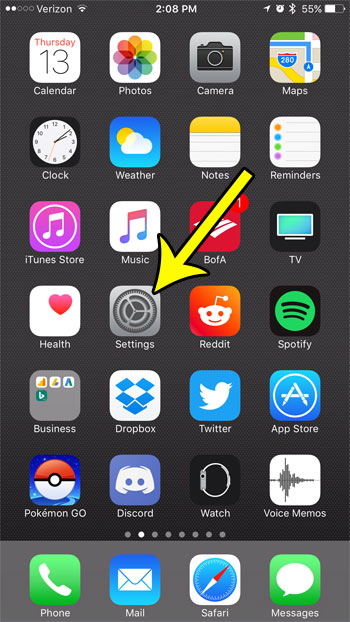
- Tap Face ID & Passcode. On an iPhone with a Home button, tap Touch ID & Passcode instead.
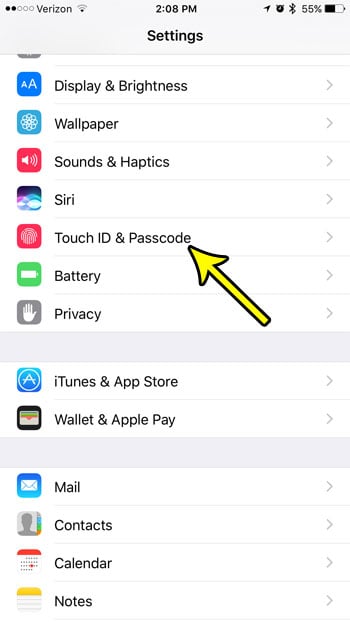
- Enter your passcode when asked.
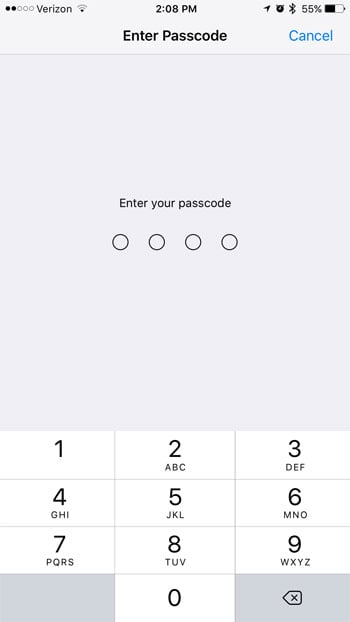
- Scroll down to the Allow Access When Locked section.
- Tap the switch next to Wallet so it turns grey (off).
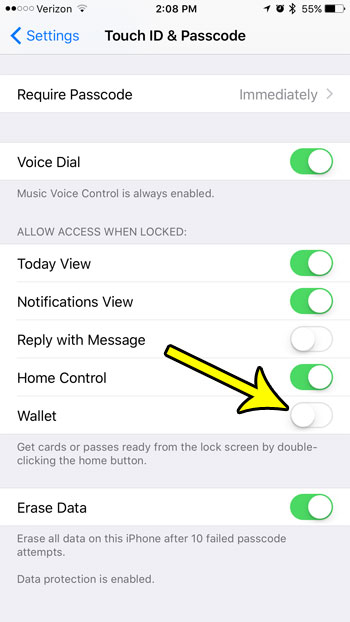
On much older versions of iOS this list was headed Lock Screen, but Wallet sat in the same place.
The same list holds other features Apple lets you reach from a locked iPhone: Today View, Notification Center, Control Center, Siri, Reply with Message, Home Control, Return Missed Calls and USB accessories. While you are there, you may want to review a few of them. To keep Control Center available while Wallet is off, see how to enable Control Center on the iPhone Lock Screen, and for the calls row, see how to show missed calls on the iPhone Lock Screen. Siri is in the list too, covered in turning off Siri on iPhone.
If there is no passcode on the iPhone, the Allow Access When Locked list does little, because anyone can open the phone anyway. Start by adding a passcode to your iPhone.
Check that it worked
- Press the side button to lock the iPhone and wait a few seconds.
- Without using Face ID or Touch ID, double-click the side button (or Home button).
- If the double-click switch is off, Apple Pay should no longer come up. If something still appears, go back and confirm both switches are grey.
To undo either change, return to the same screen and turn the switch back on (green).
What still works after you turn these off
Turning off the Lock Screen access does not delete anything from Wallet. Your cards, passes and keys stay on the iPhone, and you can still:
- Open the Wallet app from the Home Screen, App Library or Search once the iPhone is open, then tap a card and pay as usual.
- Pay with Apple Pay in apps and on websites, where you confirm with Face ID, Touch ID or your passcode.
- Use cards set to Express Mode, such as some transit cards, student IDs, car keys and hotel room keys.
Express Mode deserves a closer look. Apple says it lets you use some cards, keys and passes without waking the iPhone or confirming with Face ID, Touch ID or your passcode, and it turns on by default when you add an eligible item. Apple does not say that turning off Wallet in Allow Access When Locked changes this, so expect Express Mode items to keep working at a reader. To review which item uses Express Mode, open the Wallet app, select the card, pass or key, tap the More button, tap Card Details, then tap Express Transit Settings or Express Mode. Apple’s Express Mode support article explains which items can use it.
Stop passes from showing up on the Lock Screen
A third cause of Wallet appearing on a locked iPhone has nothing to do with the button: suggested passes. Apple describes a per-pass option called Suggest on Lock Screen, which puts the item on the Lock Screen automatically based on your time or location, for example a boarding pass near departure time.
- Open the Wallet app and tap the pass that keeps appearing.
- Open the pass details (Apple’s guide says to tap the item, then tap Details).
- Turn off Suggest on Lock Screen.
This only affects that one pass, so repeat it for any others. An expired boarding pass or event ticket can simply be removed from Wallet instead.
Wallet and Lock Screen questions
Can someone pay with my iPhone from the Lock Screen if I leave the shortcut on?
Apple’s Apple Pay steps have you confirm with Face ID, Touch ID or your passcode before paying, and Apple’s security guide says pass details are not displayed until you authenticate. Express Mode items are the exception, as described above. Turning off the shortcut is mostly about stopping the screen from appearing at all.
Is there a Wallet button on the Lock Screen I can remove?
Current versions of iOS let you customize the controls at the bottom of the Lock Screen: touch and hold the Lock Screen, tap Customize, then tap one of the controls at the bottom to swap it. Apple’s Lock Screen guide does not list a Wallet control specifically, so check whether one appears on yours.
Why does Apple Pay still appear after I turned off Wallet in Allow Access When Locked?
The double-click shortcut is a separate setting in Settings > Wallet & Apple Pay, so a stray double press can still bring up your cards until that switch is off too. A pass with Suggest on Lock Screen turned on can also appear on its own. Apple Watch has its own Apple Pay settings, which these iPhone switches are not documented to change.
Lock Screen settings work best alongside a strong passcode. To make sure the iPhone asks for it right away, see how to require a passcode to unlock an iPhone. If you rely on Touch ID, turning off Touch ID is a separate setting in the same menu, and Apple Pay in Safari has its own option, explained in disabling the check for Apple Pay in Safari.

Kermit Matthews runs Live2Tech from just outside Philadelphia. He is an IT specialist with over 20 years of experience, from a university help desk to small-business IT, IT management and his own consulting practice, and has written tech guides full time since 2020. Steps are checked against the current software on a real device or the maker’s official documentation. More about Kermit.