Read receipts are a Messages setting on your iPhone, and that is where Apple documents the switch: open Settings, tap Apps, tap Messages and turn off Send Read Receipts. Apple’s Apple Watch guide lists no separate read receipt switch for the watch; the Custom option for Messages in the Watch app changes how you are notified, not what senders see. You can also turn receipts off, or keep them on, for one person.
Which setting decides what senders see
Two switches control read receipts, and Apple explains how they interact on its read receipts page for iPhone. The per-person switch wins over the general one.
| What you set | Where | What happens |
|---|---|---|
| Send Read Receipts off for everyone | iPhone: Settings > Apps > Messages | Applies to every conversation you have not set individually |
| Send Read Receipts on for one person | iPhone: that conversation’s contact icon | That person still sees “Read,” even with the general switch off |
| Send Read Receipts off for one person | iPhone: that conversation’s contact icon | That person stops seeing “Read” |
| Custom for Messages | Watch app: My Watch > Apps > Messages | Changes how the watch notifies you; Apple’s guide does not mention read receipts here |
So if you want people to stop seeing “Read” after you glance at a text on your wrist, the iPhone switches are the ones Apple documents.
Turn off Send Read Receipts for everyone
This is the route to use when you don’t want anyone to see when you have read their messages.
- Open the Settings app on your iPhone.
- Tap Apps, then tap Messages.
- Turn off Send Read Receipts.
On older versions of iOS, Messages sits directly in Settings rather than under Apps, and Apple’s page offers a version picker if your screen looks different. The older illustration below may not match current screens.
Apple notes that turning read receipts off generally “affects only those conversations with contacts whose read receipts you never turned on individually.” If someone still sees “Read,” check that person’s conversation next.
Turn them off for one person
You might want a partner or a close friend to keep seeing receipts while everyone else doesn’t, or the other way around.
- Open Messages on your iPhone.
- Tap the conversation.
- Tap the contact icon at the top of the conversation.
- Turn Send Read Receipts off (or on) for that person.
Apple says a person you have turned on individually keeps getting receipts “even if you turned off read receipts generally.” Apple doesn’t say whether reading that person’s messages on Apple Watch is handled any differently, so treat the iPhone setting as the one in charge.
What about a switch on the watch itself?
Apple’s guide to reading messages on Apple Watch gives this route for Messages options: open the Apple Watch app on your iPhone, tap My Watch, tap Apps, then tap Messages, and “Tap Custom to set options for how you want to be notified when you receive a message.” The page never mentions read receipts.
Apple’s Apple Watch notifications article describes the same two choices for every app: Mirror my iPhone uses “the same notification settings on apps that appear on both your Apple Watch and iPhone,” while Custom lets you pick options such as Allow Notifications or Send to Notification Center. Both are about alerts. If your Watch app shows a read receipt option on that screen, it is not one Apple’s guides describe, so check the iPhone switches above as well.
What the sender sees
Apple puts it simply: “When read receipts are turned on, the sender sees the word ‘Read’ below messages they’ve sent to you.” If you haven’t read a message, “the sender sees ‘Delivered.'” With your read receipts off, there is no “Read” status for them to see.
Read receipts only work in one direction. Apple says “You can’t turn on read receipts for anyone but yourself,” so if you want to know when a friend has read your texts, ask them to turn theirs on.
Other Messages controls on the watch
If the real goal is fewer interruptions on your wrist, these settings help without touching read receipts:
- Mute one conversation: on the watch, swipe left on the conversation in the Messages list and tap the Notifications Off button.
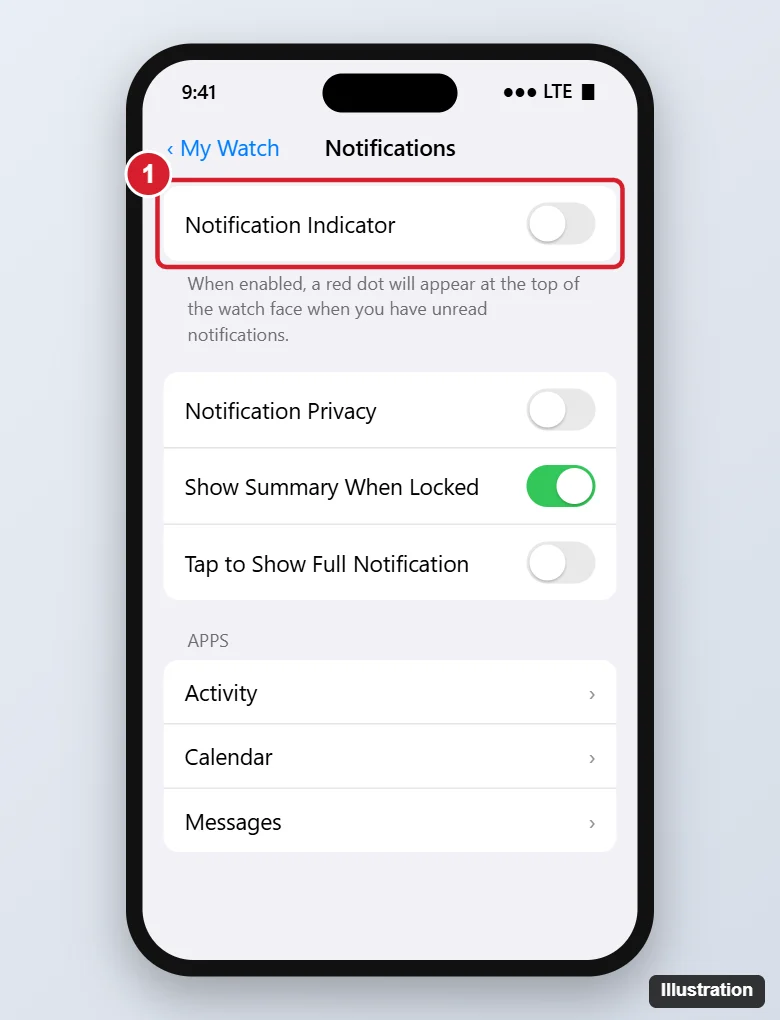
- Hide message content until you tap: in the Apple Watch app on your iPhone, tap My Watch, tap Notifications, then turn on Tap to Show Full Notification. On the same screen, you can turn off Show Summary When Locked.
- A Focus: Apple notes that you won’t receive a notification if you’re using a Focus that doesn’t allow Messages notifications.
- Repeated alerts: the steps to change them are in repeating text message alerts on an Apple Watch.
- Quick replies: answering with one tap is quicker with your own default replies on Apple Watch.
- Hourly chimes: if the watch is noisy for other reasons too, see turning off the Apple Watch hourly chime.
Menus can shift between watchOS releases. If a label doesn’t match, check which watchOS version your Apple Watch runs and use the matching version of Apple’s guide.
Apple Watch read receipt questions
Can I turn receipts off for everyone but keep them for one person?
Yes. Turn off Send Read Receipts in Settings > Apps > Messages, then open that person’s conversation, tap the contact icon and turn Send Read Receipts on for them.
Does turning off read receipts stop message alerts on my watch?
No. Read receipts and notifications are separate settings. Alerts on the watch are managed in the Apple Watch app under Notifications and under My Watch > Apps > Messages.
Why did someone see “Read” after I only looked at my watch?
Apple doesn’t document how glancing at a message on Apple Watch affects read receipts. The reliable fix is the one Apple does document: turn off Send Read Receipts on the iPhone, and check that the person isn’t turned on individually.
Start with the general switch in Settings > Apps > Messages, then adjust single conversations as needed.

Kermit Matthews runs Live2Tech from just outside Philadelphia. He is an IT specialist with over 20 years of experience, from a university help desk to small-business IT, IT management and his own consulting practice, and has written tech guides full time since 2020. Steps are checked against the current software on a real device or the maker’s official documentation. More about Kermit.