Start on the watch: with the current face showing, touch and hold the display, swipe left all the way to the end, tap the Add (+) button, then pick a collection and tap Get and Add next to the face you want. On iPhone, open the Apple Watch app, tap Face Gallery, tap Get on any face, customize it and tap Add to Watch. These steps follow Apple’s instructions for current versions of watchOS and iOS.
Which way to add a face
Both routes put the new face in the same place: Apple says the face is added to your collection and becomes the current face. The old face isn’t replaced or lost; it stays in your collection so you can switch back. What differs is how comfortable the job is.
| Apple Watch app on iPhone | On the watch itself | |
|---|---|---|
| Best for | Browsing every face and setting up complications on a big screen | A quick change when your phone isn’t handy |
| Where to start | Face Gallery | Touch and hold the current face |
| Button to add | Get, then Add to Watch | Get, then Add |
| When you customize | Before adding (options and complication positions) | After adding, with Edit |
If you plan to fill a face with complications (the small widgets that show weather, activity rings, the date and so on), the iPhone route is usually easier because you can see every slot at once.
Add a face from the Apple Watch app on iPhone
It helps to keep your iPhone and Apple Watch near each other while the face syncs. The screenshots below come from an older version of iOS; the current app looks different and some button labels have changed.
- Open the Apple Watch app on your iPhone. (Older iOS versions called it the Watch app.)
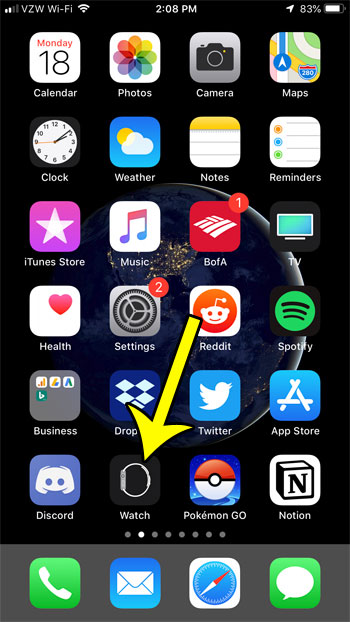
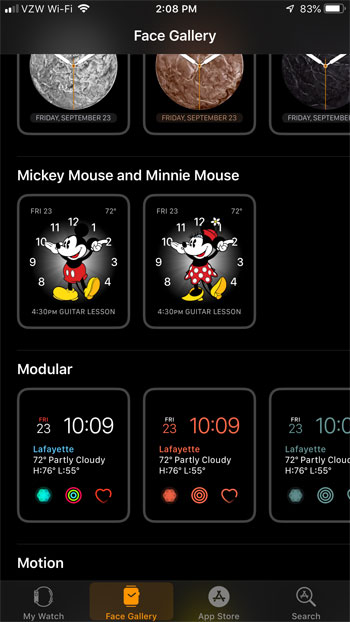
- Tap Face Gallery, then tap a category such as Health and Fitness, Photos or Data Rich. To see every face, scroll down and tap See All Watch Faces.

- Scroll to the face you like, tap Get, then tap one of the options shown for that face.
- Customize it if you want. Tap a feature such as color or style to change it, or tap a complication position (for example Top Left, Top Right or Bottom) and choose what appears there. To leave a slot empty, tap Off at the top of the list.
- Tap Add to Watch. The face is added to your collection and becomes the current face on your watch.
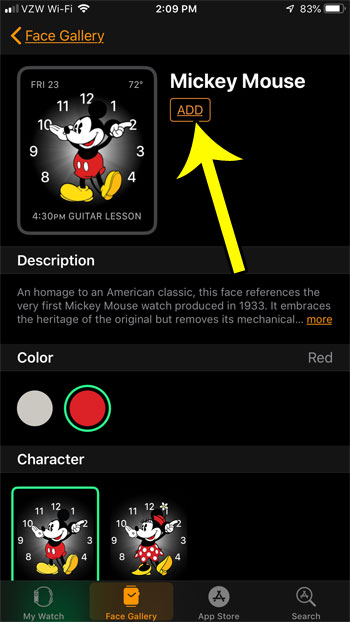
In older versions of the app, the button was labeled Add near the top of the screen. In current versions you tap Get first and finish with Add to Watch.
Add a face directly on Apple Watch
This route needs nothing but the watch, which makes it handy at the gym or on a trip.
- With the current watch face showing, touch and hold the display.
- Swipe left all the way to the end of the row, then tap the Add button (the plus sign).
- Tap a collection, such as New Watch Faces or Data Rich. To browse everything, scroll down and tap All Watch Faces.
- Tap Get next to the face you want, then tap Add.
The new face is added to your collection and becomes the current face.
Customize the new face
A face added from the watch uses its default look. Apple’s page on changing faces shows only the Edit button; going by Apple’s VoiceOver editing steps, the rest usually works like this:
- With the face showing, touch and hold the display.
- Tap Edit.
- Swipe left or right to move between the features you can change, such as color, style and complications, and turn the Digital Crown to change the selected one.
- When you are done, press the Digital Crown, then tap the face. If your watch behaves differently, follow the prompts on screen or customize the face in the Apple Watch app on iPhone instead.
For more on what each slot can show, see Apple’s page on how to add complications to the watch face. To clear one you no longer want, see deleting an Apple Watch complication.
Switch between the faces you have
Adding a face doesn’t lock you into it. To change faces at any time:
- With the current watch face showing, touch and hold the display.
- Swipe to the face you want, then tap it.
If you change faces often, Apple offers a shortcut: on the watch, open Settings, tap Clock, then turn on Swipe to Switch Watch Face. With it on, you can swipe from one face to the next without touching and holding first. Leave it off if you tend to swipe the face by accident.
Reorder or trim your collection
New faces join your collection, and the order decides what you see as you swipe. To rearrange it:
- On iPhone: open the Apple Watch app, tap My Watch, then tap Edit in the My Faces area and drag the handle next to a face up or down.
- On the watch: with the current face showing, touch and hold the display, touch and hold again, then drag the selected face left or right.
A long collection is slower to swipe through, so it can help to clear out faces you no longer use; the steps are in how to delete a watch face on an Apple Watch.
Once a face looks the way you want, you can send it to someone else from your iPhone:
- Open the Apple Watch app and tap a face from your collection or from Face Gallery.
- Tap the Share button, then choose a sharing option.
The person you send it to opens the text, email or link, taps the shared face and taps Add. Their watch needs watchOS 7 or later. If the face includes a complication from a third-party app they don’t have, they can tap Get (or the price) to download the app, or tap Continue Without This App to add the face without that complication. Faces you receive the same way are a quick route to adding a new face without building it yourself.
When a face is missing from the list
If a face you have seen elsewhere doesn’t appear in Face Gallery or All Watch Faces, the most likely reasons are:
- Your model. Apple says not all faces are available on all models. For example, Contour and Modular Duo aren’t available on Apple Watch SE, and Modular Ultra is made for Apple Watch Ultra models.
- Your country or region. Apple also notes that some faces aren’t offered in every country or region.
- Your watchOS version. Newer faces arrive with watchOS updates, so check your watchOS version and update if one is waiting.
- A sync problem. If you tapped Add to Watch but nothing changed, try keeping the iPhone and watch close together, check that they are still paired, and restart both if the face doesn’t arrive.
Watch face questions
Does adding a new face delete the one I was using?
No. Apple describes the new face as being added to your collection; your earlier face stays there until you remove it.
Can I save a picture of my new face?
Yes, once screenshots are turned on. See how to take a screenshot on Apple Watch, which is useful for showing a face to someone whose watch can’t receive a shared face.
Where are the character faces like Mickey Mouse?
They are in Face Gallery with the other faces, and the steps above work for them too. For the details of that face, see setting the Mickey Mouse face on Apple Watch.
Keep going
With a new face in place, you might also want to tidy the app grid behind it; see rearranging apps on Apple Watch. Apple’s full reference for this task is its guide to changing Apple Watch faces, and its sharing faces page explains what to do with a shared face you find on an iPad or Mac.

Kermit Matthews runs Live2Tech from just outside Philadelphia. He is an IT specialist with over 20 years of experience, from a university help desk to small-business IT, IT management and his own consulting practice, and has written tech guides full time since 2020. Steps are checked against the current software on a real device or the maker’s official documentation. More about Kermit.