The quickest way to rearrange apps on Apple Watch from your iPhone is to open the Apple Watch app, tap My Watch, tap App View, then tap Arrangement and drag icons where you want them. You can also do it on the watch itself by touching and holding an app on the grid. One catch: in List view, apps always sit in alphabetical order, so there is nothing to drag until you switch to Grid view.
Before you start: Grid view or List view?
Current versions of watchOS show your apps in one of two layouts, and only one of them can be rearranged.
- Grid view (Apple calls it the App Grid) shows round app icons packed together. You choose where each app sits, so your most used apps can live in the middle where they are easy to reach.
- List view shows apps in a scrolling list with names beside the icons. Apple’s guide shows list view with apps in alphabetical order, so you can’t move them up or down.
To see which one you have, press the Digital Crown once. If you see a grid of round app icons, you’re in Grid view. If you see a list of names, you’re in List view, and you should start with the section on switching views below.
Rearrange apps from your iPhone
The iPhone method gives you a bigger screen to work on, which helps if you have a lot of apps or find the small icons hard to grab on your wrist. Keep the watch nearby and connected to the iPhone so the change reaches it.
- On the iPhone paired with your watch, open the Apple Watch app.

Older iOS version shown; current screens look different. - Tap the My Watch tab at the bottom of the screen if the app opens on another tab.

Older iOS version shown; My Watch is still the tab that holds watch settings. - Tap App View, then tap Arrangement.
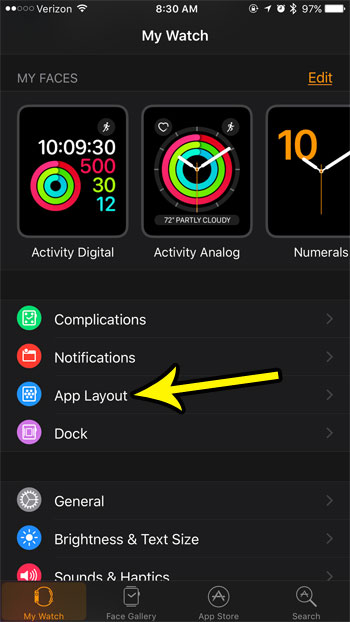
Older iOS version showing the retired App Layout option; today you tap App View, then Arrangement. - Touch and hold the app icon you want to move, then drag it to its new spot. Lift your finger to drop it. Repeat for any other apps.
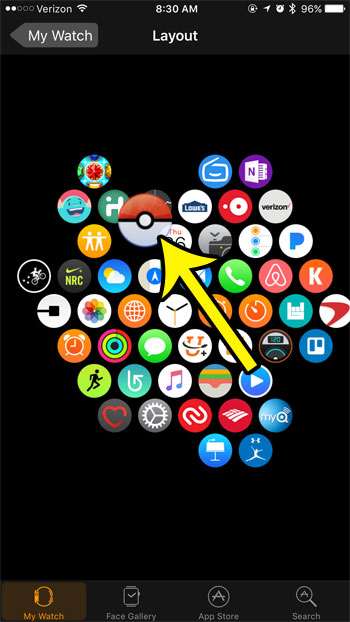
Older iOS version shown; you still touch and hold an icon, then drag it.
These steps follow Apple’s Organize apps on Apple Watch page in the Apple Watch User Guide. There is no Save button; press the Digital Crown on the watch afterward and check that the grid matches what you set.
Rearrange apps on the watch itself
If your phone isn’t handy, you can move apps directly on the App Grid.
- Press the Digital Crown to open your apps.
- Turn the Digital Crown to see all your apps, and find the one you want to move.
- Touch and hold the app. The Home Screen switches to edit mode.
- Without lifting your finger, drag the app to a new location.
- Press the Digital Crown when you’re done.
Touch and hold means a firm, steady press rather than a tap. A quick tap opens the app instead, and if you start dragging too soon, the grid scrolls. If an app opens by mistake, press the Digital Crown to go back and try a longer press.
Which method should you use?
| Situation | Best choice | Why |
|---|---|---|
| Moving one or two apps | On the watch | Faster than opening the iPhone app |
| Reorganizing the whole grid | iPhone, App View > Arrangement | Bigger icons and a larger screen to drag across |
One simple approach: group the apps you open every day (Workout, Timer, Messages and Weather, for example) close together, and push the ones you rarely use out to the edges, where you scroll less often.
Switch between Grid view and List view
You can change the layout on the watch in two ways:
- From the apps screen: press the Digital Crown, scroll to the bottom of your apps, then choose List view or Grid view.
- From Settings: open the Settings app on the watch, tap App View, then choose an option.
Remove an app you don’t use
Sometimes the easiest way to tidy the grid is to take apps off the watch. Keep one thing in mind before you start: deleting an app from your iPhone also deletes it from your Apple Watch, so if you want to keep the iPhone app, remove the app on the watch instead.
- Press the Digital Crown to see your apps.
- Touch and hold the app you want to remove.
- Tap the delete button that appears on the app. If the watch asks you to confirm, confirm the deletion.
Apple notes that not all apps can be removed, so some built in apps won’t show a delete button. To get an app back, download it again from the App Store on your iPhone or on the watch. If new apps keep showing up on the watch whenever you install their iPhone versions, you can turn off automatic app install for Apple Watch and add only the ones you want.
If you can’t move an app
- Nothing happens when you drag: you’re probably in List view. Switch to Grid view using the steps above.
- You can’t find Arrangement in the iPhone app: make sure you’re on the My Watch tab, then look for App View.
- Changes from the iPhone don’t show on the watch: check that the watch is on, nearby and connected to the iPhone, then press the Digital Crown to reopen the grid.
Not sure which watchOS version you have? You can check the watchOS version on your Apple Watch before comparing screens with any guide.
Older watchOS versions
Before the current App View screen, the Apple Watch app on the iPhone had an App Layout option under My Watch, and the older screenshots on this page come from that era. The idea was the same: touch and hold an icon, then drag it. In watchOS 10, removing an app from the grid meant touching and holding the Home Screen and tapping the X on the app; in List view you swiped left on the app and tapped the delete button. If your watch runs an older version, use the labels you actually see, since the steps on current versions differ slightly.
Apple Watch app layout questions
Can I put Apple Watch apps into folders?
Apple’s guide doesn’t describe any folder feature for the watch. Its instructions cover moving apps on the grid, switching views and removing apps, so the closest thing to a folder is placing related apps next to each other on the grid.
Can the watch sort my apps automatically?
Only in one sense: List view puts every app in alphabetical order for you. Apple’s guide doesn’t describe any option that sorts the grid by name or by how often you use an app, so in Grid view the order is whatever you drag it into.
Will I lose my arrangement if I set up a new watch?
Plan for it. If you’re switching to a new watch, unpair your old Apple Watch properly first, then set up the new one. Apple’s app guide doesn’t say whether a custom grid order carries over, so it’s worth noting where your favorite apps sit (or taking a quick screenshot of the Arrangement screen on your iPhone) before you switch.
Does the watch face have anything to do with app order?
No. Faces and complications are set up separately. To change what you see before you press the Digital Crown, see how to add a watch face on Apple Watch.
Once your grid is in order, you might also want fewer interruptions on your wrist: here’s how to stop Breathe reminders on Apple Watch, a related tip for tidying up the watch.

Kermit Matthews runs Live2Tech from just outside Philadelphia. He is an IT specialist with over 20 years of experience, from a university help desk to small-business IT, IT management and his own consulting practice, and has written tech guides full time since 2020. Steps are checked against the current software on a real device or the maker’s official documentation. More about Kermit.