The quickest way to turn off the flashlight on an iPhone is to tap the Flashlight button again, either in Control Center or on the Lock Screen. Siri can switch it off too, and so can the Action button on models that have one. If the button you normally use has disappeared, the flashlight itself is still there; only the shortcut was removed, and the steps below put it back.
Turn the flashlight off in Control Center
Control Center works from any screen, including the Lock Screen and inside apps, so it is the most dependable off switch.
- Open Control Center. On an iPhone with Face ID, swipe down from the top-right corner of the screen. On an iPhone with a Home button (such as iPhone SE), swipe up from the bottom edge.
- Find the Flashlight button. While the light is on, the button is highlighted.
- Tap the Flashlight button once. The light on the back of the phone goes off and the button returns to its normal look.
- Swipe up from the bottom (or press the Home button) to close Control Center.
If the gesture to open Control Center does nothing, the problem is usually the starting point of the swipe rather than the flashlight. Opening Control Center on each kind of iPhone explains the gesture for Face ID and Home button models.
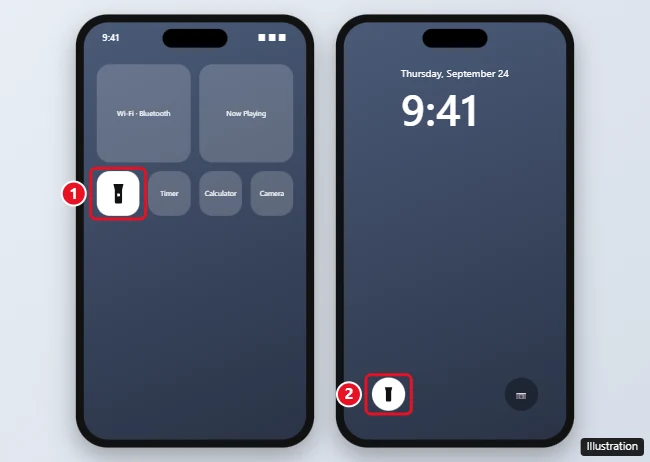
If your iPhone has a flashlight button on the Lock Screen, it is in the bottom-left corner. It is the same switch you probably used to turn the light on.
- Wake the screen, for example by pressing the side button. You do not need to enter your passcode.
- Press and hold the flashlight button in the bottom-left corner until the light goes off, then let go.
If a quick press does nothing, press and hold the button for a moment.
If there is no flashlight button on your Lock Screen, it has either been removed or swapped for another control. The section on putting it back covers both cases.
Ask Siri
Siri is the handiest option when your hands are full or the phone is face down. Say “Hey Siri, turn off my flashlight” or, if you use the shorter wake word, “Siri, turn off the flashlight.” You can also hold the side button to call Siri and then say “Turn off the flashlight.” If Siri does not respond, check that it is turned on in Settings; the Siri settings walkthrough shows where those switches are.
Press the Action button
The Action button is the programmable button on iPhone 15 Pro, iPhone 15 Pro Max and later models. It only controls the flashlight if Flashlight is the action assigned to it.
- Press and hold the Action button. If it is set to Flashlight, the light turns off (or on, if it was off).
- If something else happens, open Settings, tap Action Button, and swipe through the options until you reach Flashlight. Leave the screen on that option.
- Press and hold the Action button again to test it.
Setting the Action button to Flashlight makes it a physical on and off switch, which is easier to find in the dark than a button on the screen. Customizing the Action button covers the other actions it can run.
Which off switch suits the situation
| Situation | Fastest way to turn the light off |
|---|---|
| Screen is locked and dark | Wake the screen, then press and hold the Lock Screen flashlight button |
| You are inside an app | Open Control Center and tap Flashlight |
| Hands are busy or the phone is out of reach | Ask Siri |
| iPhone 15 Pro or later with Action button set to Flashlight | Press and hold the Action button |
| Lock Screen button is missing | Use Control Center, then add the button back |
Dim the light instead of turning it off
Sometimes the light is not the problem, its brightness is. Instead of switching it off, you can lower it.
- Brightness: Open Control Center, touch and hold the Flashlight button, then drag the slider down to dim it or up to brighten it. Dimming does not switch the light off, so tap the button itself when you want it fully off.
- Beam size: On iPhone 14 Pro and later Pro models, the flashlight appears in the Dynamic Island while it is on. Tap the Dynamic Island, then touch and hold the light icon and drag it to make the beam wider or narrower and longer or shorter.
For more on the brightness levels, see changing the flashlight brightness.
The flashlight cannot be deleted from an iPhone. What can disappear is the button that controls it, because both Control Center and the Lock Screen are customizable. A control can be removed by accident while you rearrange things, or a different control can take its place.
Add Flashlight back to Control Center
- Open Control Center.
- Tap the add button (a plus sign) to begin editing, or touch and hold an empty part of the screen while Control Center is open.
- Tap Add a Control at the bottom of the screen. This opens the gallery of available controls.
- Find Flashlight in the gallery and tap it to add it.
- Drag it to another spot if you like, then swipe up from the bottom center of the screen to finish.
Apple’s flashlight page also gives a second route: go to Settings > Control Center and tap Flashlight in the list of available controls. Use whichever one your version of iOS shows. If you want to reorder several controls at once, rearranging Control Center walks through moving and resizing them.
Add Flashlight back to the Lock Screen
- Wake the iPhone and, with the Lock Screen showing, touch and hold an empty part of the screen until the Customize button appears.
- Tap Customize. If you are asked to choose between the Lock Screen and the Home Screen, choose the Lock Screen.
- Look at the two controls at the bottom of the screen. To swap one, tap the remove button (a minus sign) on it.
- Tap the add button (a plus sign) that appears in its place, then choose Flashlight from the list.
- Save your changes and return to the Lock Screen to check that the flashlight button is back.
If you keep more than one Lock Screen (for example, one linked to a Focus), check the controls on each one you use, since you customize them one at a time.
Apple’s troubleshooting page for the camera and flash lists only a few steps, so start with these before assuming the hardware is faulty.
- Remove the case or accessory. Apple suggests taking off any case, film or accessory that could block the camera or flash, including magnetic mounts near the camera.
- Restart the iPhone. Apple lists a restart among the first steps to try.
- Update iOS. Go to Settings > General > Software Update and install any available update.
- Test from Control Center. Apple’s own check is to tap the Flashlight button in Control Center. If it turns on and off normally there, the light works and the issue is with the other shortcut.
- Check the camera’s flash setting. If the flash only works some of the time when taking photos, the Camera app may be set to Flash Auto. Tap the flash button in the Camera app to pick a different setting.
- Get service. If the flash or flashlight still isn’t working properly after these steps, Apple says the iPhone might need service.
Apple’s camera and flash page doesn’t mention a greyed-out Flashlight button at all, so be cautious with fixes that ask you to erase the iPhone for this alone.
If the flashlight keeps turning on by itself
A light that switches on in a pocket or bag is often a shortcut being triggered. Check these in order:
- Lock Screen button: A press against the screen in a pocket can trigger it. If this happens often, swap the flashlight button on your Lock Screen for another control using the steps above and rely on Control Center instead.
- Back Tap: This accessibility feature runs an action when you double-tap or triple-tap the back of the phone. If Back Tap on your iPhone is set to an action that turns on the light, go to Settings > Accessibility > Touch > Back Tap, choose Double Tap or Triple Tap, and pick None. Turning off Back Tap has more detail.
- Action button: If it is set to Flashlight, a long press against something in a bag could switch the light on. Choose a different action in Settings > Action Button if that matches what you see.
iPhone flashlight answers
Does removing the Flashlight button disable the flashlight?
No. Siri and the Action button (if set to Flashlight) still work, and you can add the button back at any time.
Do I need to enter my passcode to turn the flashlight off?
No. The Lock Screen button works while the phone is locked, and so does Control Center unless its Lock Screen access has been turned off. If Control Center will not open from the Lock Screen, turning on Control Center for the Lock Screen shows the setting to check.
Is the flashlight the same light as the camera flash?
Yes, both use the light next to the rear camera. That is why Apple’s flash troubleshooting starts by testing the flashlight in Control Center.
If you want the opposite task, finding the flashlight and turning it on starts from the beginning, and every quick way to use the iPhone flashlight lists the other shortcuts. Apple’s own flashlight help page and its pages on customizing Control Center, customizing the Lock Screen, Back Tap and a camera or flash that isn’t working are the references for the steps above.

Kermit Matthews runs Live2Tech from just outside Philadelphia. He is an IT specialist with over 20 years of experience, from a university help desk to small-business IT, IT management and his own consulting practice, and has written tech guides full time since 2020. Steps are checked against the current software on a real device or the maker’s official documentation. More about Kermit.