Take inventory of where Copilot appears: in Windows 11 it isn’t one thing. It can be an app you uninstall, a key on the keyboard, and a feature inside Edge and the Microsoft 365 apps. The app comes off in Settings > Apps > Installed apps, the key is reassigned under Personalization > Text input, and Word, Excel and PowerPoint each have an Enable Copilot checkbox under File > Options > Copilot. These steps cover current versions of Windows 11.
Find every Copilot on your PC
Look at what you actually see before changing anything. Removing the Windows app doesn’t touch Copilot in Word, and clearing the Word checkbox doesn’t change the keyboard key. Match each place to its switch:
| Where you see Copilot | What turns it off or hides it | Who can do it |
|---|---|---|
| The Microsoft Copilot app (Start menu, taskbar, search results) | Uninstall it in Settings, or with Microsoft’s PowerShell commands | Anyone on a personal PC; on a work PC, IT may control it |
| The Copilot key (or Windows logo key + C) | Settings > Personalization > Text input > Customize Copilot key on keyboard | Any user |
| Word, Excel, PowerPoint, OneNote | File > Options > Copilot > clear Enable Copilot, in each app | Only when signed in with a personal Microsoft account |
| Outlook | A Turn on Copilot switch in Outlook’s own settings | Personal Microsoft account |
| Microsoft Edge toolbar and sidebar | The button’s own menu or Edge settings; on managed PCs, Edge policies | User, or IT on managed PCs |
| Work or school PCs | AppLocker and the WindowsAI policies Microsoft documents | IT administrators |
A household PC usually needs only the first three rows. A company laptop may already have some of these controlled by IT, in which case a setting can be missing or grayed out.
Remove the Copilot app
The Windows app is the most visible Copilot, and it is a normal app that can be uninstalled. Microsoft’s Copilot management page for Windows, which applies to Windows 11, version 22H2 and later, gives these steps:
- Open Settings > Apps > Installed apps.
- Find Copilot in the list. Typing Copilot in the search box at the top narrows it down.
- Select the three dots on the right side of the app.
- Select Uninstall, then confirm.
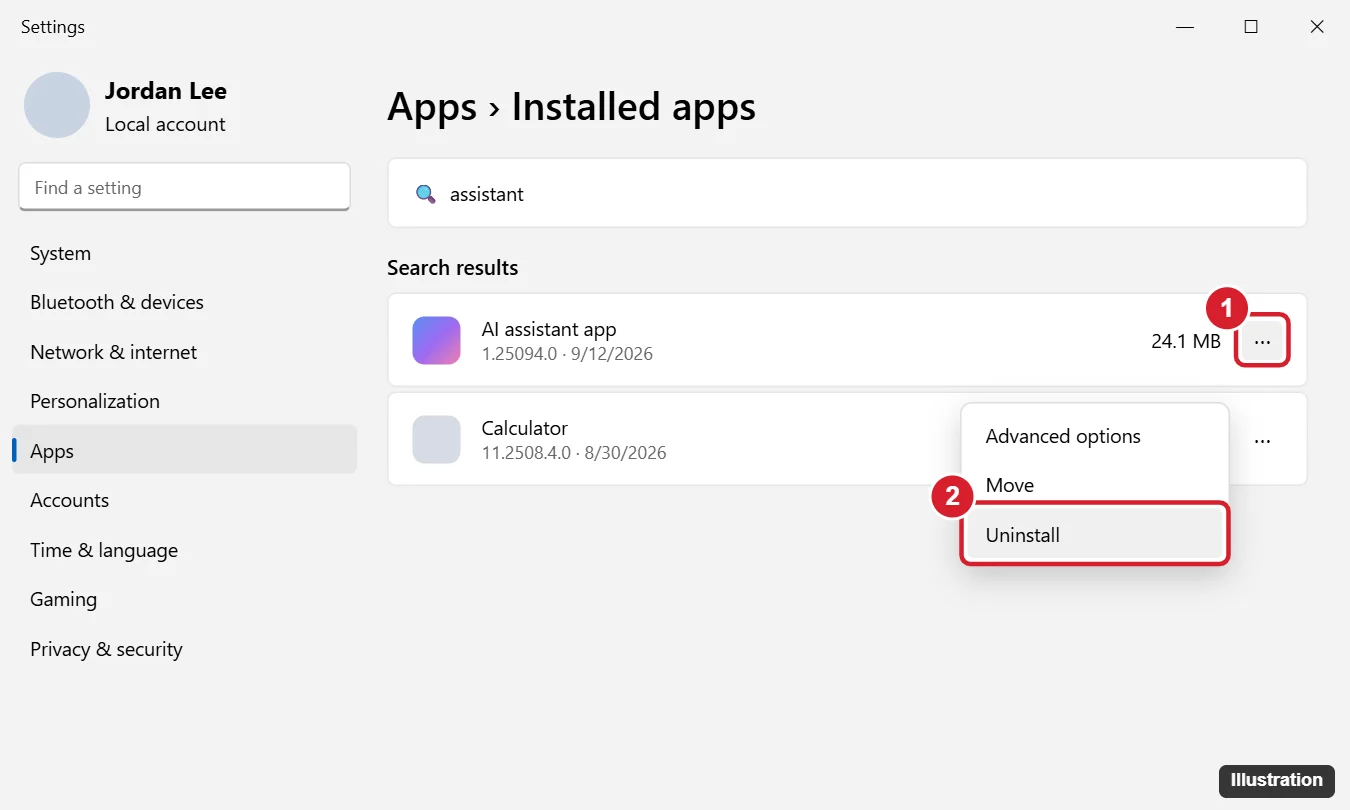
The screenshot above is from an earlier Windows 11 build, so the list on your PC may look a little different. Microsoft treats Microsoft 365 Copilot as a different app from Microsoft Copilot (its RemoveMicrosoftCopilotApp policy only acts when both are installed), so if both appear in the list, each has its own entry. Uninstall it the same way if you don’t want it. General uninstall tips, including Store apps versus desktop programs, are in uninstalling a program in Windows 11.
Removing the app also takes away its taskbar button and Start entry. If you only want the button gone but the app kept, right-click the taskbar button and unpin it instead. Ways to tidy pinned items are in customizing the Windows 11 Start menu.
The PowerShell route
If the Uninstall option is missing or grayed out, Microsoft documents a PowerShell alternative. Open Start, type PowerShell, select Windows PowerShell, and enter Microsoft’s two commands:
$packageFullName = Get-AppxPackage -Name "Microsoft.Copilot" | Select-Object -ExpandProperty PackageFullName
Remove-AppxPackage -Package $packageFullName
The first line finds the exact package name of the Copilot app; the second removes it for your account. Type the commands as shown rather than using wildcard versions found elsewhere, which can catch other packages with similar names.
Change what the Copilot key opens
Many newer keyboards have a dedicated Copilot key, and Windows logo key + C does the same job on keyboards without one. Microsoft says that since the May 2025 optional update, the key opens a lightweight prompt box. After the app is gone, or if you’d rather the key did something else, reassign it:
- Open Settings > Personalization > Text input.
- Find Customize Copilot key on keyboard.
- Open the drop-down. Microsoft lists Search, Custom, or the app currently mapped.
- Choose Search to make the key open Windows search, or Custom to pick another app from the app picker.
Choosing Search is the simplest way to make the key harmless. Custom suits someone who wants the key to open, say, a notes app they use every day.
Turn off Copilot in Word, Excel, PowerPoint and OneNote
Copilot in the Microsoft 365 apps is controlled inside each app, not by Windows. Microsoft’s page on turning off Copilot in Microsoft 365 apps gives these steps for Word, Excel and PowerPoint on Windows (OneNote on Windows works the same way):
- Open the app, for example Word.
- Select File > Options > Copilot.
- Clear the Enable Copilot checkbox.
- Select OK, then close and reopen the app.
A few limits from Microsoft’s page matter here:
- The checkbox is separate in each app and on each device. Turning it off in Word leaves Excel and PowerPoint as they were, and a second PC needs its own change.
- It applies when you are signed in with a personal Microsoft account. With a work or school account, the organization controls Copilot.
- You can’t turn off Copilot in the iOS, Android or web versions of Word, Excel or PowerPoint.
- Outlook uses a Turn on Copilot switch in its own settings instead of a checkbox (Settings > Copilot in new Outlook for Windows and Outlook on the web; Microsoft gives no date for classic Outlook).
If you’d rather keep Copilot in Word and use it on purpose, see using Copilot in Word to rewrite text.
Edge shows Copilot as a toolbar button that opens a side pane. On a personal PC, right-click the button for an option to hide it, or look in Edge’s settings under the sidebar or Copilot section. Microsoft doesn’t publish a support page with the exact current labels, and Edge updates often, so the wording may vary.
On managed PCs, administrators use Edge policies. Microsoft’s HubsSidebarEnabled policy page says that turning the policy off means the sidebar is never shown, and that as of Microsoft Edge version 141, the Microsoft365CopilotChatIconEnabled policy is the only means of controlling the display of Copilot in the toolbar.
Work and school PCs: what IT can enforce
Organizations have stronger tools than the per-user switches above. Each one is documented by Microsoft, with edition limits that matter:
- AppLocker. Microsoft’s recommended way to keep the app off. An AppLocker packaged-app rule for the publisher Microsoft Corporation and the package name MICROSOFT.COPILOT prevents the app from being installed and blocks it from launching if it is already there.
- RemoveMicrosoftCopilotApp. A WindowsAI policy on Microsoft’s WindowsAI policy reference for Windows 11, version 24H2 and later. It removes the app only when three conditions are all true: Microsoft 365 Copilot and Microsoft Copilot are both installed, the user didn’t install the Copilot app, and the app wasn’t launched in the last 28 days. Users can still reinstall it. Microsoft’s text says it applies to Enterprise, Professional and Education editions, but the edition table on the same page doesn’t tick Pro, so check before relying on it on a Pro PC.
- Turn off Windows Copilot (TurnOffWindowsCopilot). The older policy. Microsoft says AppLocker should be used instead and that this policy is subject to near-term deprecation. It was built for the earlier Copilot sidebar and doesn’t control the current app.
Microsoft’s WindowsAI policy page lists Enterprise, Education and IoT Enterprise for RemoveMicrosoftCopilotApp (and Pro, Enterprise, Education and IoT Enterprise for the older Turn off Windows Copilot policy); it does not list Windows 11 Home. On a Home PC, the Settings, keyboard and app switches described above are the documented route.
If Copilot comes back after an update
Microsoft says the Copilot app is automatically enabled after certain Windows updates if a policy preventing its installation wasn’t already in place. If it reappears on a personal PC, uninstall it again with the same steps, then check that the Copilot key setting still points where you set it.
A few other quick checks:
- No Uninstall option in Settings. Use the PowerShell commands above. If they also fail on a work PC, the device is likely managed; ask IT.
- The key still opens Copilot. Recheck Customize Copilot key on keyboard and pick Search.
- Copilot still shows in Word. The app removal doesn’t affect Word. Clear Enable Copilot in Word itself.
- Recall or Click to Do still there. These are separate Windows features with their own settings; removing the Copilot app doesn’t change them.
On a Windows 10 PC, the steps and switches differ; see disabling Copilot in Windows 10. To reverse everything later, reinstall the app from the Microsoft Store and set the key back to Copilot, as covered in getting Copilot on Windows 11.
Edge, Outlook and work-account questions
Why is there no Enable Copilot checkbox in Word on my phone or in the browser?
Microsoft says you can’t turn off Copilot in the iOS, Android or web versions of Word, Excel or PowerPoint. The checkbox exists only in the desktop apps on Windows and Mac.
Does clearing Enable Copilot in Word also turn it off in Edge or Outlook?
No. Each app has its own control. Edge has its own button setting, and Outlook has its own Turn on Copilot switch.
Why don’t I see the Copilot settings in Word on my work laptop?
Microsoft’s per-app checkbox applies when you are signed in with a personal Microsoft account. With a work or school account, Copilot is managed by the organization.
Does RemoveMicrosoftCopilotApp delete Copilot from every PC in the company?
Only where Microsoft’s three conditions are met: both Copilot apps installed, the app not installed by the user, and not launched in the last 28 days. AppLocker is the broader block.

Kermit Matthews runs Live2Tech from just outside Philadelphia. He is an IT specialist with over 20 years of experience, from a university help desk to small-business IT, IT management and his own consulting practice, and has written tech guides full time since 2020. Steps are checked against the current software on a real device or the maker’s official documentation. More about Kermit.