To disable Copilot in Windows 10, first remove its taskbar button: right-click the taskbar and uncheck Show Copilot button (called Show Copilot (preview) button on some versions). If Copilot is installed as an app, uninstall it from Settings > Apps > Apps & features. On Windows 10 Pro, Enterprise, or Education, you can also block it with Group Policy. Microsoft has changed how Copilot is delivered several times, so you may see an app, a taskbar button, or both.
- Right-click an empty area of the taskbar.
- Click Show Copilot button to uncheck it.
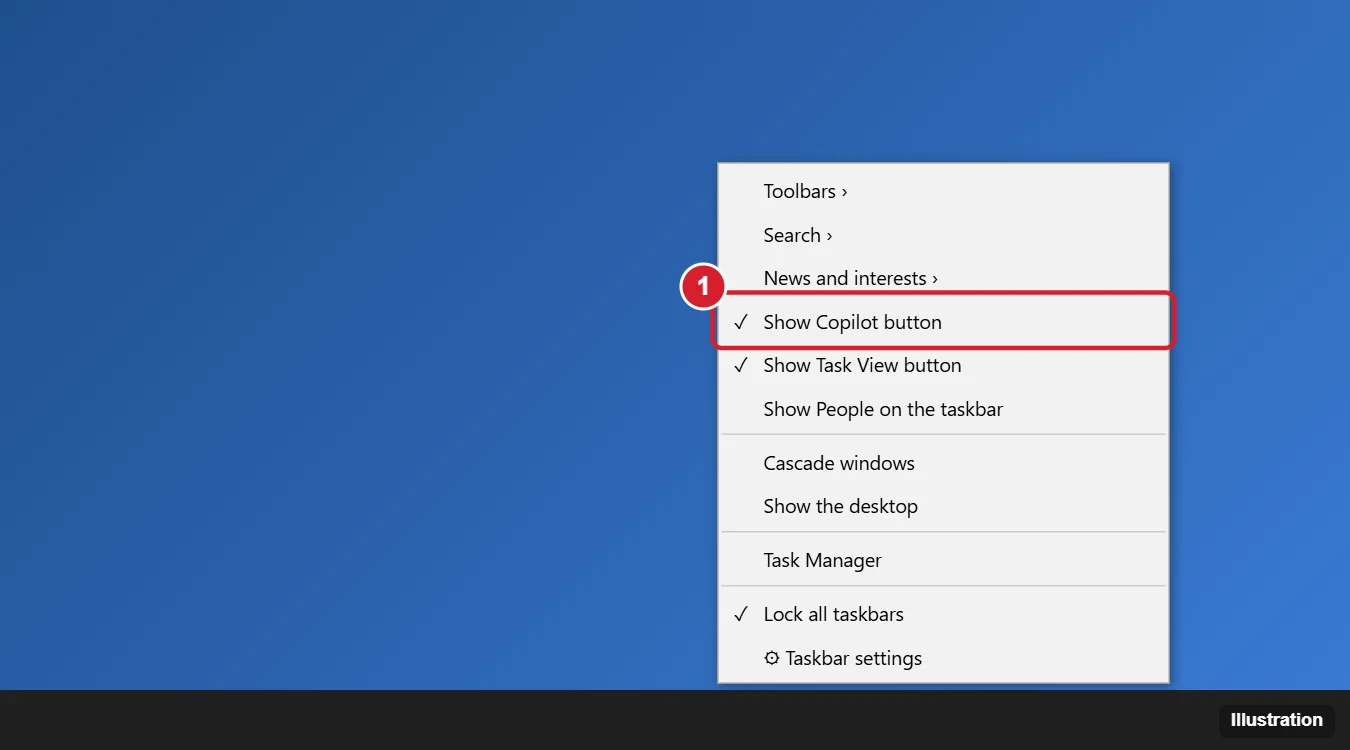
This hides the button but doesn’t remove Copilot. You can still open it with Windows key + C on some versions.
Method 2: Uninstall the Copilot app
- Open Settings > Apps > Apps & features.
- Search for Copilot.
- Click Microsoft Copilot (or Copilot) and choose Uninstall.
You can also run this in PowerShell: Get-AppxPackage *Copilot* | Remove-AppxPackage. Windows updates may reinstall it later, so check again after major updates.
Method 3: Block Copilot with Group Policy (Pro and higher)
- Press Windows key + R, type gpedit.msc, and press Enter.
- Go to User Configuration > Administrative Templates > Windows Components > Windows Copilot.
- Double-click Turn off Windows Copilot, choose Enabled, and click OK.
- Restart your PC.
This policy applied to the original built-in Copilot. Microsoft says it doesn’t fully block the newer Copilot app, so combine it with Method 2. Organizations can use AppLocker or Intune to block the app.
Method 4: Use the registry (Windows 10 Home)
Home editions don’t have Group Policy Editor. Create a restore point first, then:
- Press Windows key + R, type regedit, and press Enter.
- Go to HKEY_CURRENT_USER\Software\Policies\Microsoft\Windows. Right-click Windows, choose New > Key, and name it WindowsCopilot.
- Right-click WindowsCopilot, choose New > DWORD (32-bit) Value, name it TurnOffWindowsCopilot, and set it to 1.
- Restart your PC.
Like the policy, this affects the older built-in Copilot. Uninstall the app as well.
Copilot in other apps
- Microsoft Edge: Go to Settings > Copilot and sidebar and turn off the Copilot button.
- Microsoft 365 apps: Copilot in Word, Excel, and Outlook depends on your subscription. In Word, go to File > Options > Copilot (if available) to turn it off.
More about turning Copilot off
Will disabling Copilot affect Windows?
No. Copilot is an optional assistant. Windows works normally without it.
Can I turn Copilot back on?
Yes. Re-check the taskbar option, reinstall the app from the Microsoft Store, and set the policy to Not Configured.
How do I disable Copilot in Windows 11?
See how to turn off Copilot in Windows 11.

Kermit Matthews runs Live2Tech from just outside Philadelphia. He is an IT specialist with over 20 years of experience, from a university help desk to small-business IT, IT management and his own consulting practice, and has written tech guides full time since 2020. Steps are checked against the current software on a real device or the maker’s official documentation. More about Kermit.