On Windows 11, Copilot is a free app. Most up-to-date PCs already have it: click Start, type Copilot, and open the app. If it isn’t there, install Microsoft Copilot from the Microsoft Store, then sign in with your Microsoft account to get the full set of features. Once it’s installed, you can open it with Windows key + C, the Copilot key on newer keyboards, or by pinning it to the taskbar.
Below are the steps to get Copilot, every way to open it, and what to check if it’s missing on your PC. Microsoft updates Copilot often, so some button names may look slightly different on your computer.
What you need
- Windows 11 with recent updates installed. Copilot is also available on Windows 10, but these steps focus on Windows 11.
- An internet connection. Copilot runs online.
- A Microsoft account (optional but recommended). You can try some features without signing in, but signing in unlocks longer conversations, saved history, and more.
- A supported country or region. Copilot isn’t available everywhere.
Step 1: Check whether Copilot is already installed
- Click Start or press the Windows key.
- Type Copilot.
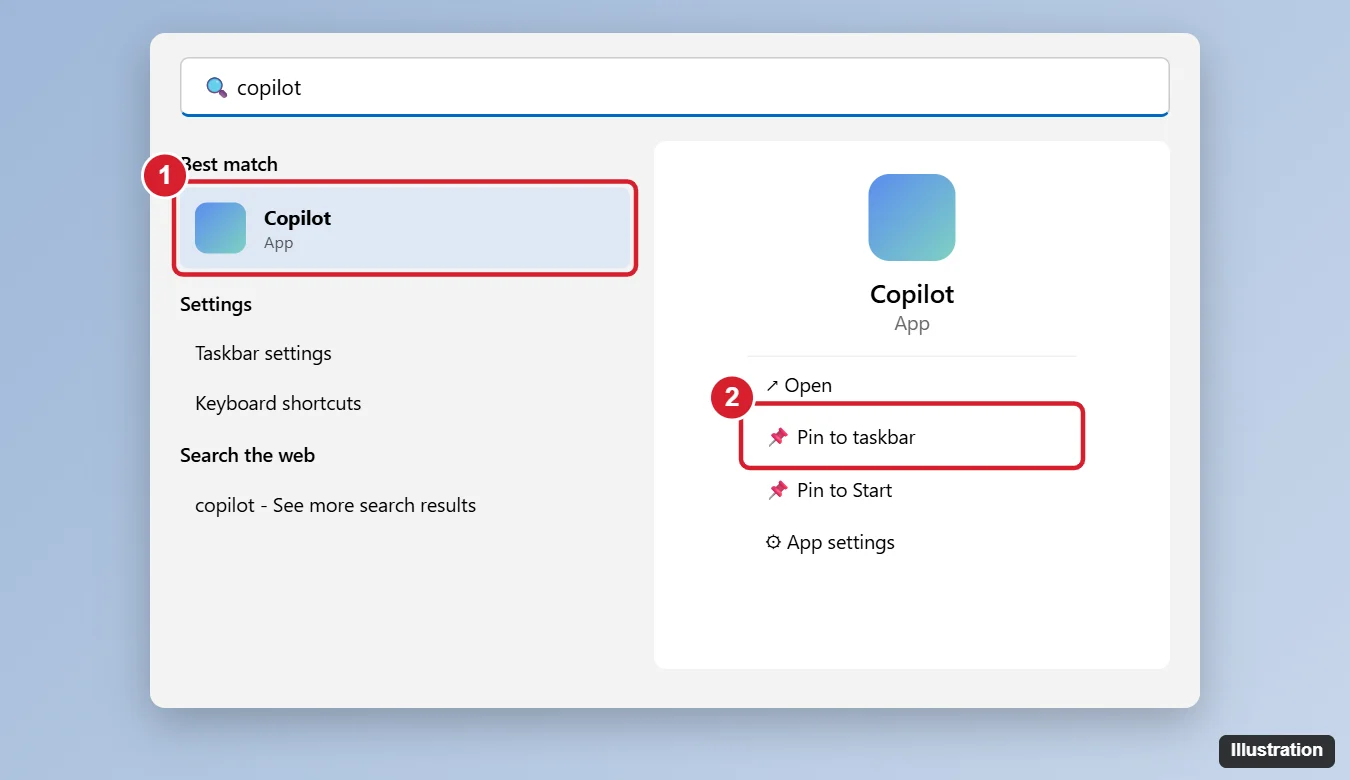
- If Copilot appears under Best match as an app, click it to open it. You can also click Pin to taskbar so it’s one click away.
Step 2: Install Copilot from the Microsoft Store
If searching doesn’t find the app, or you removed it earlier:
- Open the Microsoft Store from the Start menu or taskbar.
- Search for Microsoft Copilot. Make sure the publisher is Microsoft Corporation.
- Click Get or Install.
- When it finishes, click Open.
Be careful with look-alike apps in the Store and on websites. The real Copilot app is free and published by Microsoft.
Step 3: Sign in and start using it
- In the Copilot app, click Sign in and choose the Microsoft account you use on your PC.
- Type a question or request in the message box and press Enter.
- Click the microphone to talk to Copilot, or the attachment button to add a photo or file, if you see those options.
Ways to open Copilot
| Method | How |
|---|---|
| Keyboard shortcut | Press Windows key + C. |
| Copilot key | Press the Copilot key next to the right Alt key, on keyboards that have one. |
| Taskbar | Click the Copilot icon after you pin it. |
| Start menu | Search for Copilot, or find it in All apps. |
| Voice | Some versions let you turn on a “Hey Copilot” wake word in the app’s settings. |
| Web browser | Go to copilot.microsoft.com in any browser. |
If Windows key + C or the Copilot key opens something else, you can usually change it in Settings > Personalization > Text input, where some PCs have an option to customize the Copilot key.
If Copilot isn’t showing up
- Install Windows updates. Go to Settings > Windows Update > Check for updates, install everything, and restart.
- Update the Store app. In the Microsoft Store, click Downloads (or Library) > Get updates.
- Check your Windows version. Very old versions of Windows 11 may not support the app. See how to find out what version of Windows you have.
- Work or school PCs. Your organization may block the consumer Copilot app. You may have the Microsoft 365 Copilot app instead, which works with your work account. Ask your IT department.
- Region. Copilot may not be available in your country or region, or it may have limited features.
- Try the web version. If the app won’t install, copilot.microsoft.com gives you most of the same features.
Copilot vs. Copilot+ PCs
The Copilot app works on any compatible Windows 11 PC. Copilot+ PCs are newer laptops and desktops with a built-in neural processing unit (NPU). They add extra AI features that run on the device, such as enhanced Windows search and image tools. You don’t need a Copilot+ PC to use the Copilot app.
How to remove Copilot if you change your mind
Right-click the app in Start and choose Uninstall, or go to Settings > Apps > Installed apps. For more options, see how to turn off Copilot in Windows 11.
More questions about Copilot on Windows 11
Is Copilot free on Windows 11?
Yes, the Copilot app is free. Microsoft also offers paid plans with extra features and higher usage limits, but you don’t need one to use the basics.
Is Copilot the same as Cortana?
No. Microsoft has retired the Cortana app in Windows. Copilot is its AI assistant now.
Can Copilot change my Windows settings?
It can explain how to change settings and may open the right Settings page for you. What it can do directly varies by version and changes as Microsoft updates the app.

Kermit Matthews runs Live2Tech from just outside Philadelphia. He is an IT specialist with over 20 years of experience, from a university help desk to small-business IT, IT management and his own consulting practice, and has written tech guides full time since 2020. Steps are checked against the current software on a real device or the maker’s official documentation. More about Kermit.