Unpinning an app from Start and the taskbar removes it from the two places most people notice, but Microsoft documents no switch in Windows 11 that makes an installed app invisible to everyone. The app still appears in the All apps list in Start and in Settings, so the right route depends on who you want to keep it from: someone glancing at your screen, another person who uses the PC, or a child.
Who are you keeping the app away from?
Pick the row that matches your situation. Each route is covered in its own section below.
| Situation | Route that fits | How far it goes |
|---|---|---|
| You want a tidier screen, or don’t want an app on view while someone looks over your shoulder | Unpin from Start and the taskbar; move its tray icon to the overflow menu; cut down Start recommendations | Out of sight at a glance, but anyone signed in as you can still find it |
| A family member or roommate uses the same PC | Give them their own user account | Each person signs in to their own account, so they are not browsing yours |
| A child uses the PC | A child account with Microsoft Family Safety, then block the app | The app is blocked for that child, not just hidden |
| You no longer want the app at all | Uninstall it | Gone from the PC (some built-in apps can’t be removed) |
| A work or school PC | Ask your IT department | Managed PCs follow the organization’s rules for what apps appear |
What Windows 11 can and can’t do
Microsoft’s support pages describe ways to pin and unpin apps, change what Start recommends, choose which tray icons show, uninstall apps and give people separate accounts. None of them describes a setting that hides an installed app from someone who is signed in to the same account. Any method that seems to do that only moves a shortcut out of view.
That matters for privacy. Hiding an app is a display choice, not protection: it does not lock the app or its data. If the goal is to stop another person from opening your apps or files, separate accounts with their own sign-in are the route Microsoft documents.
Whatever you unpin or tidy using the routes below, the app is still visible to anyone signed in to your account in these places:
- All apps in Start, which Microsoft describes as an alphabetical list of all installed apps.
- Settings > Apps > Installed apps, the list Microsoft uses for uninstalling.
- Settings > Apps > Startup, if the app starts when you sign in. Microsoft’s startup apps page says a switch set to On will “start the app automatically when you sign in.”
- The taskbar, while the app is open.
Unpinning also does not stop an app from working in the background. For apps that support it, Microsoft’s background apps page lists a setting under Settings > Apps > Installed apps: select More options next to the app, then Advanced options, and under Let this app run in background choose Always, Power optimized (recommended) or Never. Microsoft notes that desktop apps don’t appear in this list.
Tidy your own screen
These routes keep an app out of view on your own account. Each is a display change only: the app stays installed and keeps working.
Take it off Start and the taskbar
These two steps remove the app from the places that are on screen most of the time. The app stays installed and keeps working.
- Select Start, then right-click the app in the pinned area.
- Select Unpin from Start. Microsoft’s wording: “To remove a pinned app or shortcut from the Start menu, right-click on it and select Unpin from Start.”
- If the app also sits on the taskbar, right-click its pinned icon there and select Unpin from taskbar.
An unpinned app still shows on the taskbar while it is open, and it is still listed under All apps in Start. To bring it back later, find it in All apps, right-click it and pin it again. There is more on arranging Start in customizing the Windows 11 Start menu.
If the app also has a shortcut on the desktop, that shortcut can go too; removing desktop icons while keeping the apps covers the options.
Quiet the Recommended section of Start
Start can also reveal an app without it being pinned. According to Microsoft’s Start menu customization page, recommendations show “Recently added and frequently used apps, plus recently opened files,” and you can “toggle off different providers to Start Recommended.”
- Select Start, right-click the bottom of the Start menu and select Start settings.
- Turn off the switches that add recently added apps, frequently used apps and recent files to Start. The exact switch names can change between Windows 11 updates, so read each one before turning it off.
The illustration above shows an older layout; the labels on your Start settings page may differ. Microsoft notes that “If users unpin everything or toggle off all recommended providers in Settings, then those sections collapse,” so a Start menu with nothing pinned and no providers turned on shows very little.
Tuck its tray icon into the overflow menu
Apps that run in the background often put an icon near the clock. Windows 11 can move those icons into a hidden menu instead of showing them on the taskbar.
- Open Settings > Personalization > Taskbar.
- Expand Other system tray icons. Microsoft’s taskbar customization page says this is where you “select if you want to enable the hidden icon menu (also referred to as overflow area), and which icons can appear in the system tray.”
- Turn off the switch for the app whose icon you want out of the tray.
The icon moves to the overflow menu, and the app keeps running.
Keep other people out of your apps
When someone else uses the PC, separating accounts or blocking the app does what hiding cannot.
Give other people their own account
For a PC shared with family or housemates, this is the route that actually separates people. Each person signs in to their own account, with their own Start menu, pins and recent files, so nobody is looking at yours.
- Open Settings and select Accounts > Other user.
- Under Add other user, select Add account and follow the prompts.
- To set what the new person can do, select their account, then next to Account options select Change account type, choose the type from the dropdown and select OK.
Microsoft’s user accounts page advises that “It’s safer to have fewer administrators and to use standard user accounts for day-to-day activities.” Put a password or PIN on your own account so others cannot simply sign in as you. For the full setup, including local and Microsoft accounts, see adding a user to Windows 11.
Use Family Safety for a child
If the person is a child in your Microsoft family group, you can block the app instead of hiding it. Only a family organizer can do this, and Microsoft says blocks are set for each member, device and app.
- Sign in to your Microsoft account at account.microsoft.com, go to the family page and select the child’s tile or card.
- Select the Windows tab, then the Apps, features, and games tab to see the installed apps.
- Select the three dots (…) to the right of the app and choose Block app. To lift it later, select the dots again and choose Unblock app.
The steps are on Microsoft’s Family Safety app-blocking page. To relax limits later, see easing or removing Family Safety limits on Windows 11, and for other ways to block apps outright, restricting apps in Windows 11 compares the built-in options.
Remove it for good
If you never use the app, uninstalling it is the only way to make it disappear from every list. Microsoft’s uninstall page gives this route:
- Select Start > Settings > Apps > Installed apps.
- Find the app you want to remove, then select More > Uninstall.
Microsoft notes that some apps can’t be uninstalled from the Settings app. Other ways to remove stubborn programs are in uninstalling a program on Windows 11.
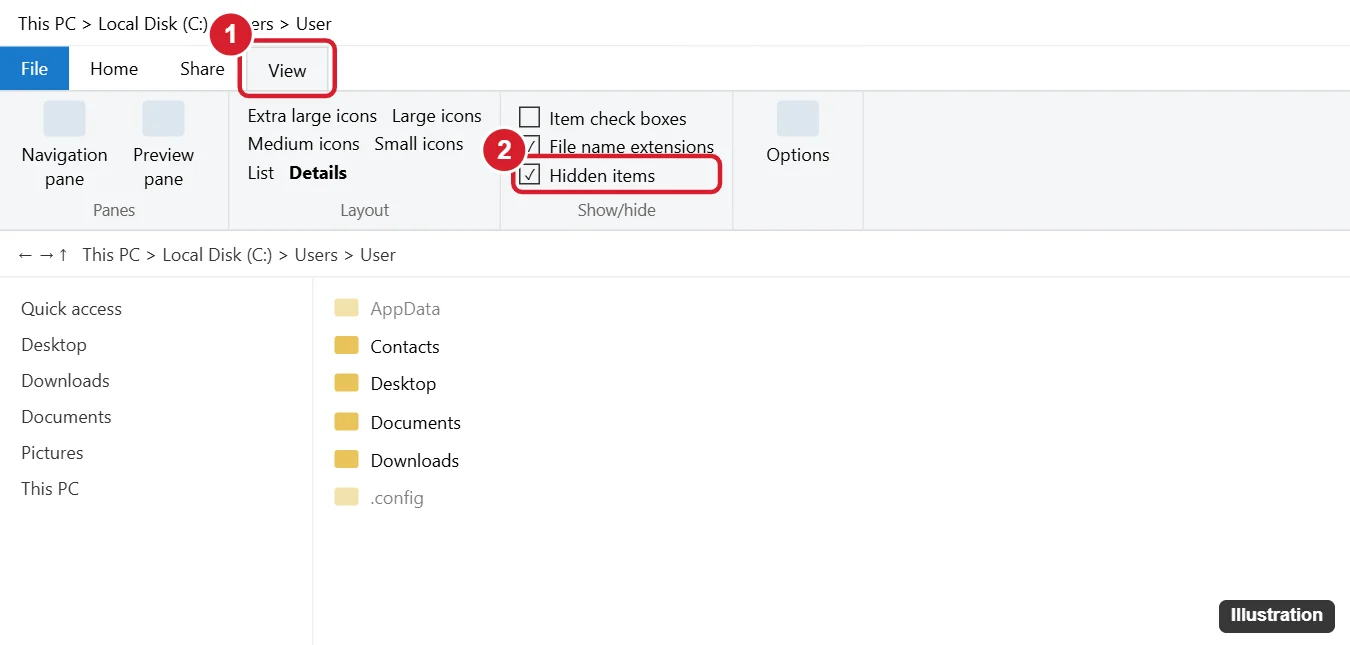
Some people keep a portable app or its files in a folder marked as hidden. File Explorer leaves hidden items out of view only until someone turns them on: Microsoft’s File Explorer help says to “Select View > Show, then select Hidden items to view hidden files and folders.” That is one click away, so a hidden folder keeps things out of casual view and nothing more. Showing hidden files on Windows 11 explains the setting in more detail.
Hiding apps on Windows 11: questions
Can I hide an app from someone who knows my password?
Not with any setting Microsoft documents. Anyone who can sign in as you sees what you see, including All apps and Installed apps. Give that person their own account, and keep your own sign-in to yourself.
How do I get an unpinned app back on Start?
Open Start, go to All apps, find the app, right-click it and pin it again. Unpinning never removes the app, so it is always there to re-pin.
Can I put a password on a single app?
Microsoft’s Windows 11 support pages used here describe no per-app password. The documented ways to control who opens an app are separate user accounts and, for children, Family Safety’s Block app.
Will the app still start when I sign in?
Yes, if it was set to. Unpinning changes nothing about startup; turn the app’s switch off under Settings > Apps > Startup if you don’t want it running at sign-in.
For most people, unpinning plus turning off Start recommendations is enough for a tidy, low-profile screen; if someone else uses the PC, set up their own account next.

Kermit Matthews runs Live2Tech from just outside Philadelphia. He is an IT specialist with over 20 years of experience, from a university help desk to small-business IT, IT management and his own consulting practice, and has written tech guides full time since 2020. Steps are checked against the current software on a real device or the maker’s official documentation. More about Kermit.