Before you remove an app icon from a Windows 11 desktop, right-click it and open Properties: that one check tells you whether it is a shortcut you can safely remove or the actual file. Most app icons are shortcuts, small pointer files that open a program installed somewhere else, so removing one normally leaves the app on your PC and in Start. The sections below cover each case, plus hiding icons, system icons and OneDrive-backed desktops.
First, find out what the icon really is
Three different kinds of things can sit on a Windows 11 desktop, and removing each one has a different result.
| What the icon is | Example | What removing it does |
|---|---|---|
| A shortcut | An icon an installer put there for a browser or a game | Removes the pointer. The program itself normally stays installed. |
| A real file or folder | A document, photo, download or folder saved to the desktop | Deletes that item (it goes to the Recycle Bin). |
| A system icon | This PC, Recycle Bin, Network, User’s Files | Cannot be deleted the normal way; it is turned on or off in Desktop icon settings. |
The quickest test is the Properties window:
- Right-click the icon and select Properties. (If you only see a short menu, it may be under Show more options.)
- Look at the tabs. A shortcut normally opens on a Shortcut tab with a Target box that shows the path of the program it opens.
- On the General tab, the type of file for a shortcut reads as a shortcut (.lnk). A document shows its own type instead, such as a Word document or JPG file.
The small curved arrow in the corner of an icon is a helpful hint, but it is not proof. Not every shortcut shows the arrow, and a program file (one ending in .exe) can be saved straight onto the desktop with no arrow at all. Deleting a program file like that deletes the program itself, which is why Properties is the safer check.
Shortcuts: delete the pointer, keep the app
Once Properties confirms the icon is a shortcut:
- Right-click the shortcut on the desktop.
- Select Delete (in the Windows 11 menu it is shown as a trash can icon). You can also click the shortcut once and press the Delete key, or drag it onto the Recycle Bin.
- Open the app from Start or the taskbar search box to confirm it still runs.
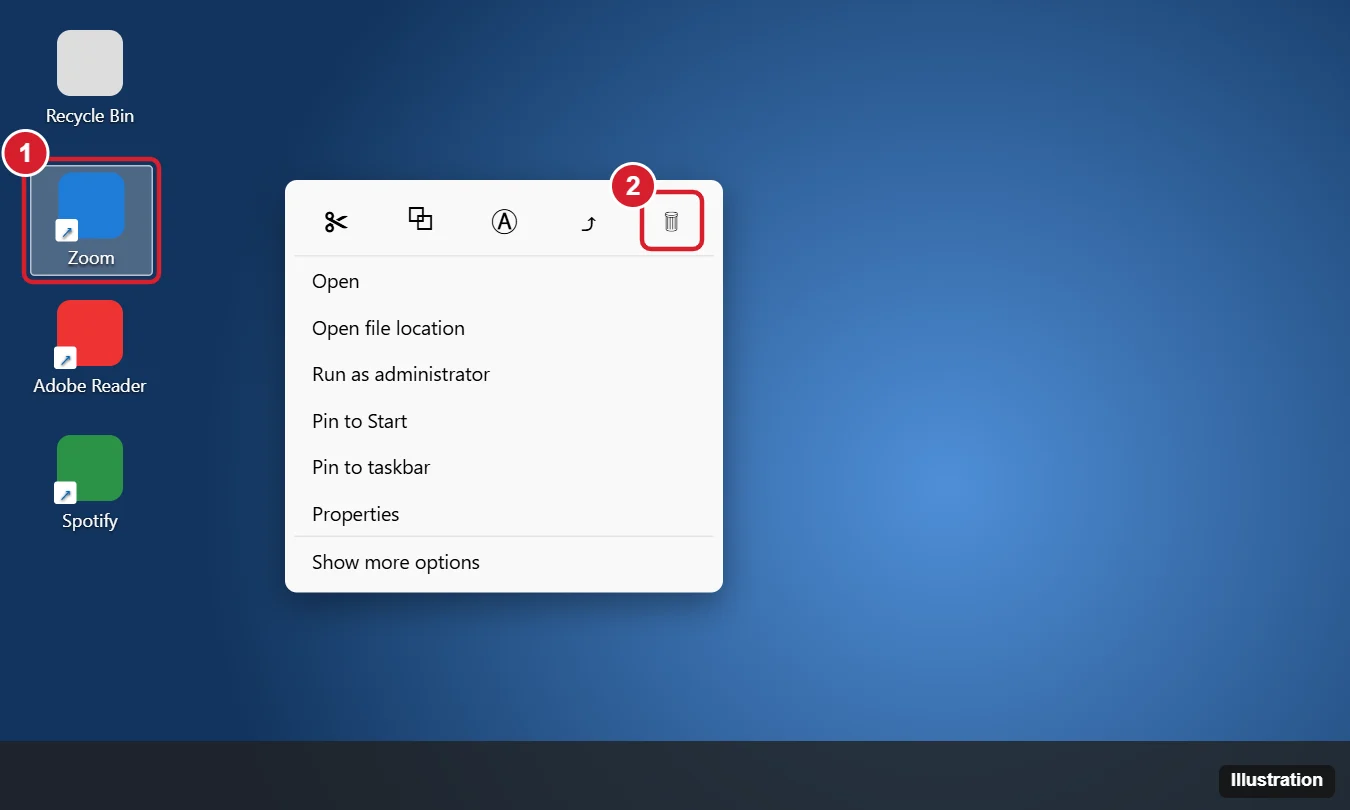
To clear several at once, hold Ctrl, click each shortcut, then press Delete. Deleted shortcuts land in the Recycle Bin, so you can open it and restore one if you removed the wrong icon. If an app puts its shortcut back after an update, look in that app’s own settings for a desktop shortcut option.
Green check marks or cloud symbols on the icons are a separate thing: they show OneDrive’s sync status, and removing the green check marks from desktop icons is a different setting.
Bring a shortcut back, or remove the app for real
Changed your mind? Open the Recycle Bin and restore the shortcut, or make a new one. Microsoft’s route is to open Start, select All, and drag the app onto the desktop. More ways, including website shortcuts, are in making shortcuts on Windows 11.
For apps that resist dragging, the app-by-app desktop shortcut routes list the fallbacks.
If you actually want the program gone, deleting a shortcut normally will not do it. Uninstall it from Settings > Apps > Installed apps, as described on Microsoft’s uninstall apps page. The full set of methods and fixes is in uninstalling a program on Windows 11, and deleting apps on Windows 10 and 11 covers Store apps and stubborn programs.
Real files and folders: move them instead
If Properties shows a document, photo, video, folder or program file, the desktop is where that item actually lives. Deleting it removes it, not a copy. To tidy the desktop and keep the item:
- Open File Explorer and go to the folder that should hold it, such as Documents or Pictures.
- Drag the item from the desktop into that folder, or right-click it, select Cut, then paste it in the folder, so it moves instead of being copied.
- If you still want one-click access, make a shortcut to it afterward. Microsoft’s desktop icons page gives the route: right-click the file and select Show more options > Send to > Desktop (create shortcut). On some installs the full menu appears straight away, so you will see Send to without Show more options.
Desktops that back up to OneDrive
If OneDrive backs up your Desktop folder, what you see on the desktop is also stored in OneDrive. Microsoft’s OneDrive folder backup page says that when you back up the Desktop folder, “the items on your desktop roam with you to your other desktops where you’re running OneDrive.” Two practical results follow:
- Because desktop items roam, shortcuts saved on another PC’s desktop can appear on this one too, even for apps this PC does not have installed.
- Because the same items appear wherever OneDrive runs, tidy real files by moving them into a folder rather than deleting them.
Backup is managed from the OneDrive icon: open OneDrive’s settings, go to the Sync and backup tab and select Manage backup. Read the prompt carefully before you turn off backup for the Desktop. Microsoft describes two choices: “Keep the files only in OneDrive, removing them from your computer” or “Keep the files only on my PC, removing them from OneDrive.” Picking the first moves the files off the PC. For a wider look at what changes when you stop using OneDrive, see turning off OneDrive on Windows 11.
Hide icons instead of deleting them
Two kinds of hiding remove nothing at all: one hides every icon for a while, the other switches off individual system icons.
If the icons you keep still look scattered across the screen, what makes desktop icons look far apart in Windows 11 covers icon size, scale and the arrange options.
Hide every icon for a clean screen
If the goal is a clean screen for a presentation or a screenshot, hide the icons instead of removing them:
A plain solid color behind the desktop helps too, and setting a new desktop background shows where to pick one.
- Right-click an empty area of the desktop.
- Select View, then clear the check from Show desktop icons.
Every icon disappears and nothing is deleted. Repeat the steps and select Show desktop icons again to bring them back. While they are hidden, Microsoft notes you can still reach everything by opening File Explorer and selecting Desktop in the navigation pane. If the icons are just too big, the same View menu changes their size; see changing desktop icon size in Windows 11.
Switch off This PC, Recycle Bin and other system icons
System icons are switched on and off rather than deleted:
- Open Settings > Personalization > Themes.
- Select Desktop icon settings.
- Clear the box for each icon you do not want: Microsoft names This PC, Recycle Bin, Network and User’s Files.
- Select OK.
The same window has an Allow themes to change desktop icons box. Clear it if a new theme keeps bringing back icons you removed. Microsoft’s missing desktop icons page uses the same window in reverse when icons vanish. Hiding the Recycle Bin has a few extra points of its own, covered in how to hide the Recycle Bin in Windows 11. To put This PC back later, see adding a This PC shortcut to the desktop, and to give a system icon a different picture, changing app and desktop icons.
Before you press Delete
I hid my icons. Where did my desktop files go?
Nowhere. Hiding only stops Windows drawing them. Open File Explorer and select Desktop in the navigation pane to see them, or turn Show desktop icons back on.
Are the steps different on Windows 10?
Microsoft’s desktop icons page applies to both Windows 10 and Windows 11 and gives the same View and Desktop icon settings steps. Microsoft also states that support for Windows 10 ended on October 14, 2025.
To take an app off Start and the taskbar as well, follow the steps for keeping apps out of sight on Windows 11.

Kermit Matthews runs Live2Tech from just outside Philadelphia. He is an IT specialist with over 20 years of experience, from a university help desk to small-business IT, IT management and his own consulting practice, and has written tech guides full time since 2020. Steps are checked against the current software on a real device or the maker’s official documentation. More about Kermit.