Two kinds of people usually search for this: a parent who set up Microsoft Family Safety years ago and wants to ease off, and a teen or young adult who has outgrown the limits. Either way, Family Safety is switched off from the family account online, not from a Windows 11 setting. The organizer (the adult who manages the family group) signs in at account.microsoft.com/family and relaxes a control, removes a person, or ends the group.
Match your situation to the right fix
Find the row that describes you, then jump to the section it names. The right choice depends mostly on whether you still want to share things like a Microsoft 365 Family subscription.
| Your situation | Who acts | What to do | Shared subscriptions kept? |
|---|---|---|---|
| A child still needs some rules, just fewer of them | Organizer | Relax one control | Yes |
| A teen or grown child should have no controls at all | Organizer | Take one person out | No, for that person |
| Nobody in the household needs Family Safety anymore | Organizer | Shut down the group | No |
| You are an adult member and the limits bother you | Ask the organizer | Either of the first two rows | Depends on their choice |
| You are in no group (or you are the organizer) but Windows still asks for a parent’s permission | You, on the PC | Run the refresh task | Not affected |
Check your role in the family group
A family group is a set of Microsoft accounts linked together. Organizers can add and remove people, change limits and see activity reports. Members, of any age, can ask for more time or for purchase approval, but they can’t change their own settings. That is why a teen can’t simply switch Family Safety off from their own account.
- On any device, go to account.microsoft.com/family and sign in with the Microsoft account you use on the PC.
- Look at the list of people. If you see a menu (three dots) next to your own name with Leave family group in it, you are an organizer.
- If that option is missing, you are a member, and only an organizer can change your settings.
- If the page invites you to create a family group, you are not in one at all. Skip to the section for adults still restricted on the PC.
On the PC itself, Windows Security shows a shortcut: open Windows Security, select Family options, then View family settings to open the same website. Settings > Accounts also has a Family page on current builds that links to the online settings; the button wording there can vary, so look for the option to manage family settings online.
For child accounts, age matters. In many countries a child under a set age needs parental consent to use a Microsoft account (13 in the United States). Microsoft keeps a list of statutory age limits by country or region.
Relax one control but keep the family together
This is the lightest option. Say Priya is 16 and shares her mom’s Microsoft 365 Family plan. Her mom can drop the screen time limit and web filter while Priya stays in the group and keeps the shared subscription. Only an organizer can make these changes.
Screen time
- Sign in at account.microsoft.com/family with the organizer account and select the member’s tile.
- Choose the platform tab you want to change: Windows, Xbox or Mobile (the Mobile tab applies to Android devices).
- Select the more options icon (three dots) and choose Turn limits off.
- Repeat on each tab that has limits. In the Family Safety app, tap the member’s tile, open the Windows or Xbox section and use the same more options menu.
These labels match the screen time limits page. If you’d like to see how much time is actually being used before you decide, read how to check screen time on a Windows PC.
Web and search filters
- On the member’s page, open the overview and select the Edge tab. In the app, tap the member and then Content filters.
- Turn off Filter inappropriate websites and searches.
- Check the related toggles too: Only use allowed websites (turn it off if it’s on, or the member can still reach only your allow list) and Always allow educational websites.
This step matters more than it looks. Family Safety filters work only in Microsoft Edge, so while filtering is on, other browsers are blocked on the member’s Windows device. Turning the filter off removes that reason for the block. If Chrome or Firefox stays blocked, check App and game filters on the same page and unblock it there. The full toggle list is in Filter websites and searches using Microsoft Family Safety. To block a handful of sites on a shared PC without Family Safety, see ways to block websites on Windows.
Activity reporting, apps and spending
Activity reporting has its own switch on the member’s page (in the app, tap the member, then the settings icon). Turn it off for each platform listed. App and game limits and spending settings sit on the same member page, so remove those individually if they are the only thing causing trouble.
Take one person out of Family Safety
Removing someone from the group turns Family Safety off for them completely. Before you do it, know what they lose: anyone removed from a family group also loses shared products such as a Microsoft 365 Family subscription, and you can no longer manage their settings.
- Sign in at account.microsoft.com/family with an organizer account.
- Find the person and select the more options icon (three dots) next to their name.
- Choose Remove from family group.
- Select Remove to confirm. The person disappears from the family list.
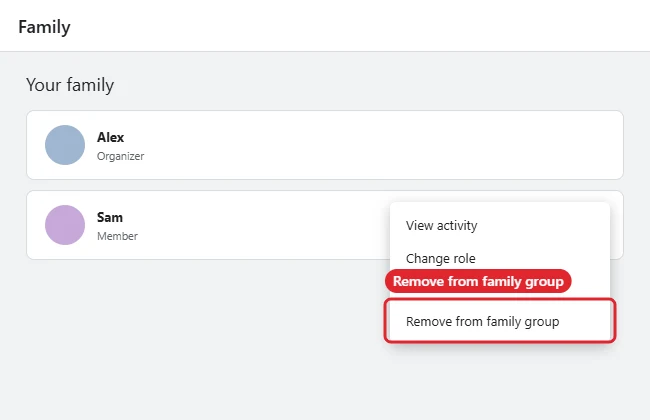
If Remove from family group doesn’t appear for a child, parental consent is probably still in place. Select the more options icon next to their name, choose Remove consent for this child’s account, then go back and remove them. Only the adult who gave consent can withdraw it, and a child may not show up under consent at all if another adult or a different account gave it. Microsoft explains the rules on its Managing parental consent page.
Shut down the family group completely
There is no single delete button. As an organizer, remove every other member and organizer first (previous section), then select the menu next to your own name, choose Leave family group, and confirm with Remove. Microsoft also deletes any group left without an organizer and at least one other member.
If you don’t see Leave family group, you aren’t an organizer and need one to remove you. The full rules are in How to leave a Microsoft family group.
When an adult is still restricted on the PC
Sometimes an adult who is not in a group, or who is the organizer, still sees “ask a parent” prompts or time limits on Windows 11. This can happen when the PC was once set up under a family group. Microsoft’s fix runs a built-in task that makes Windows recheck the account’s family settings:
- Press Windows key + R, type cmd, and select OK.
- In Command Prompt, enter this command exactly (from Family Safety settings enforced on adults) and press Enter:
schtasks /run /tn "Microsoft\Windows\Shell\FamilySafetyRefreshTask" - Restart the computer.
- Repeat on every PC where the restriction shows up.
If you are an adult member of a group, this task won’t help: the organizer controls your settings, and Microsoft says it is working on letting adult members opt in or out themselves.
Two other causes are worth ruling out, both listed in Microsoft’s Family Safety troubleshooting page:
- The birth date on the account is wrong. An adult with a child’s birth date is treated as a child. Correct the account information through Microsoft’s process rather than trying to edit your way around the organizer.
- Windows asks you to verify the account. If a Verify prompt appears under Settings > Accounts, complete it (Microsoft also offers aka.ms/familyverify).
The opposite problem, a child whose controls don’t stick, often comes from the child having an Administrator account on the PC. Switch it to a Standard user under Settings > Accounts > Other users > Change account type. The steps are in changing an account’s rights in Windows 11.
Moves that do not switch Family Safety off
These come up often, and none of them changes the family group:
- Uninstalling the Family Safety app. The settings live with the Microsoft account, so the app is only a remote control.
- Removing the user from the PC. Settings > Accounts > Other users, then Remove next to Account and data, deletes that person’s sign-in and files from the device. Their Microsoft account and their place in the family group stay. For the difference between the two, see taking a Microsoft account off a Windows 11 PC and removing another user’s account from Windows 11.
- Signing in to Windows with a local account. Family Safety follows the Microsoft account, so a local sign-in may stop enforcement on that one PC, but the group, the limits on other devices and the organizer’s control are untouched. If you want a local sign-in for other reasons, see switching Windows 11 to a local account.
- Stopping the Parental Controls service or editing the birth date. These are workarounds, not off switches. Updates can undo them, and the family group stays exactly as it was.
Confirm the change and turn controls back on
After any change, have the person sign out of Windows and back in, or restart the PC, so the device picks up the new settings. Then check:
- The member’s page on account.microsoft.com/family shows no limits on the tabs you changed, or the person no longer appears in the list.
- On the PC, other browsers open normally and the screen time warning no longer appears.
Every option here can be undone. To restore screen time, open the platform tab and select Turn limits on. Filters and activity reporting turn back on with the same toggles, although a teen who opted out of activity reporting has to agree again. Someone you removed can be added back to the group from the same family page.
Family Safety questions
What happens after I remove consent for a child?
Once consent is removed and the child is out of the family group, the child’s account should ask for parental consent again the next time they sign in, so a younger child can’t simply carry on without an adult.
Can a teen switch off activity reporting on their own?
In many regions, kids 13 and older (13 in the US) can opt out of sharing activity data, which stops reports. The other controls still need an organizer.
Next step: sign in at account.microsoft.com/family, confirm your role, and pick the lightest option from the table that solves the problem.

Kermit Matthews runs Live2Tech from just outside Philadelphia. He is an IT specialist with over 20 years of experience, from a university help desk to small-business IT, IT management and his own consulting practice, and has written tech guides full time since 2020. Steps are checked against the current software on a real device or the maker’s official documentation. More about Kermit.